 GoalNav Manual
 In This Chapter
How to Log In
GoalNav® Sign-in and Log-in Instructions
To start using the GoalNav® system, access it through your assigned study domain. It should look similar to this:
[domain].goalnav.ca
The study domain can be found in the GoalNav training document provided when gaining access to GoalNav. If you cannot find it, please contact us using your study-specific email.
If you use the URL: “goalnav.ca” you will be redirected to enter your domain:
If you are uncertain about your GoalNav domain, click on “What’s my domain” to see instructions for locating it.
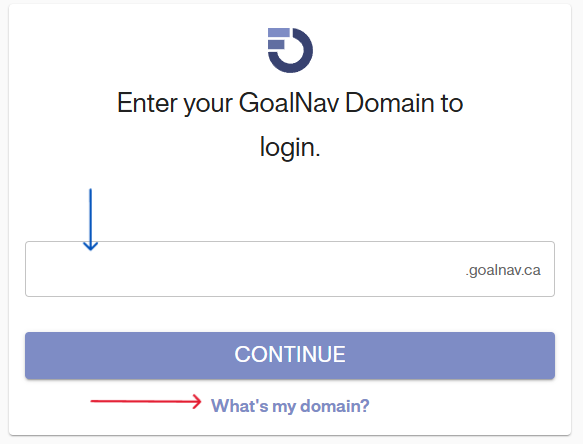
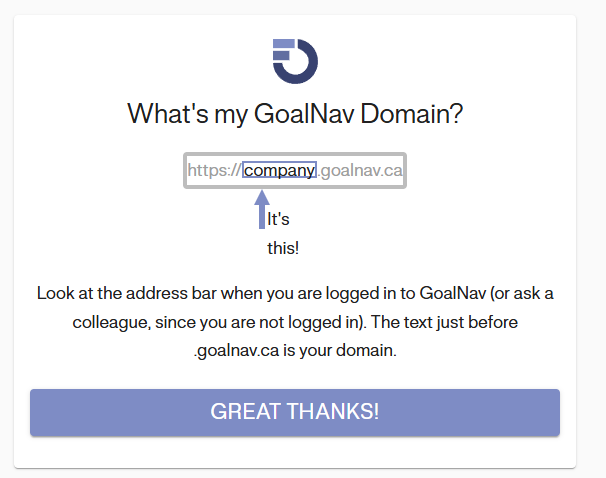
Enter GoalNav domain in the text field, next to “.goalnav.ca”
This will take you to the GoalNav® Login Page
Please ensure you have completed your training on Goal Attainment Scaling and the GoalNav® system prior to conducting your first GAS interview.
GoalNav® Account Sign-in
After entering the GoalNav domain, you will be prompted to enter an email address. Enter your email and click Next.
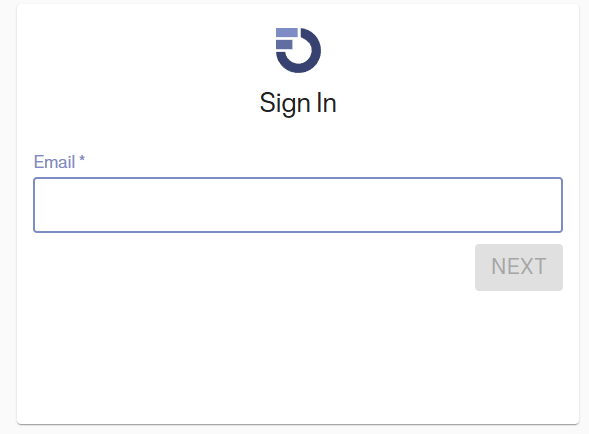
Note: If your organization has chosen to allow signing into GoalNav with a work account via Single Sign On (SSO), after clicking Next on the email prompt you will be redirected to your organization’s login page. Login as you normally would with your work account, and you will be redirected back to GoalNav once done. You are not required to create a GoalNav account if signing in this way.
If you have a password set for the account, enter the password in the password field and then click “Sign In”.
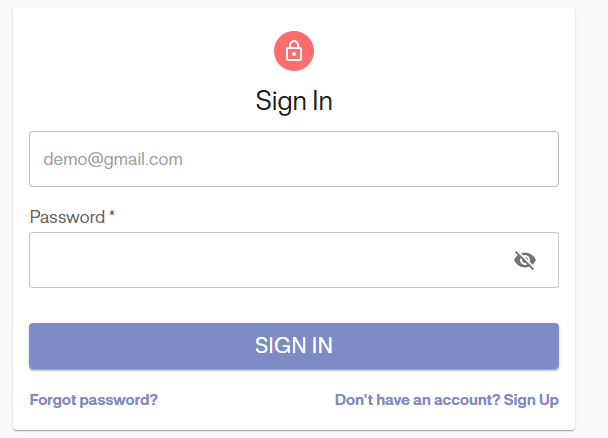
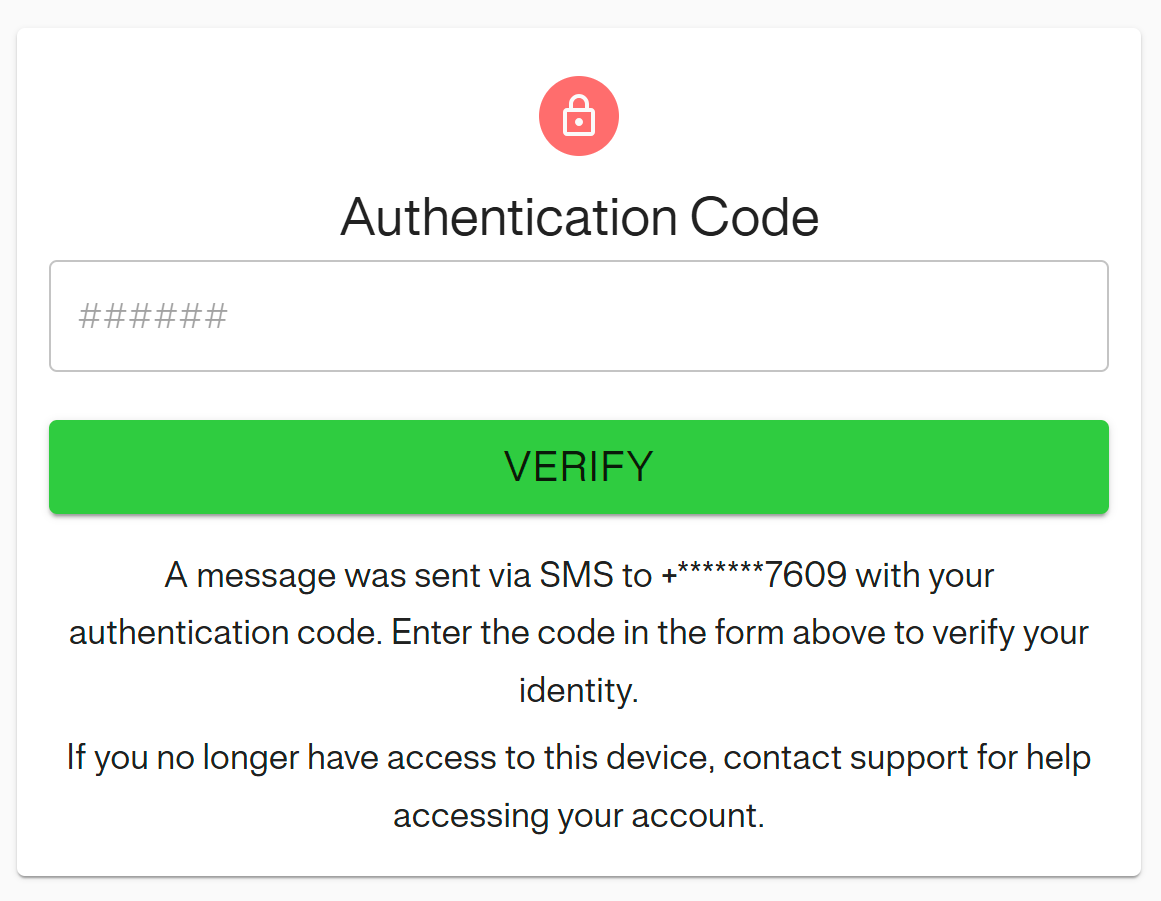
If you have your 2 Factor authentication enabled, the site will redirect you to complete 2 factor authentiation by asking for a code sent on your preferred authntication source. Enter the code in the text box and then click on “VERIFY”.
Common Sign-in Issues
If you have not been authorized to use the GoalNav® system by the GoalNav® team, the following message will display.
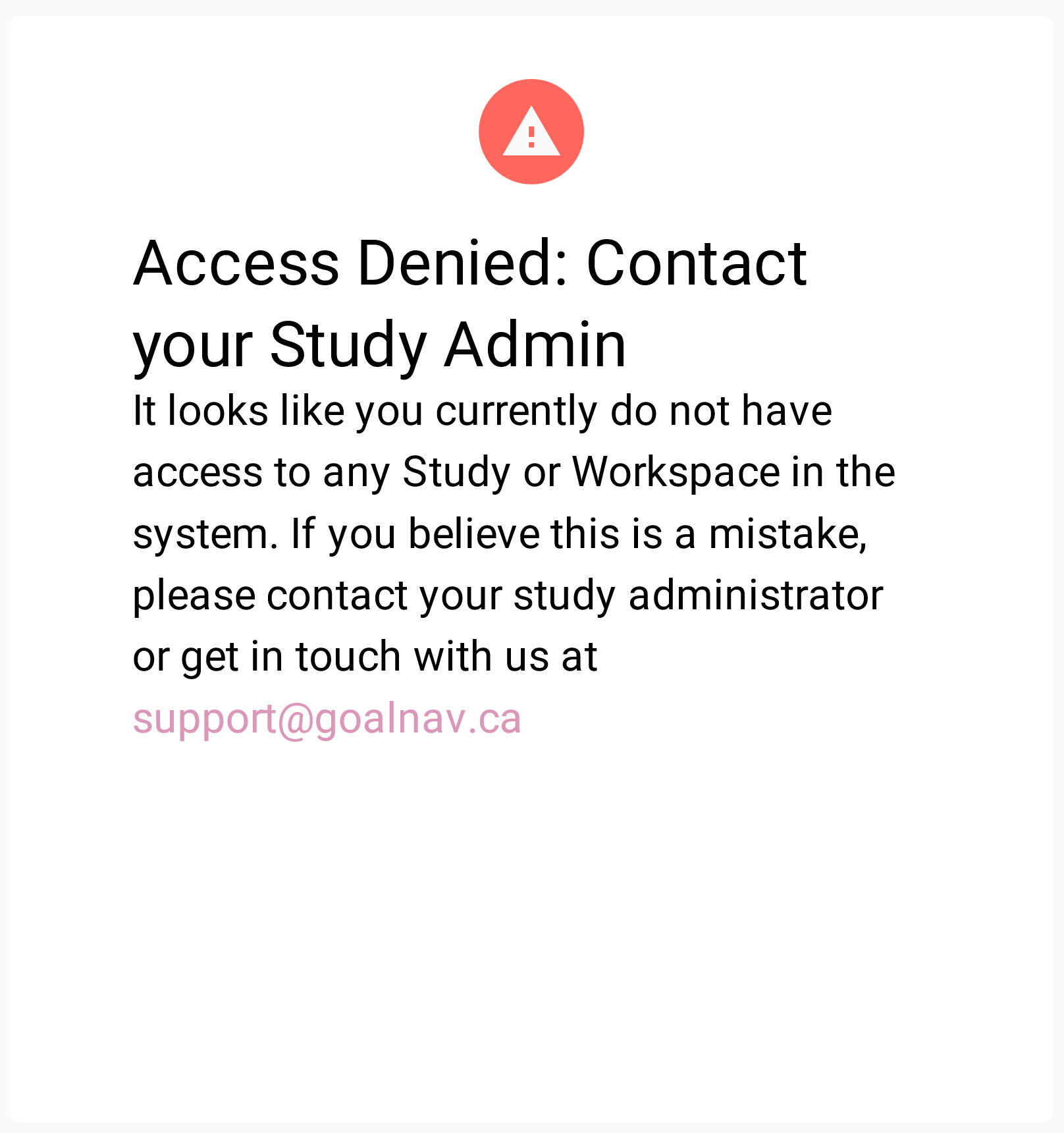
Please contact the email listed and our team will review the issue. If you are having trouble signing-in, or if you have forgotten your password, please contact us at support@goalnav.ca