GoalNav Manual
 In This Chapter
Reviewing and Managing Data
Data Explorers
Overview
The data explorer section in GoalNav® enables users to search for records efficiently using queries and apply specific filters for data retrieval. Instructions to access the data explorer are provided below.
View Data
On the Trial homepage, click the grid icon in the menu bar to access the data explorer.
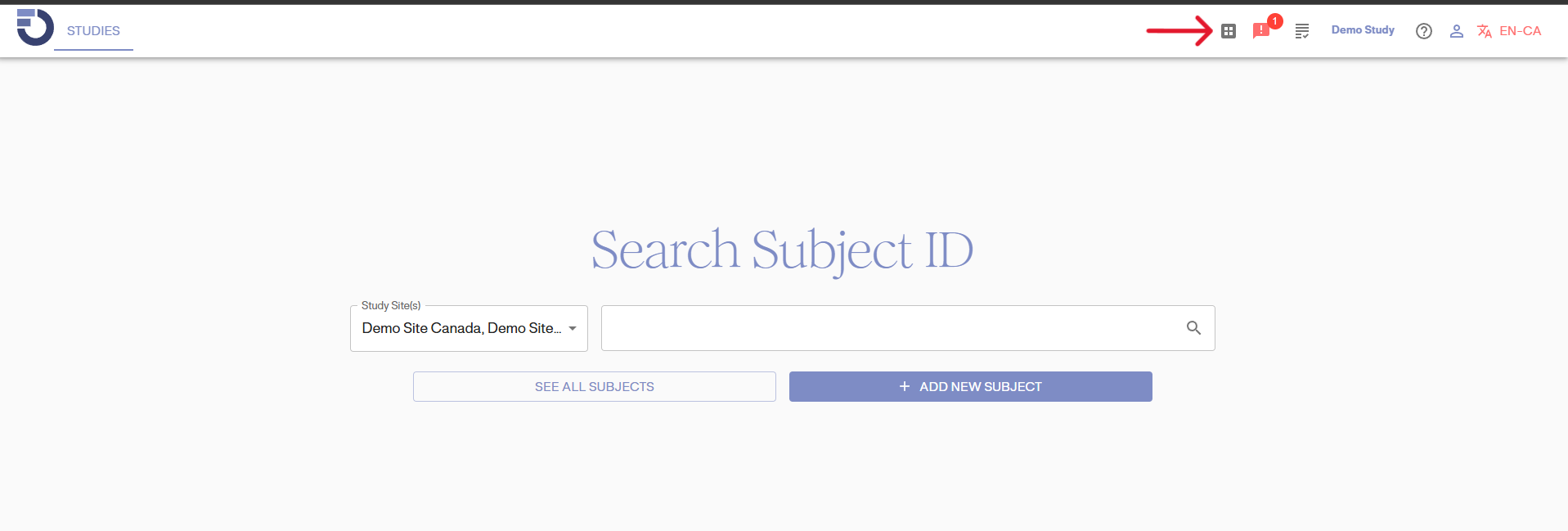
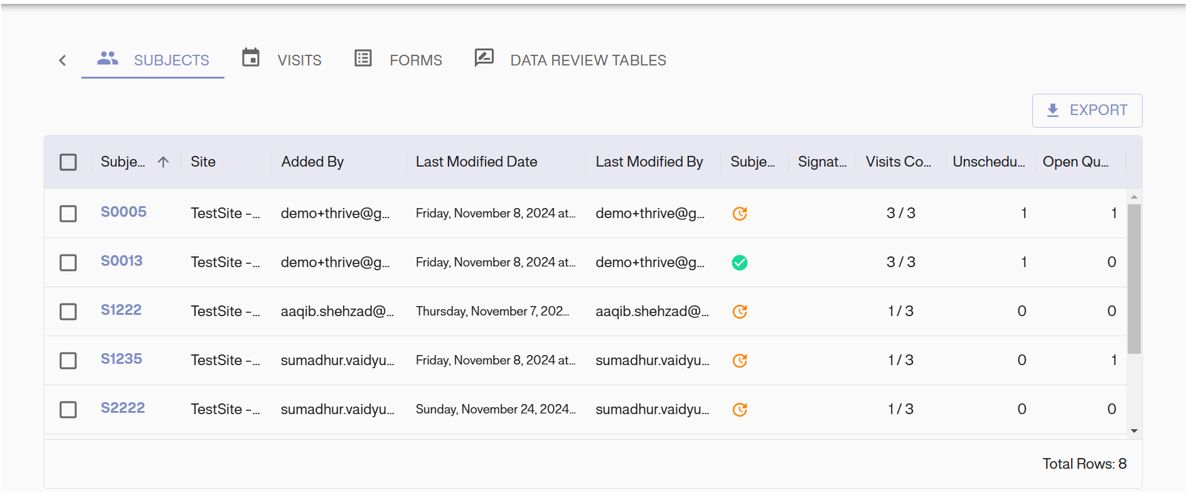
Click the grid button to open the data explorer dashboard, as shown in the image below. This dashboard displays records for Subjects and Visits and data review tables that show records based on the selected visit. For example, the table below shows the records related to “Subjects”.
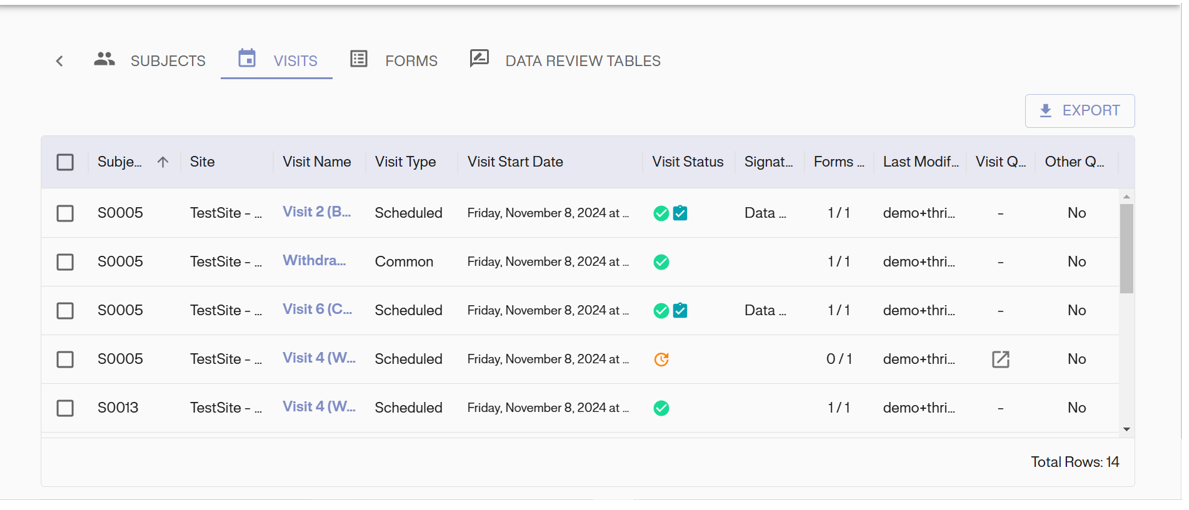
Visits Record:
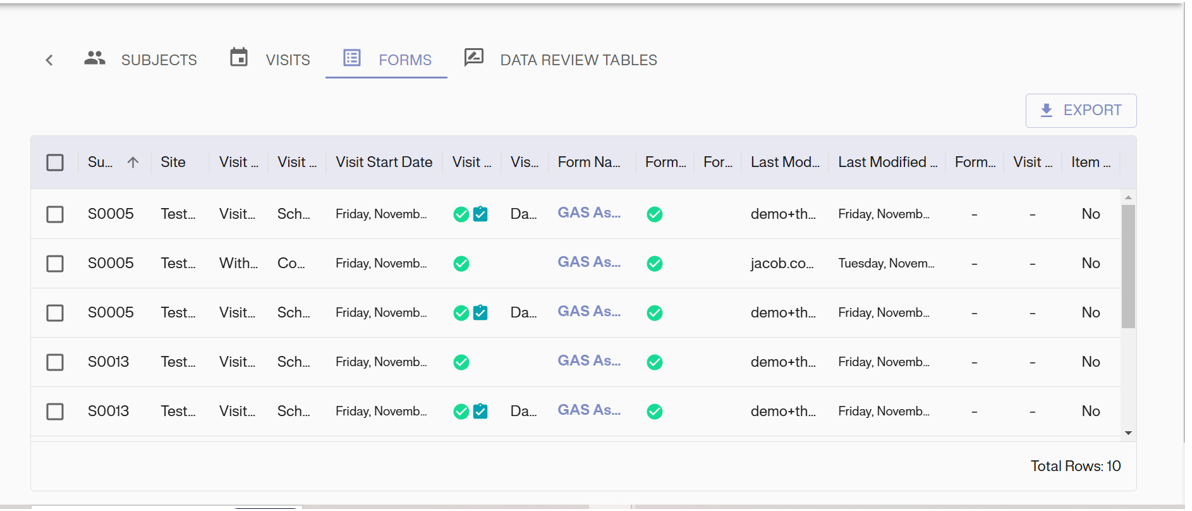
Forms Record:
Export Data
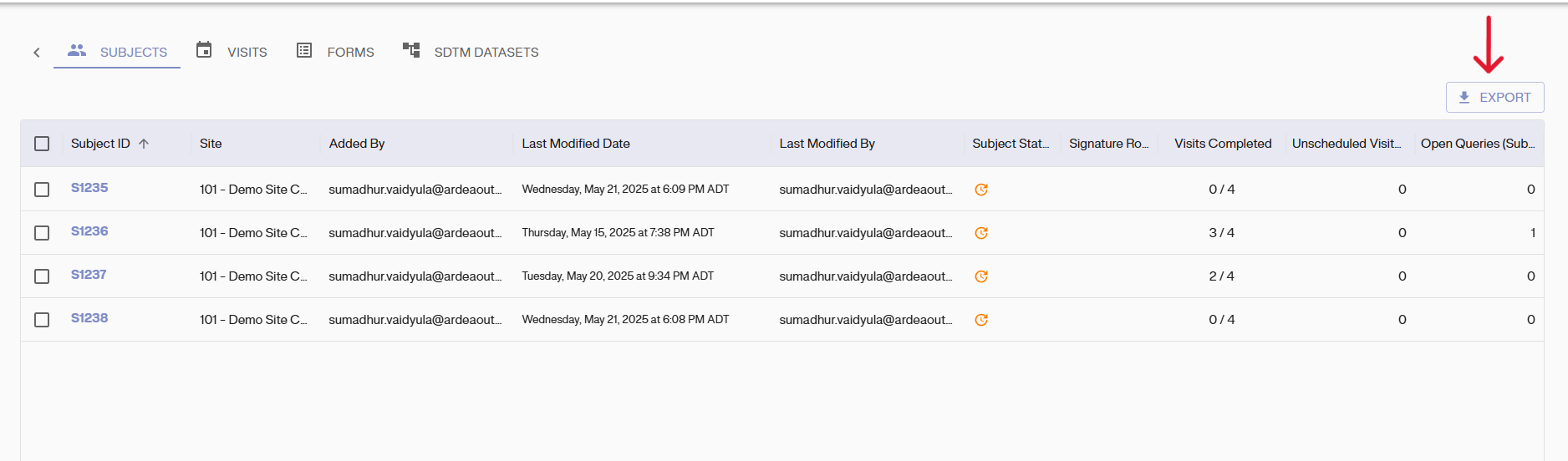
Each record table (Subject, Forms, Visit, Data Review Table) has an “Export” button located at the top right corner of the page. This button generates a CSV file of the records and downloads it to your device.
Data Locking
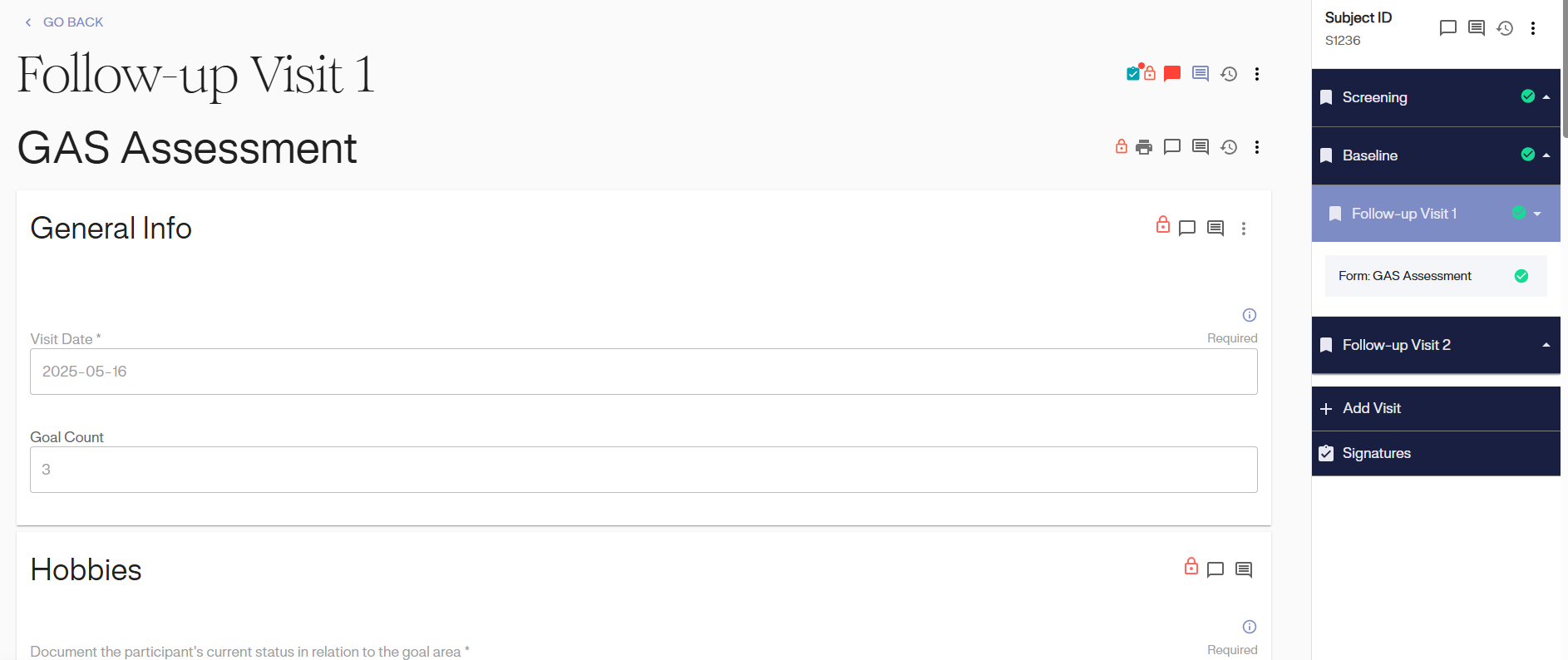
Data locking may occur during your study depending on data management requirements. The locking of the data is primarily completed by the studies data management teams and is not a feature for data entry personnel. If you have data entry access, you will see the lock option is unavailable. See example of unavailable locked visit option below:
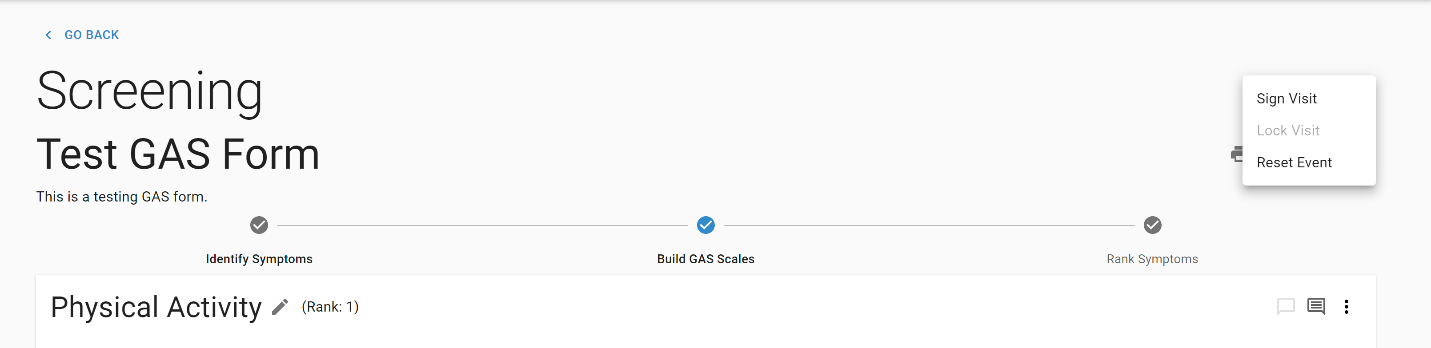
It is important to note that once data has been locked (regardless of the level), a special request must be made to the GoalNav® support and/or data management team to unlock the data for a data entry personnel to make any changes unless the changes being made are in response to a query. This may be missing data from the visit or an error when entering data. Whether data will be unlocked for site requested changes or not remains on a case-by-case basis. If the change you are making is in response to a query and the visit is locked, email your study specific email for support.
In general, you will note data locking occurs at the VISIT LEVEL. However, depending on the study, the form level or subject level may also get locked. An example of locking at the visit level is demonstrated below:
A Locked Screening Visit Example: