GoalNav Manual
 In This Chapter
Signature Records
Add Signatures
Once a visit has been completed, you may be required to provide a digital signature, depending on your study requirements.
Signatures at the Subject Level: The PI is generally responsible for signing the subject level if required.
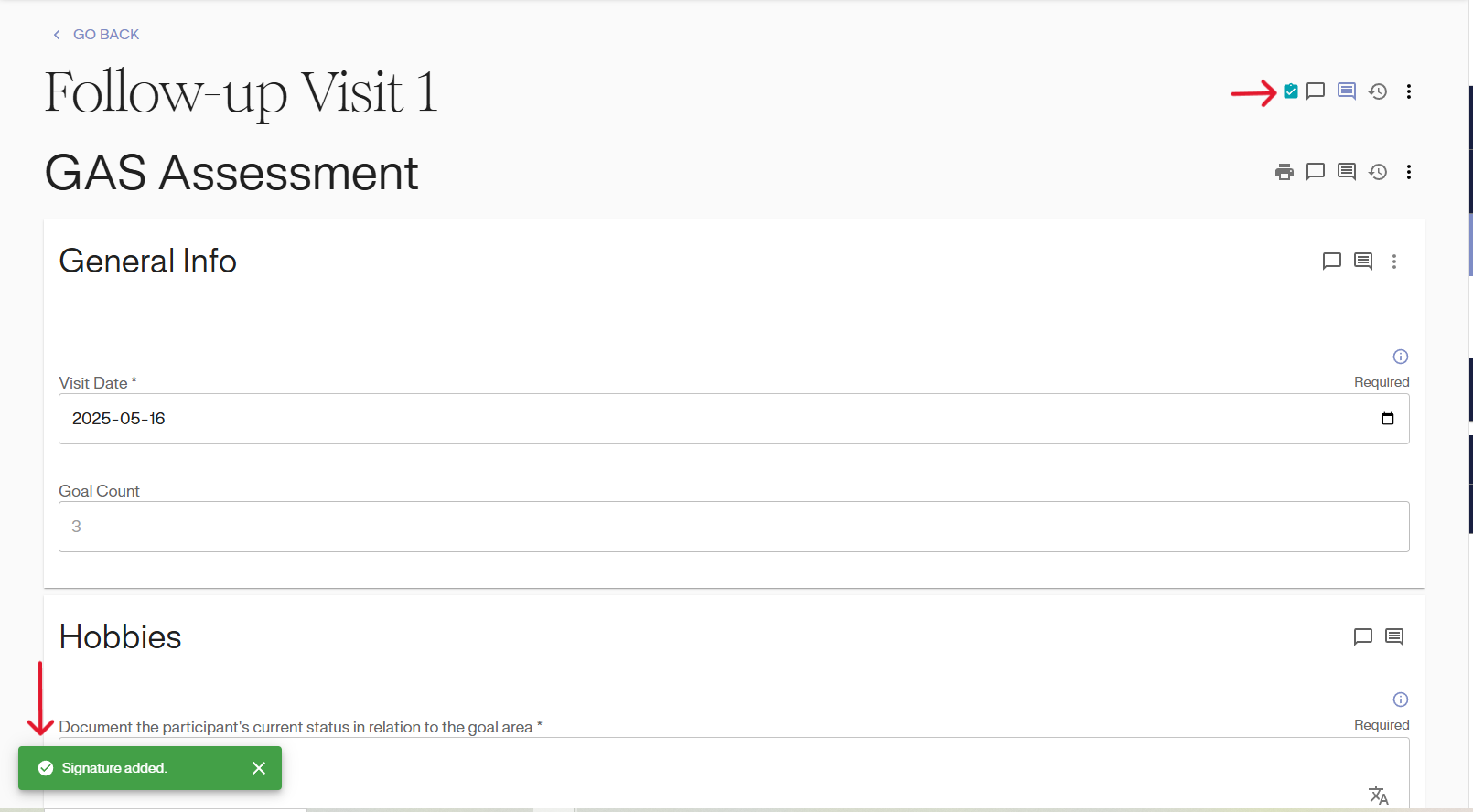
Sign Visit Example:
To sign the visit, click on the 3 dots on the right side of the Goal Attainment Scaling form.
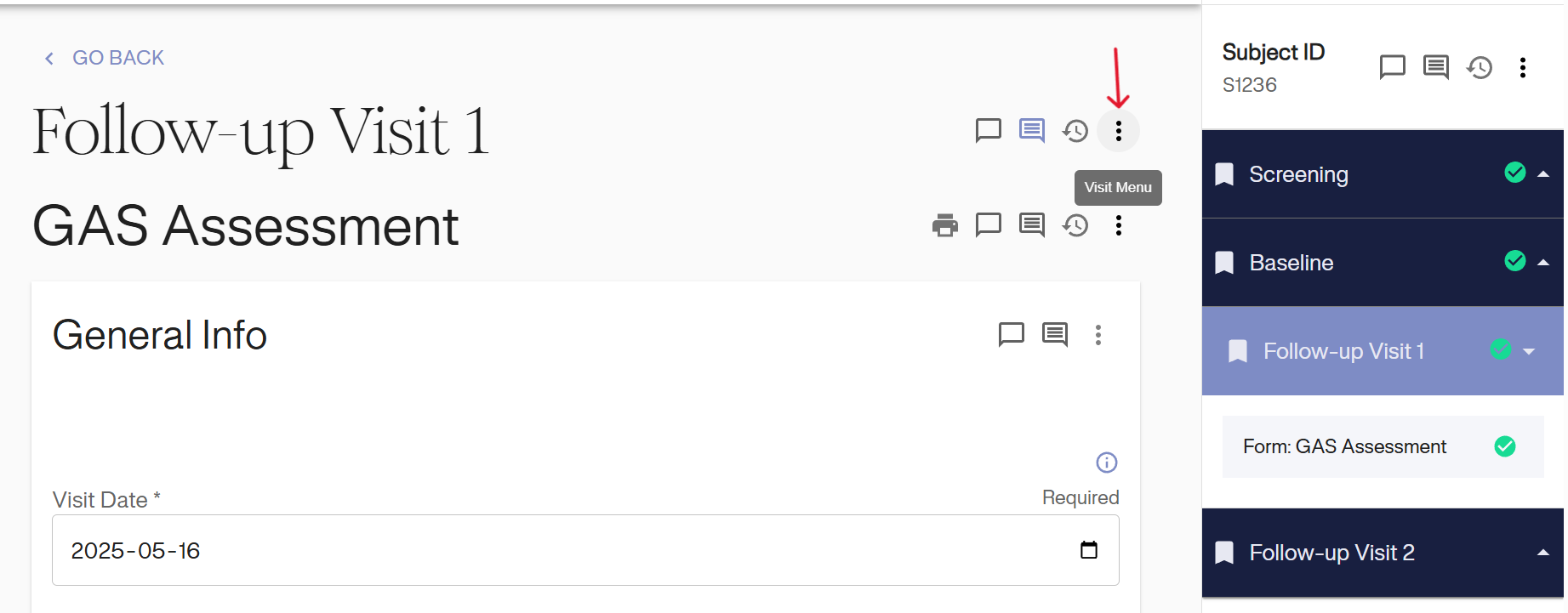
You may note that there are other similar icons present on the page. Those icons represent:
• Signatures at the form level (3 dots above the form visit signature)
• Subject level (3 dots next to the subject ID in the study menu)
All signatures (form, visit, subject) can be done following the same format as outlined below.
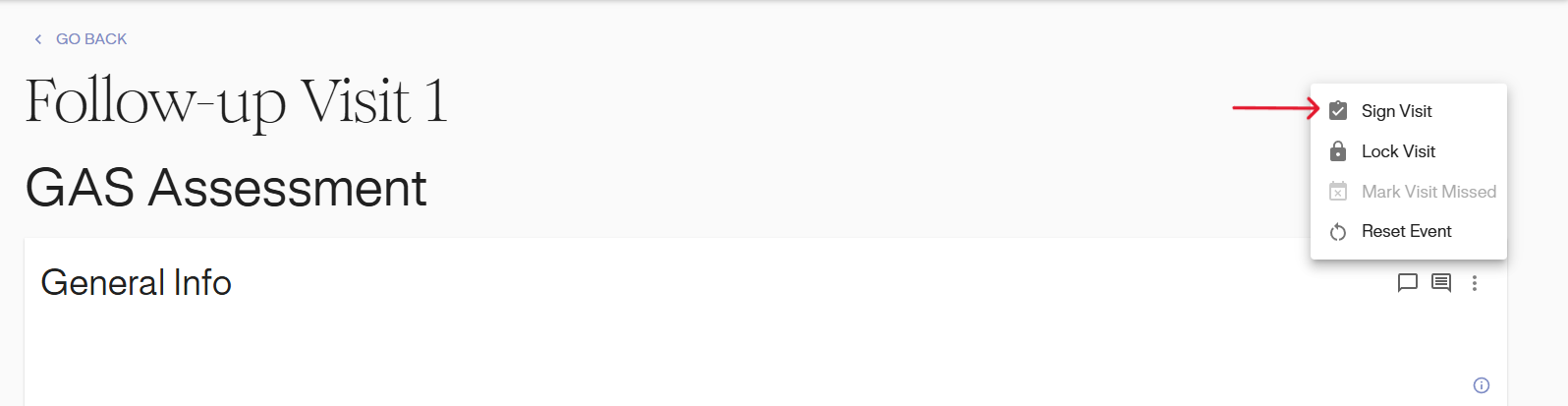
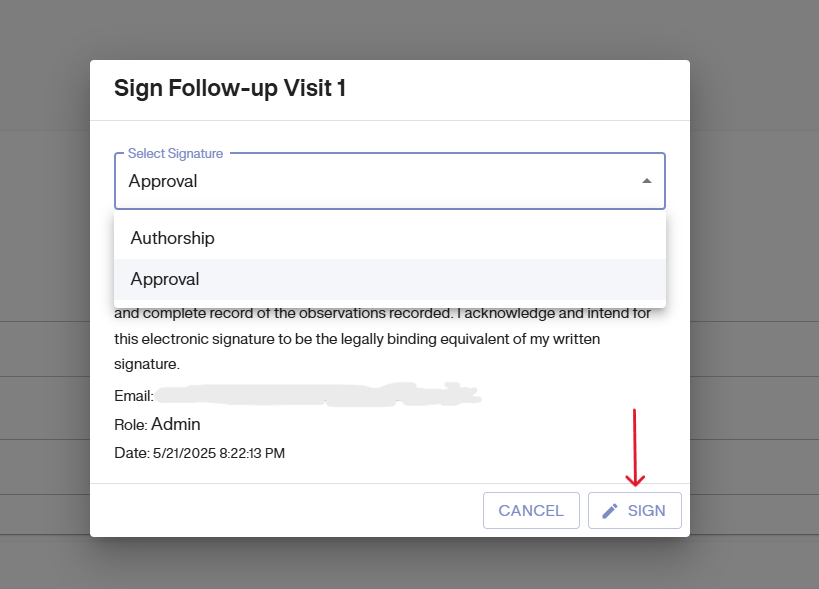
Once you click on ‘sign visit’, you will be required to re-enter your login information to verify your identity. Once authenticated, you will see a window to select the type of signature Authorship or Approval. Select the relevant option and then click on “Sign” button.
Once the form has been signed, a green pop-up with status ‘Signature Added’ will appear in the bottom left of the screen and a blue notepad icon will be added right next to the visit name to indicate that the visit has been signed.
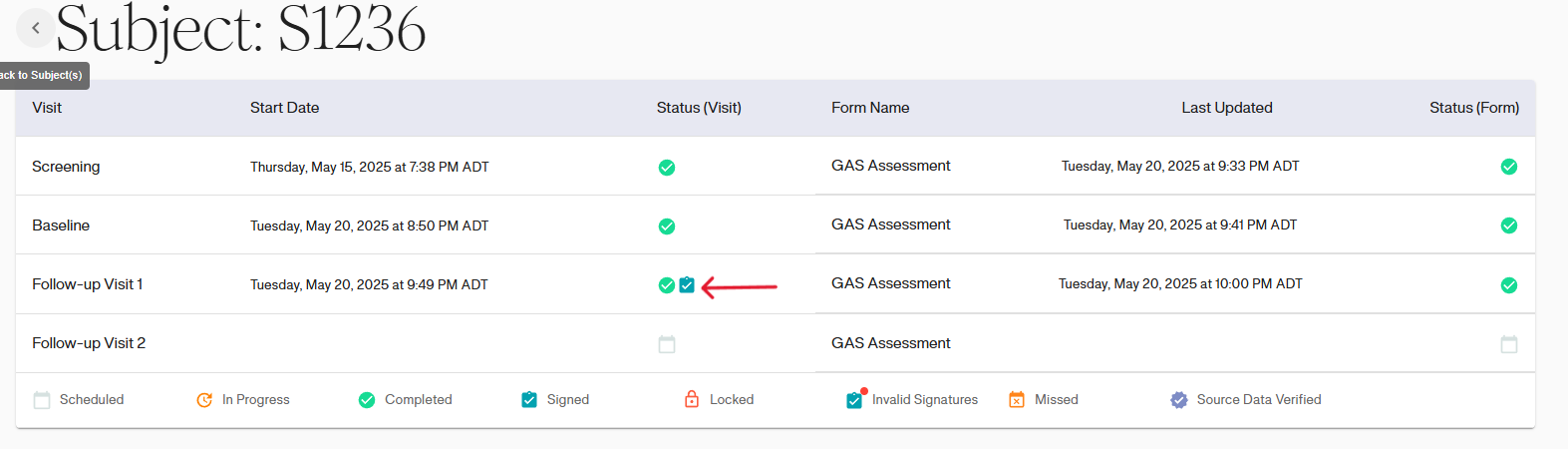
In the Subject Details Dashboard, the visit will reflect the signed icon, once they are signed on the visit level as required by the study
If you edit the forms, your signature will be Invalidated and an invalid signature icon will appear on signature panel. You must resign the form each time you make a change to the data.
Viewing Signatures from Signatures Tab
The signatures page can be accessed by clicking on the ‘signatures’ tab on the study menu.
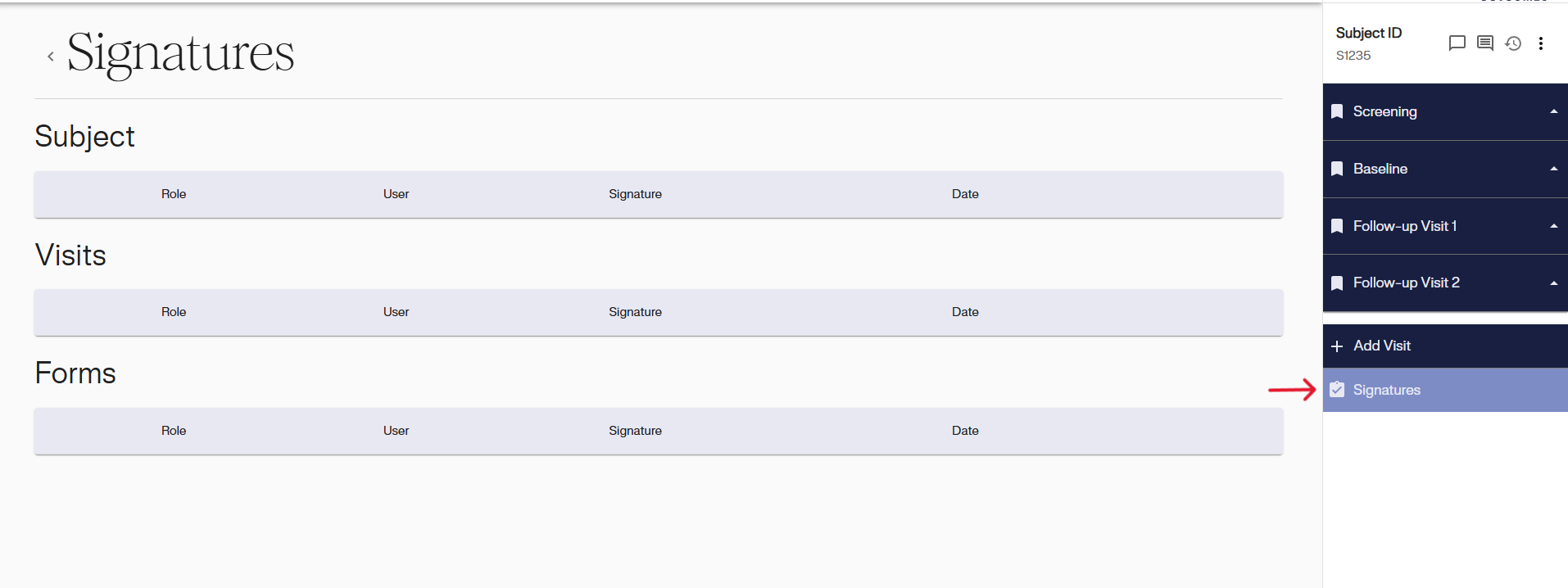
On this page, you can see any items that have been signed, as well as individual visits and forms that have been completed and their status.
Your signature will be overwritten if any changes are made to the form. You must re-sign the form every time a change has been made.
Not all studies require signatures on every level. Please refer to CRA for information on what is required for signatures in your study.
Invalid Signatures
There are different consequences for changing data depending on what signatures have been added to the system.
Changes to data at the form level: If any changes are made to the data once a signature has been added to the form, the signature panel for visit will then become invalidated (as seen in the screenshot below vs an invalid signature at the visit or subject level as seen in the red below). You are required to re-sign the form once data has been changed if required for your study. The signature panel under forms will then be updated appropriately.
Invalid signatures at the visit or subject level: If any user makes a change to a form within a visit after that visit has been signed all signatures for that visit will be marked as invalid on the signatures tab.
Invalid signatures at the subject level: If any user makes a change to a form, starts a visit, or resets a visit after the subject has been signed, all signatures at the subject level will be marked as invalid on the signatures tab (red panel would then show up at the subject level).
An invalid signature is an indication to the signing user that the data has changed and requires review.
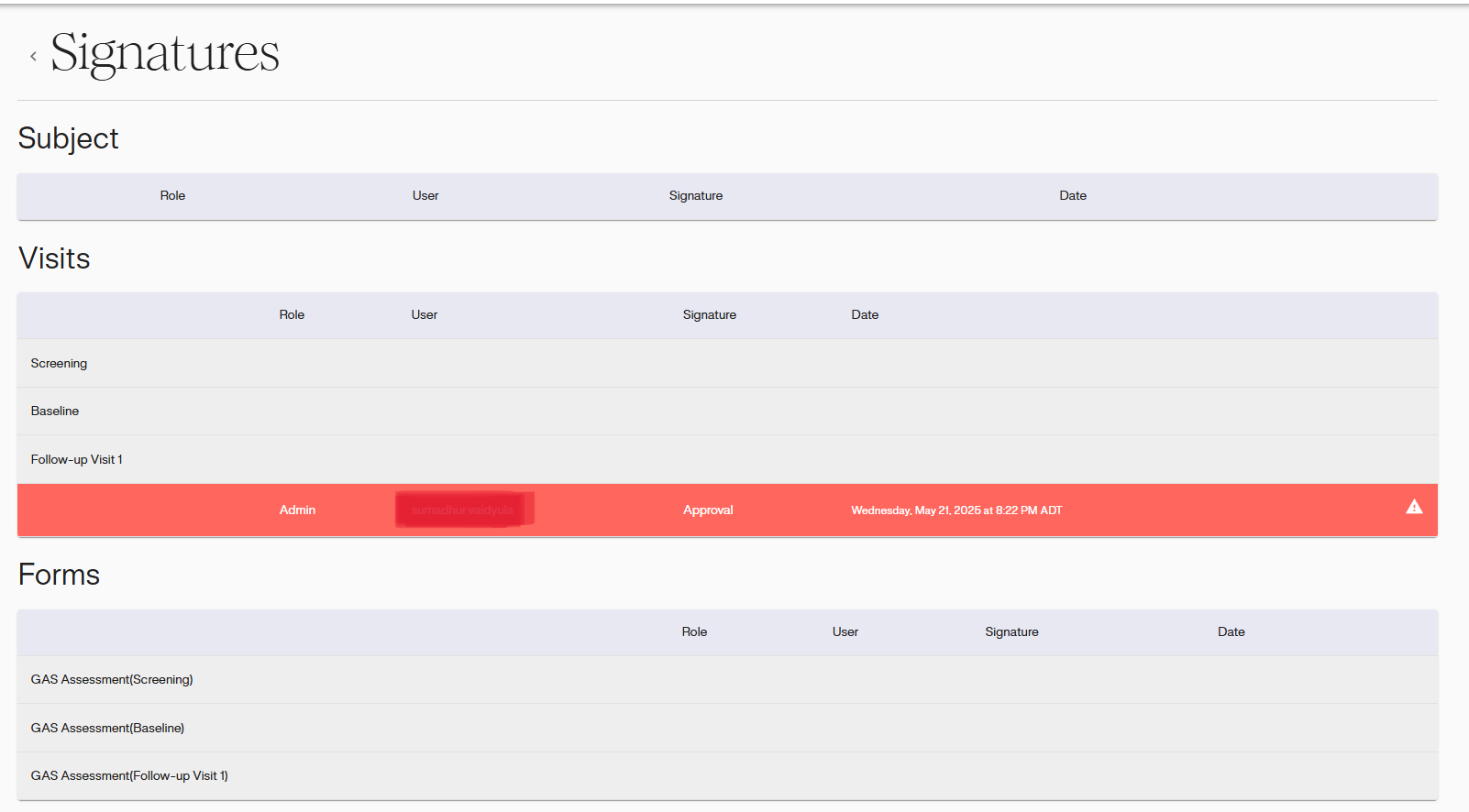
Invalid Signature: Re-signing a Visit or a Subject
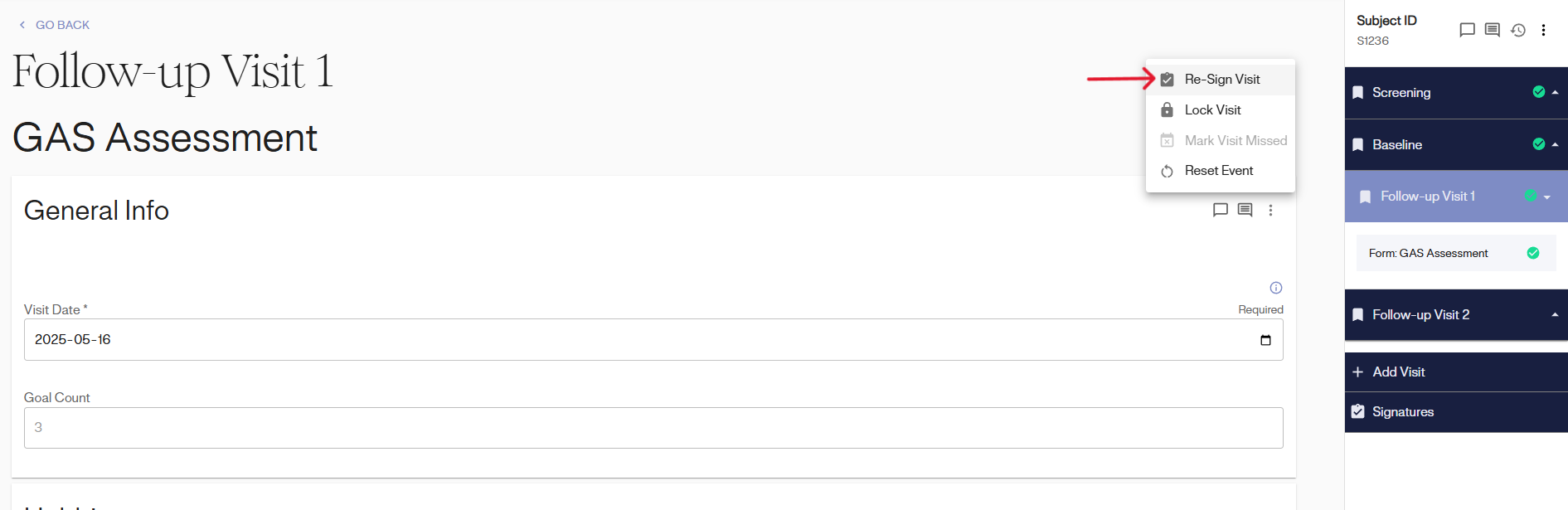
A user can re-sign a visit or subject if their current signature has been marked as invalid. Re-signing will update the signature based on the currently entered data and make it valid again.
The signature button will be replaced with “Re-sign visit”.