GoalNav Manual
 In This Chapter
Adding Subjects
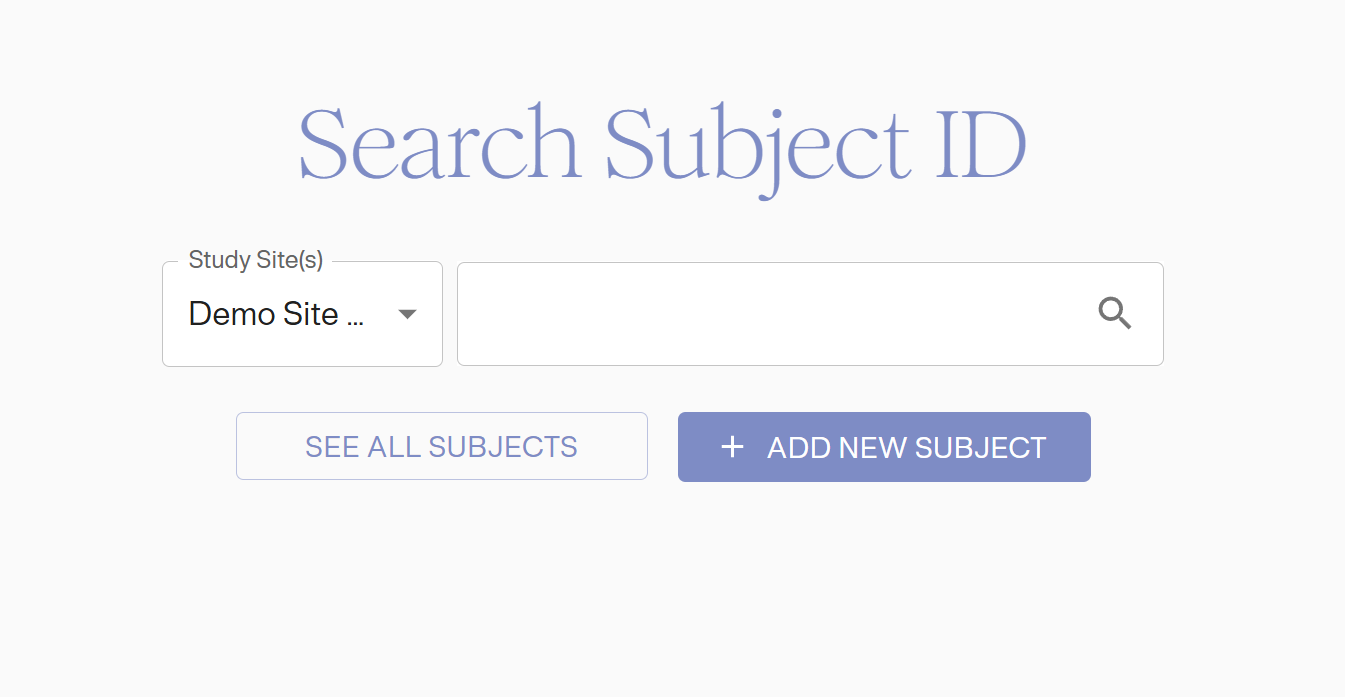
If a subject has not yet been added to the system, you can do so by clicking ‘+ ADD NEW SUBJECT’.
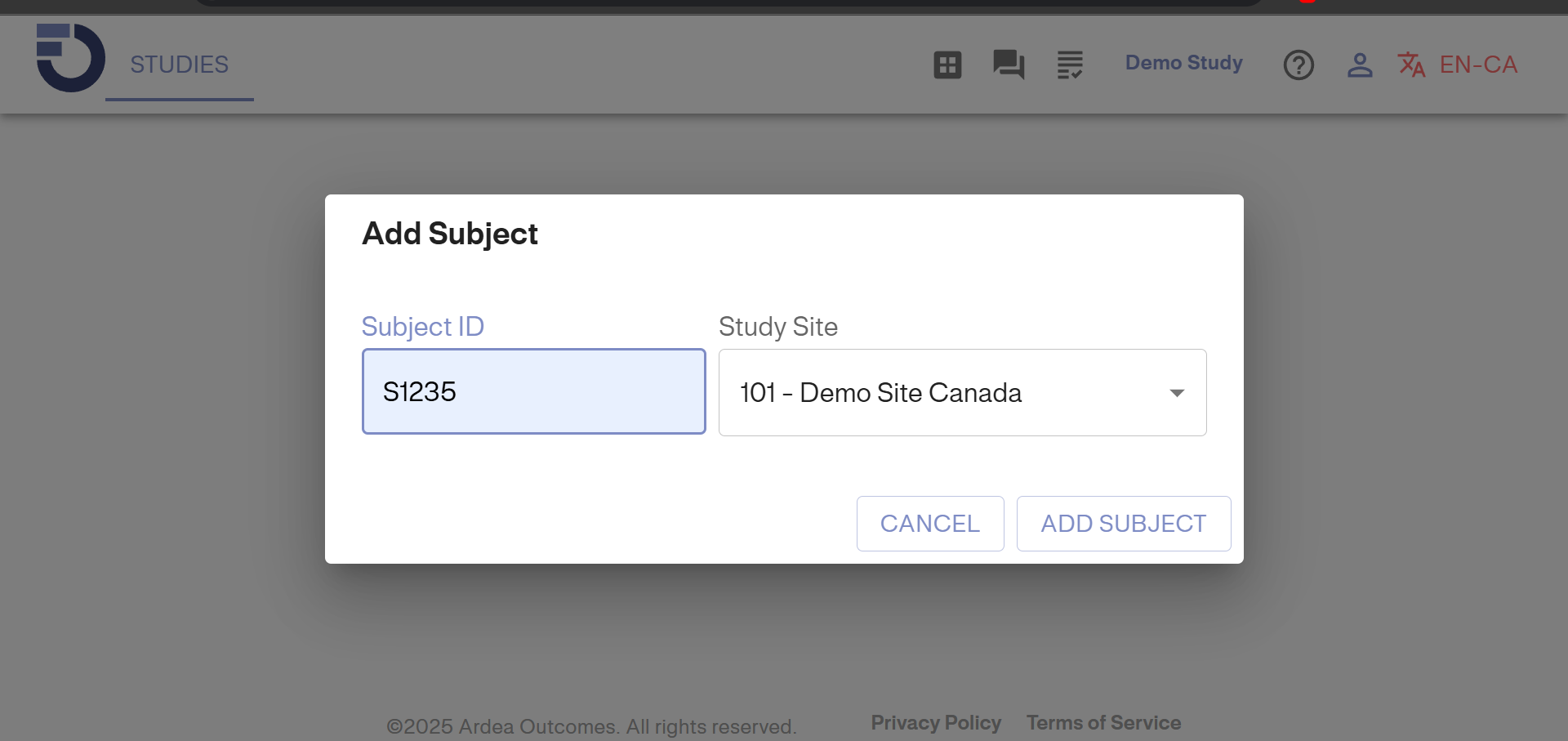
You are required to enter your subject’s ID and Study Site. Please double check you are entering the correct subject information before clicking ‘ADD SUBJECT’. You will also note the study version if your study has more than one version.
Once a subject is added or selected, click on “SEE ALL SUBJECTS” to be taken to the subject details Dashboard.
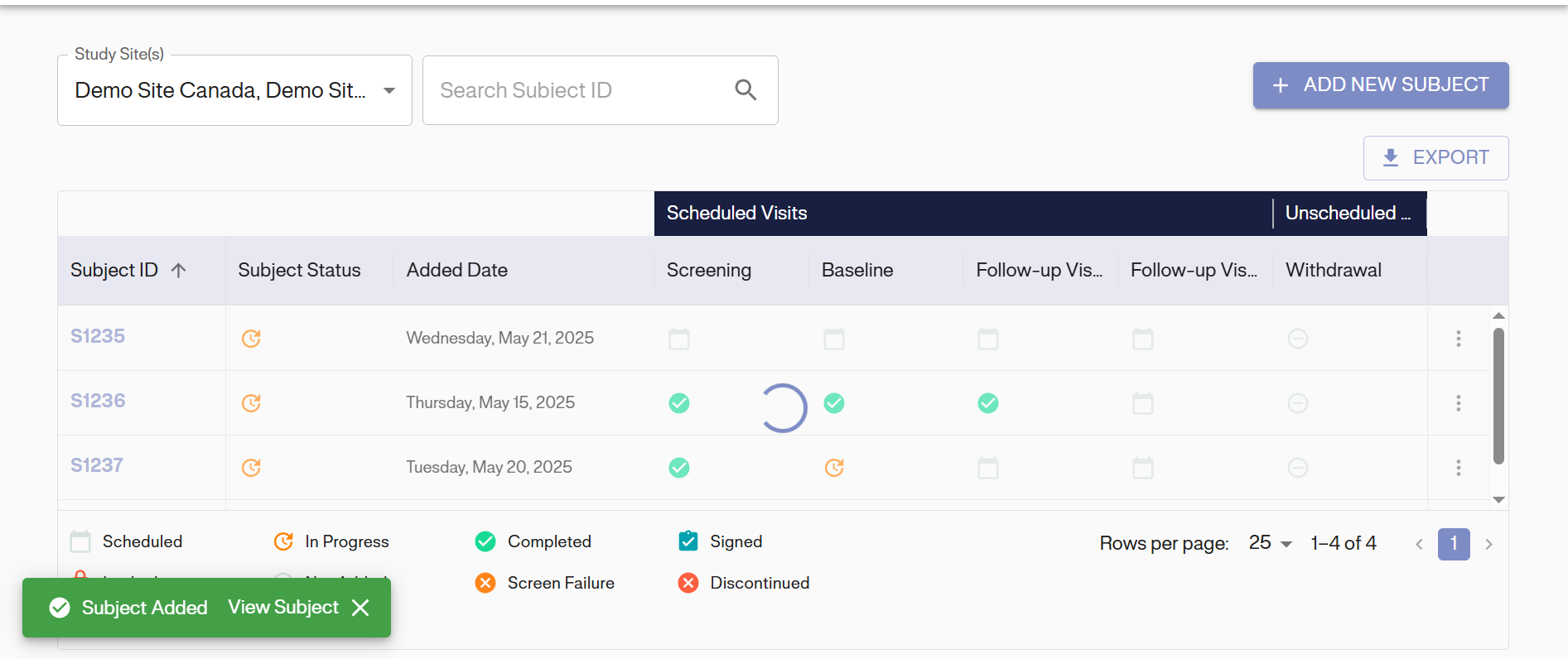
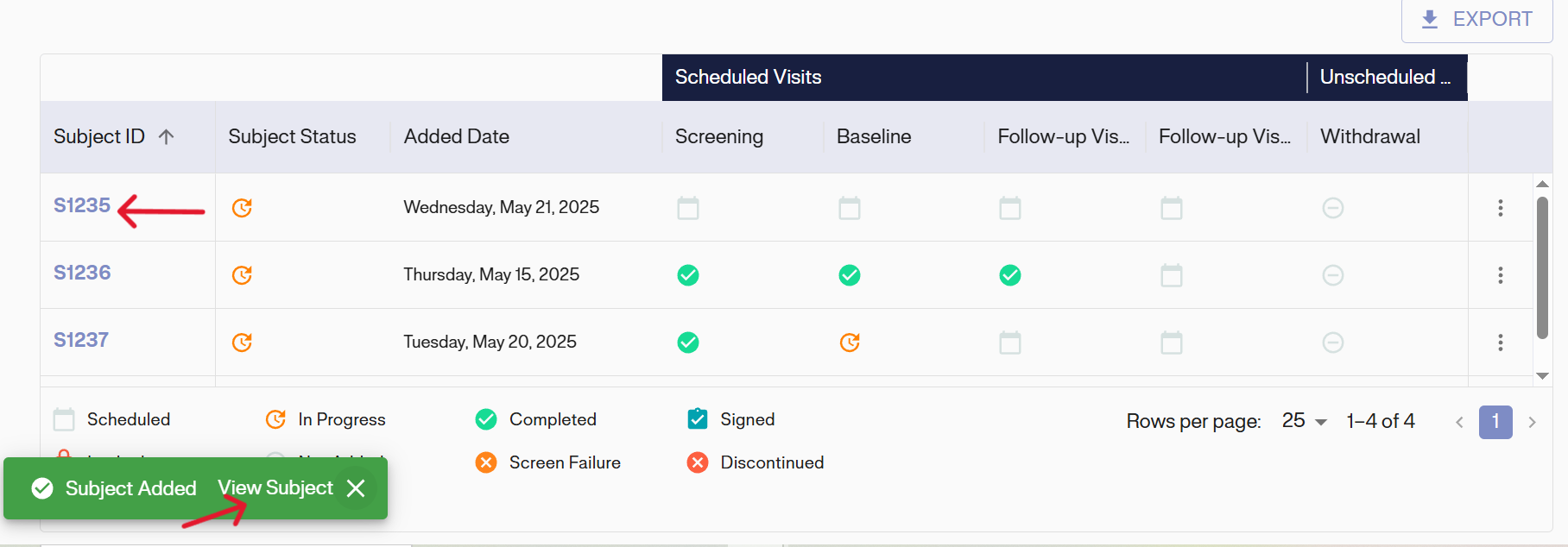
Click on the Subject ID in blue to access the Subject Details Dashboard for that subject or click on “VIEW SUBJECT” on the green pop-up status which appears on the screen after creating a subject.