GoalNav Manual
 In This Chapter
Data Monitor Guidelines
The Data Monitor guidelines provide step-by-step instructions for CRAs monitoring data in GoalNav® which can include reconciliation activities, ensuring SDV signatures by site staff in the Study trial. This section details the necessary actions for data monitors in GoalNav® and outlines the workflow for each task. Data monitoring may include:
• Query Management such as generating query, view query, respond to query and resolve query.
• Monitoring of Source Data Verification (SDV) for the subject.
• Monitoring Signatures.
• Accessing the Data Explorer Dashboard to search for data using a query and perform actions.
Source Data Verification
Overview
Source Data Verification is required only when a paper backup form is used to record visit data, and that data is entered into GoalNav® once the technical issue has been resolved. Not all forms need Source Data Verification.
To check if the form has “Source Data Verified”(SDV), follow the instructions below:
Monitor Source Data Verification (SDV) from Subject Details Dashboard
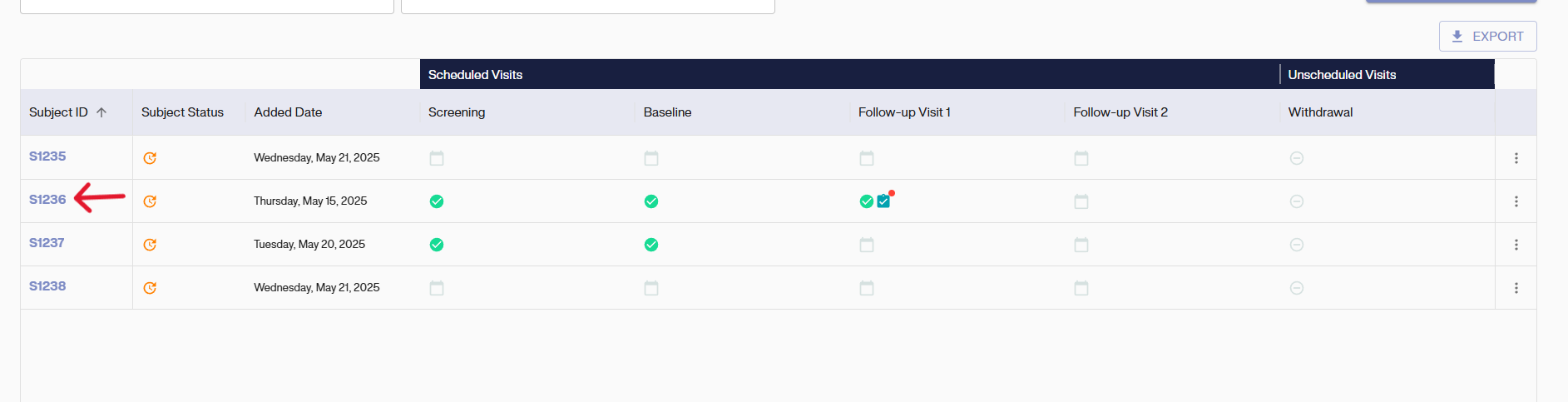
Click on the Subject ID in the Subject Matrix to access the Subject Details Dashboard.
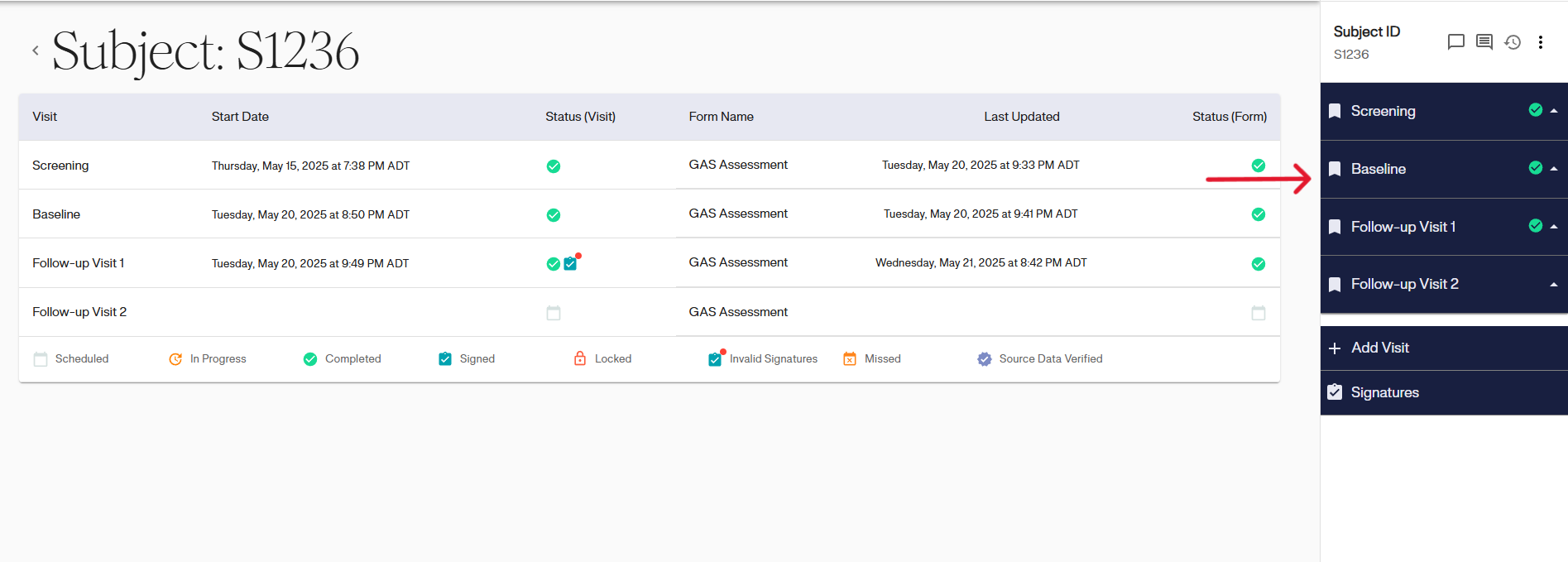
On the Subject Details Dashboard, select the visit name from the navigation menu on the right side.
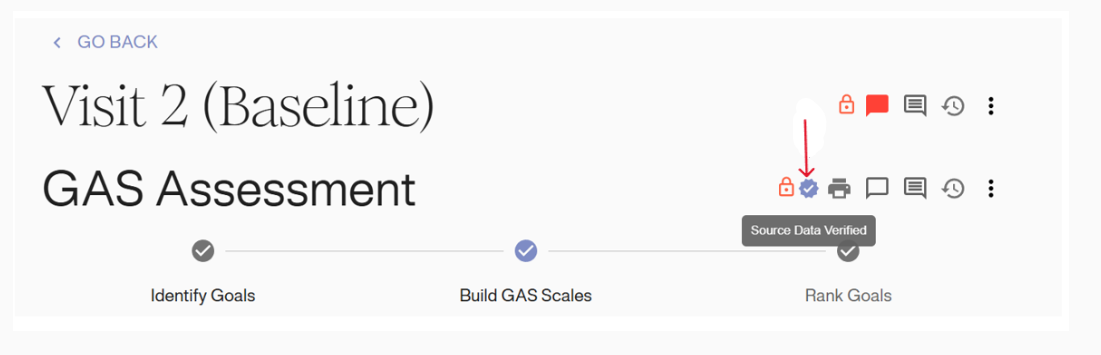
The visit details will be displayed when you click on the visit name. A purple checkmark icon next to the form name indicates that the form has been “Source Data Verified”. If the icon is not present, the form still requires verification.
Monitor SDV from the Data Explorer
To monitor SDV from Data Explorer, click on the grid icon in the top menu bar on the trial’s homepage. The grid icon is visible on all pages except the landing page in the top menu bar.

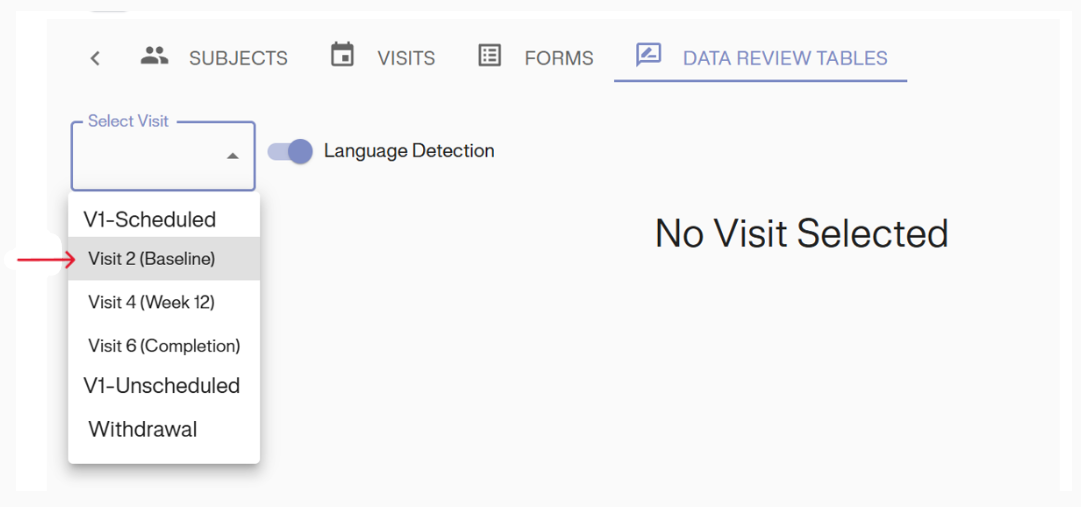
Open the dropdown menu and select the visits that require monitoring. For example, visit 2 (Baseline) is currently selected.
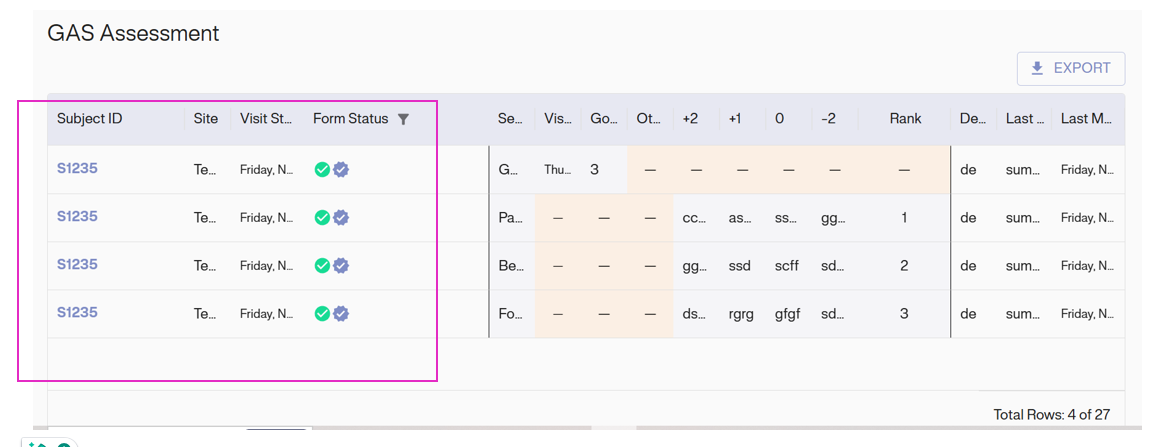
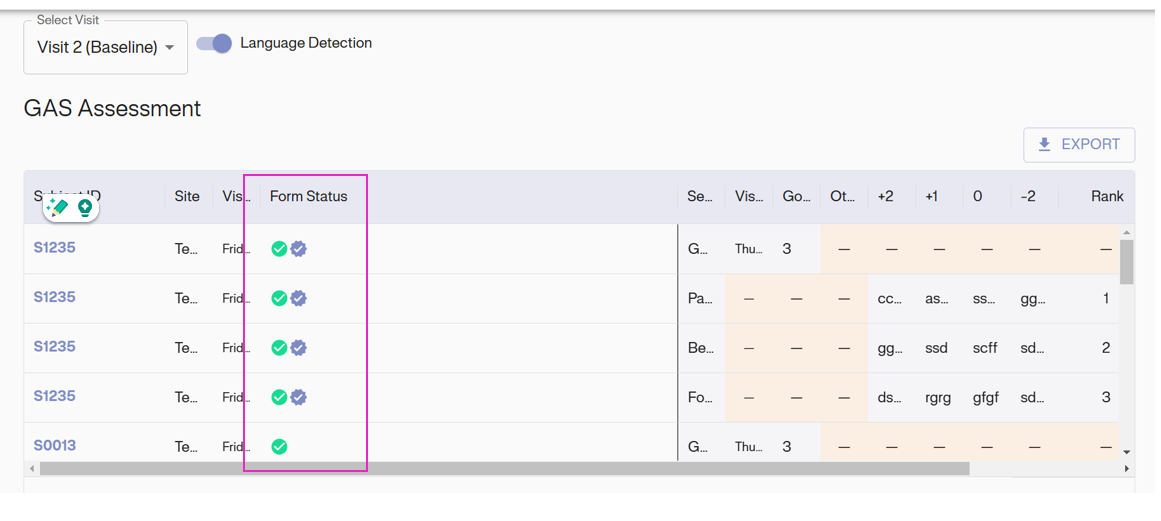
The table features a “Form Status” column that displays the status of all forms for each subject. Forms that are marked as “Source Data Verified” are indicated in the “Form Status” column with a purple checkmark icon. Please note that not all forms are required to be “Source Data Verified”.
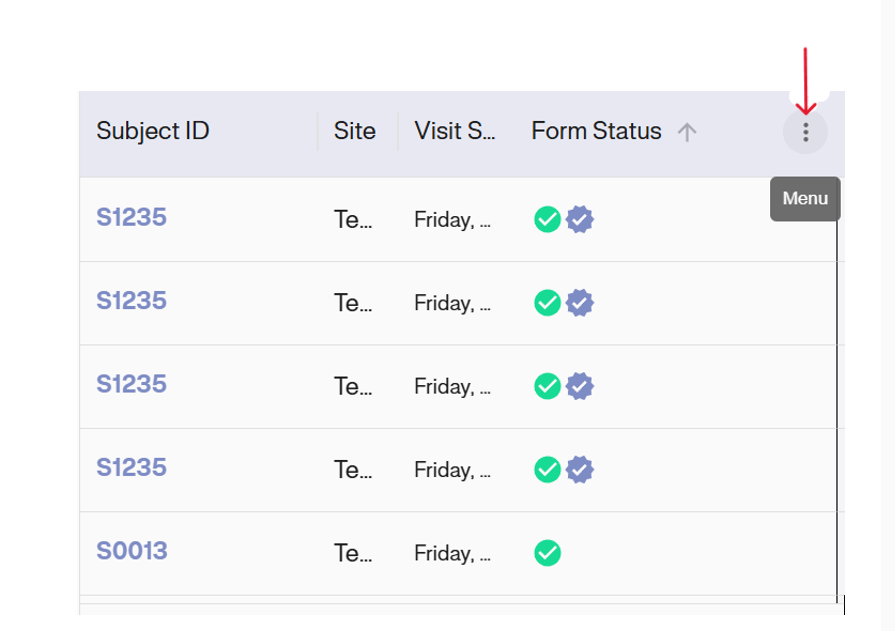
Instead of scrolling through the rows of data to find forms that are “Source Data Verified (SDV)”, use the filter option for a more efficient search. Click the options menu (the three-dot icon) next to the “Form Status” column to access the filter.
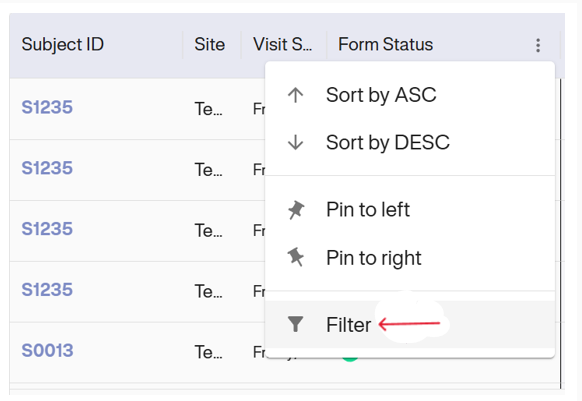
To search for data, click “Filter” and choose the appropriate option from the provided filters.
Next, select the appropriate value from the dropdown menu to search for the data.
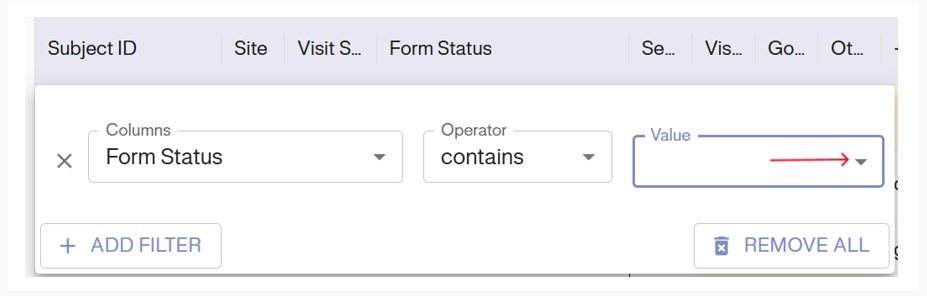
From the dropdown, select the option “Source Data Verified.”
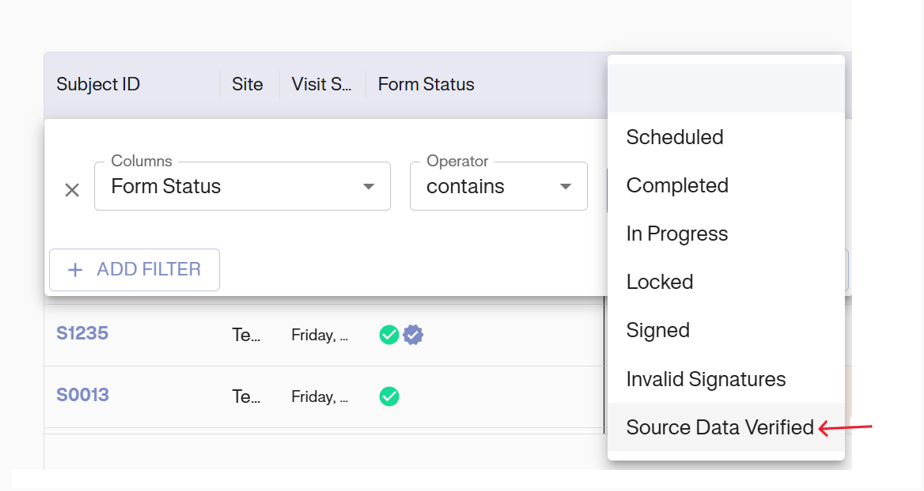
The table now displays only the records whose form “Status” is “Source Data Verified”.