 GoalNav Manual
 In This Chapter
Monitor Signatures
Monitor Applied and Missing Signatures
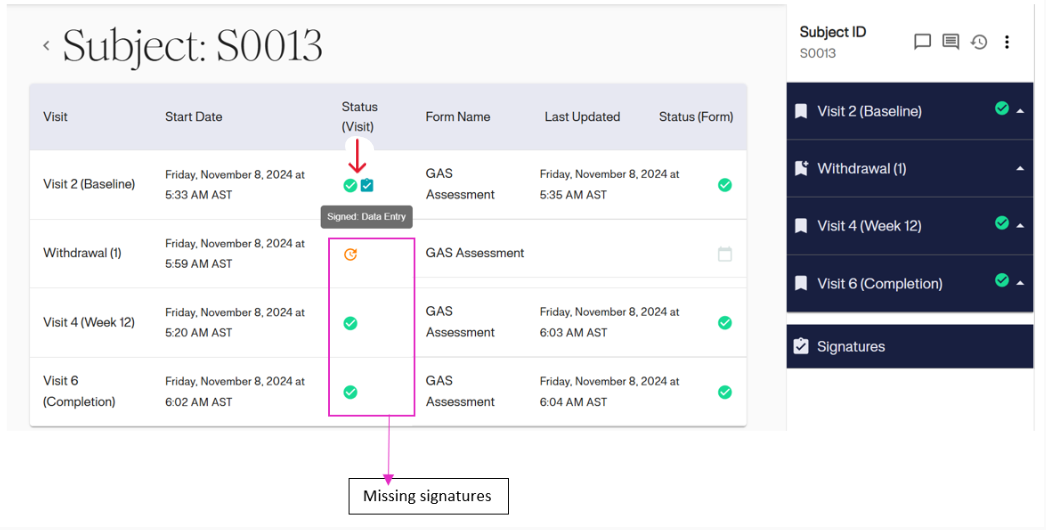
To monitor a subject’s signatures for each visit, navigate to the Subject Details Dashboard. A signed visit will display a blue notepad icon in the Status (Visit) column. Hover over this icon to show the status and the role that added the signature. For example, as shown in the image below, it states “Signed: Data Entry.” If a visit does not have a blue notepad icon, it indicates that the visit is missing a signature.
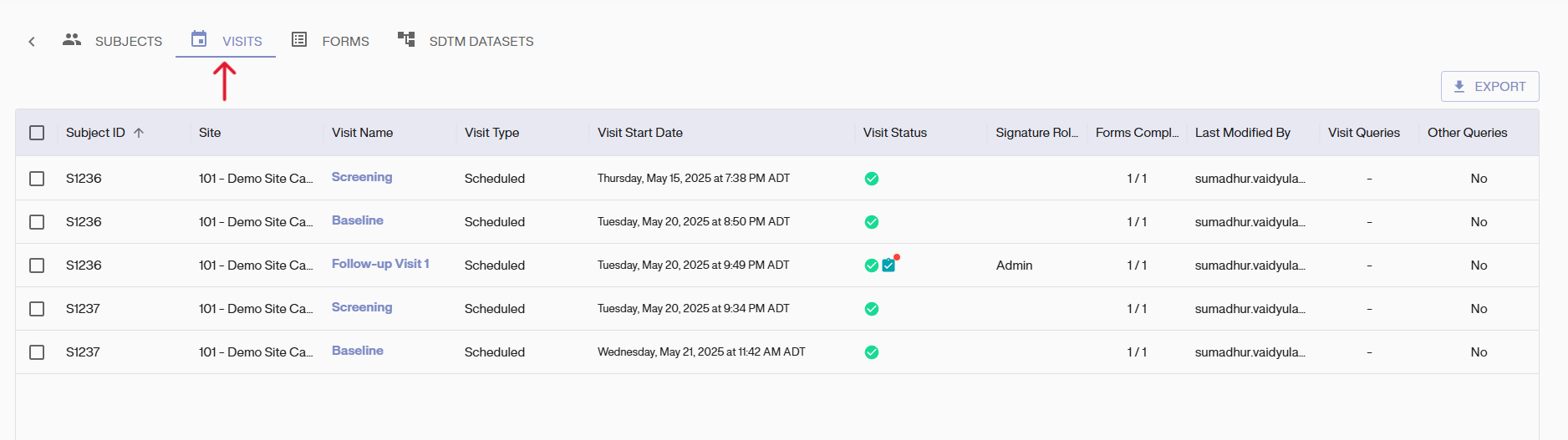
Alternatively, search for signed and unsigned visits using the data explorer. To view signed visits, click the grid icon in the top menu bar.

Select “Visits” from the menu options. Then click on the options icon (three-dot icon) on the “Visit Status” Column
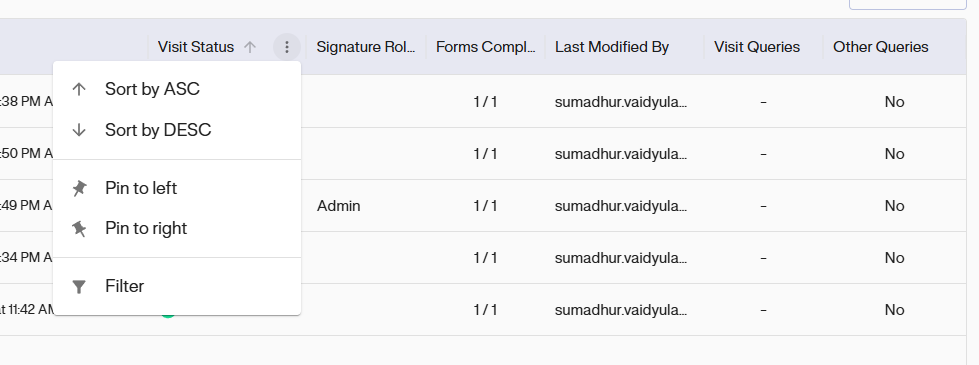
From the options, select the filter option and then from the filter options, select the “Signed” option.\
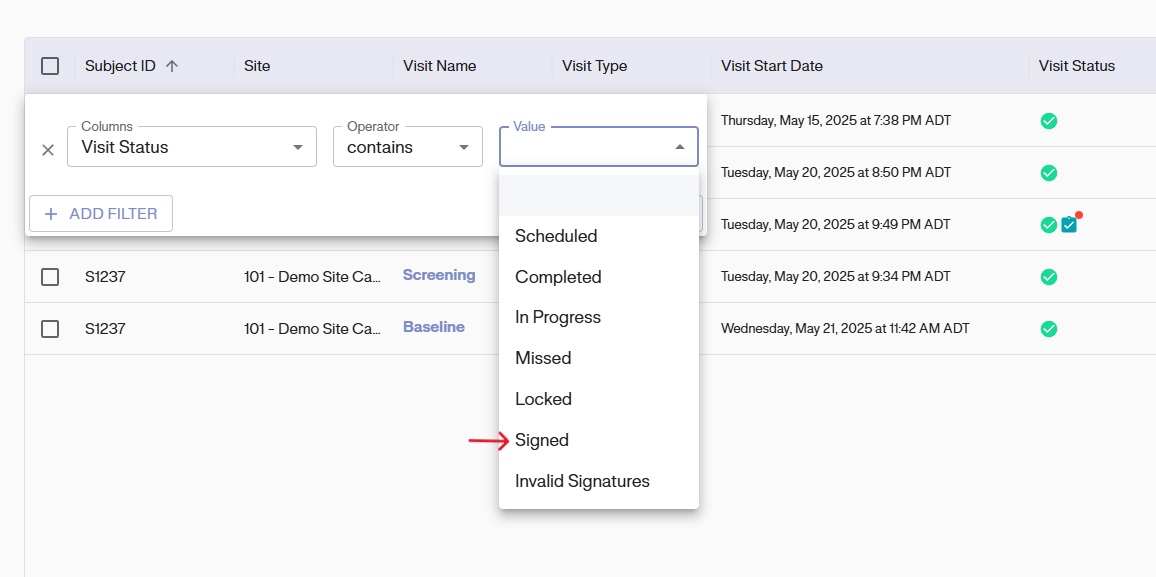
All visits with an applied signature are then displayed on the table.
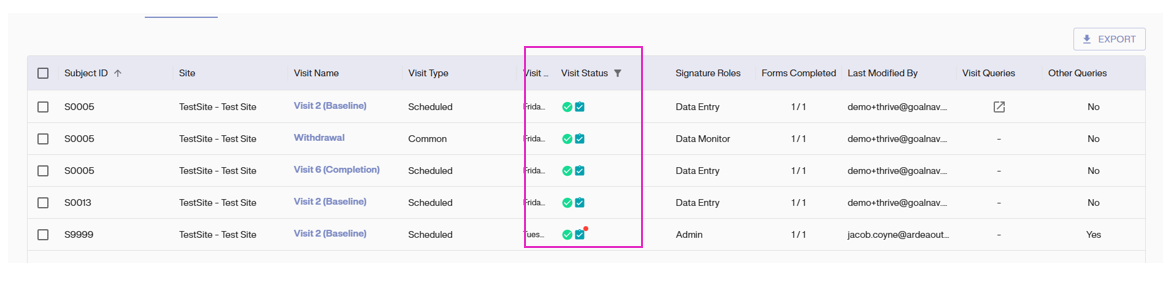
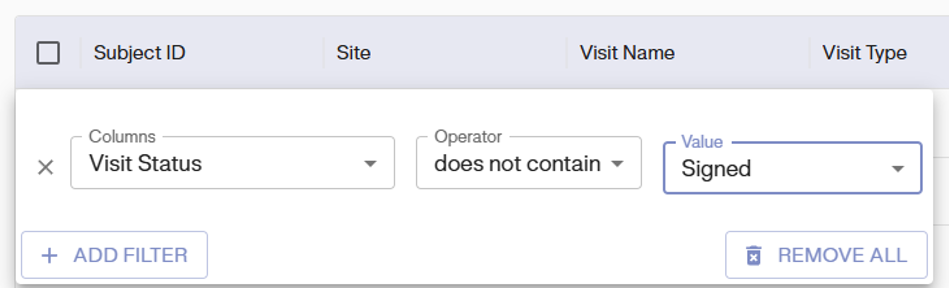
To view all unsigned visits, set the visit status filter condition to “does not contain” and the value to “Signed”
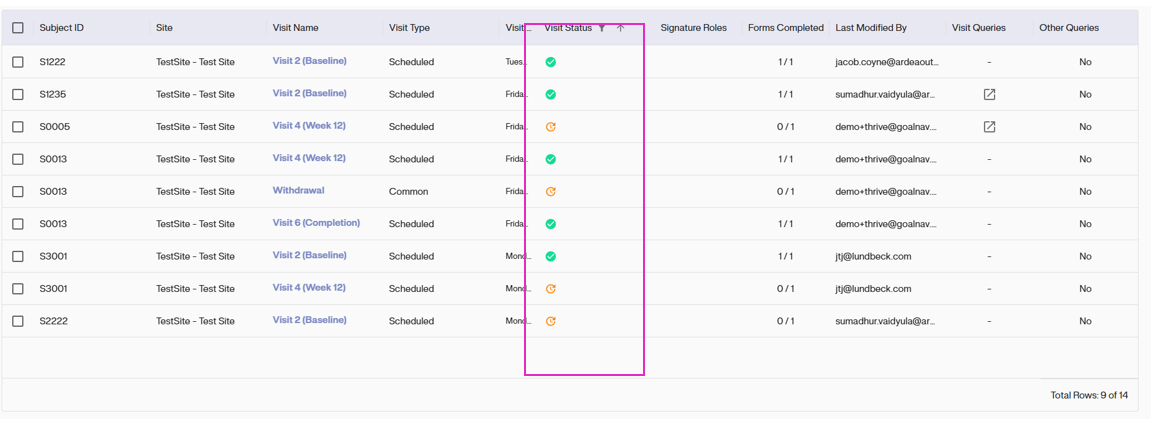
This displays all the visits that are missing signatures.
Monitor Invalid Signatures
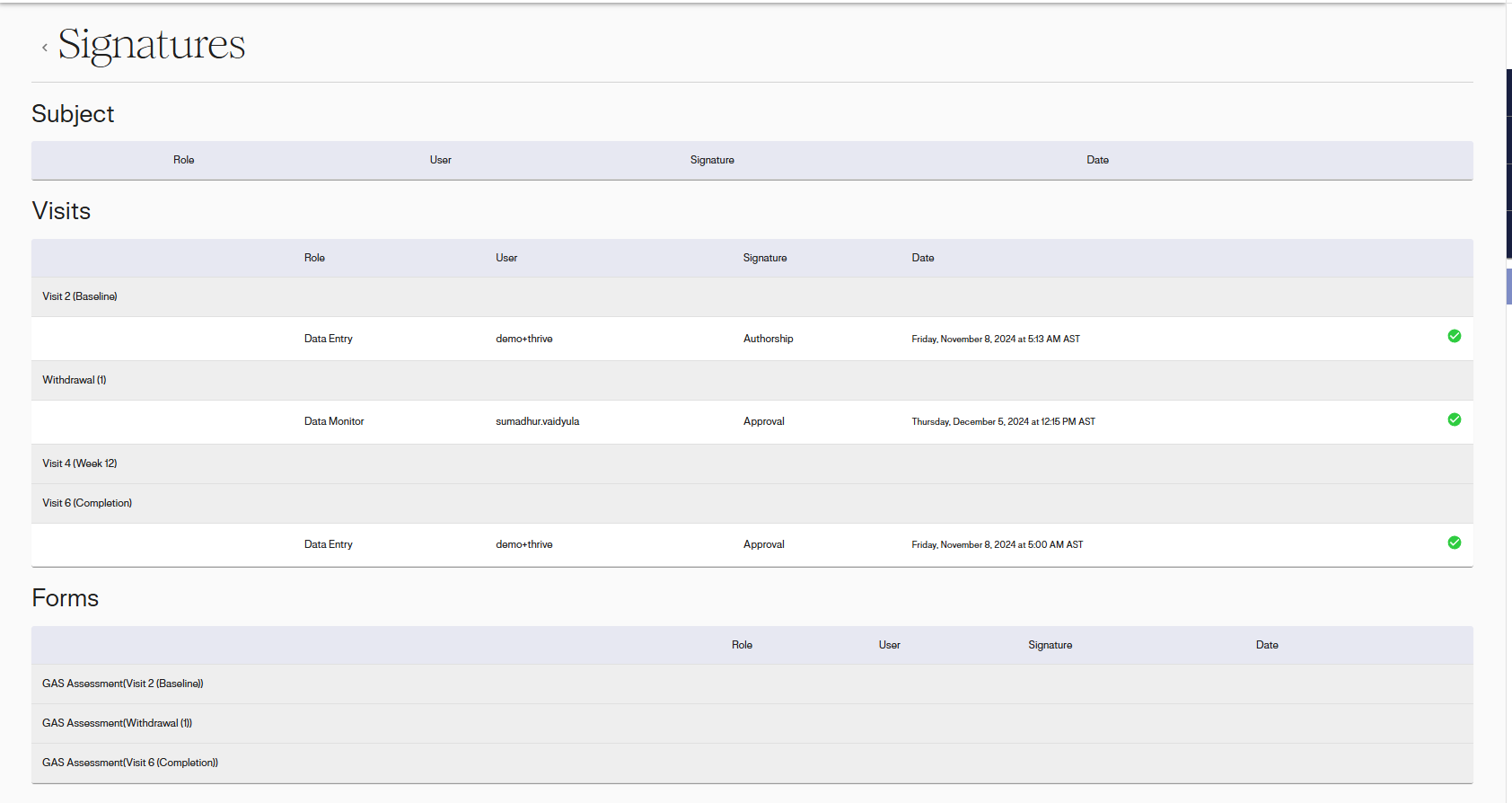
To monitor Invalid Signatures,navigate to the “Signatures” option from the subject menu.
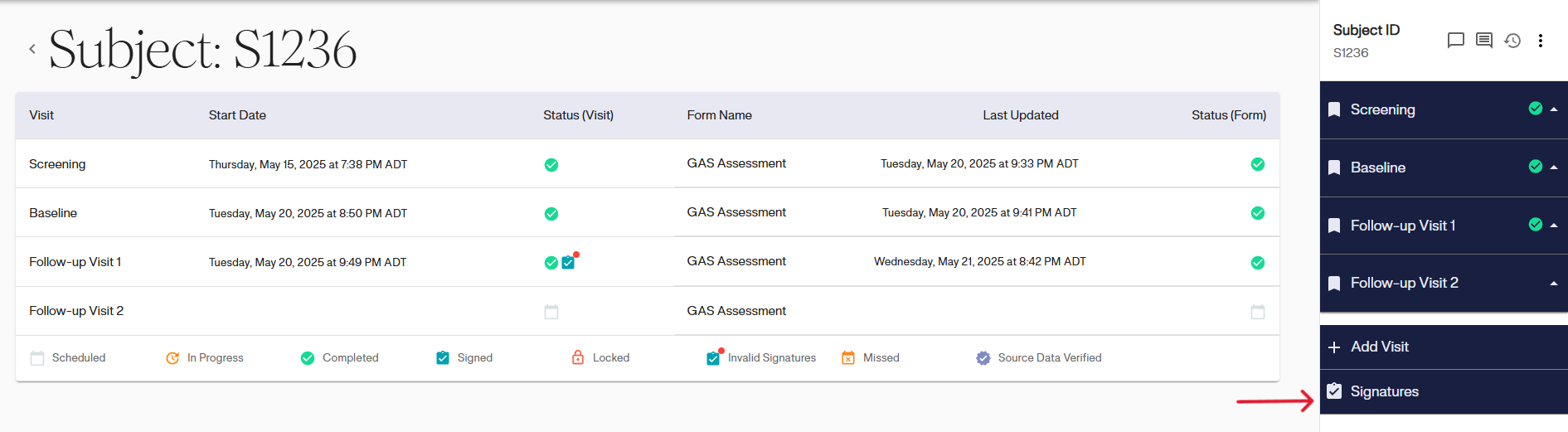
All the Signatures( Valid and Invalid) will be displayed on this dashboard.
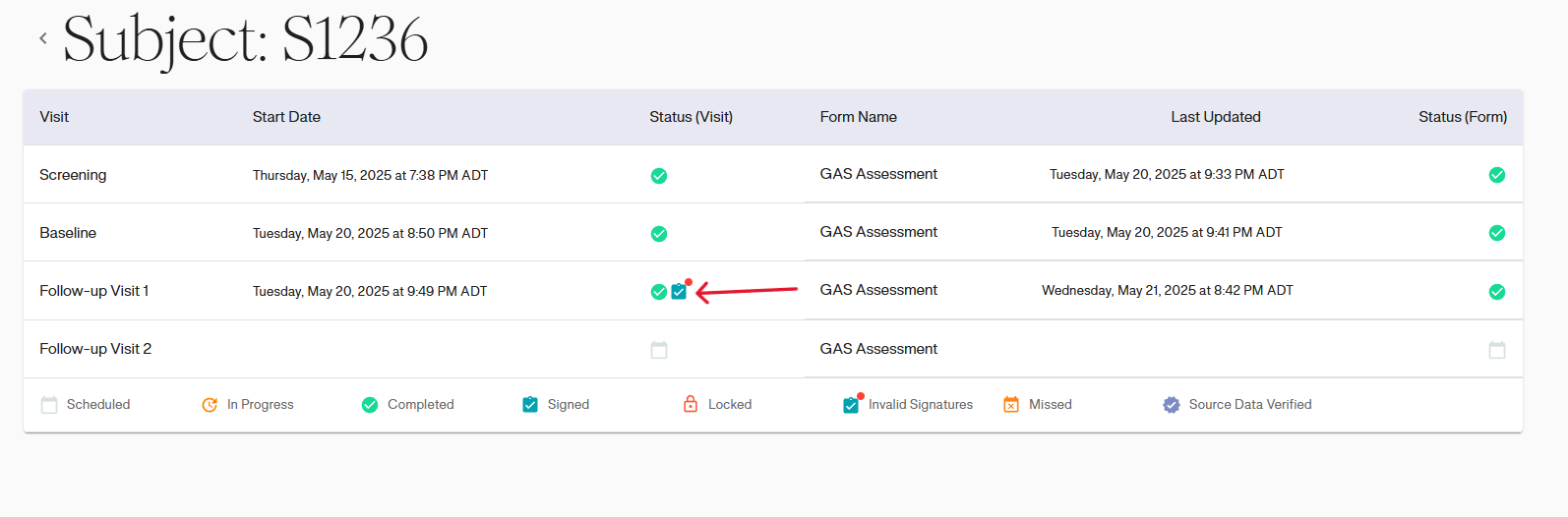
To check for invalid signatures, navigate to the Subject Details Dashboard. On the dashboard, an orange dot above the blue notepad icon (which represents the signature) indicates that the signature is invalid. Hover over the icon to view the signature’s creator (e.g., Admin in the screenshot) and confirm its status as invalid.
To use Data Explorer to check for invalid signatures, click on the grid icon in the top menu bar. The “Visits” option is selected for this demonstration.
Locate the “Visit Status” column in the table, and click on the options icon (three-dot icon).
Click on “Filter” from the dropdown options and then from the value dropdown list, select “Invalid Signatures”.
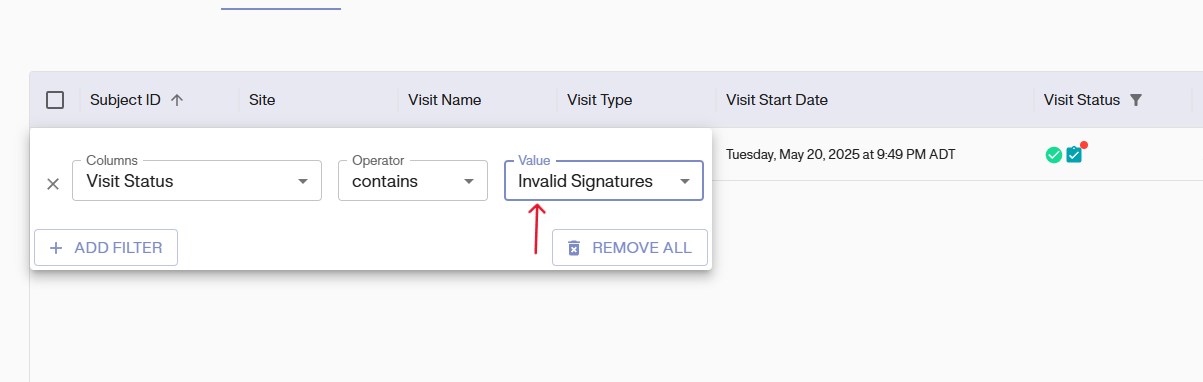
The records with Invalid Signature are displayed on the table
