GoalNav Manual
 The Study Dashboard
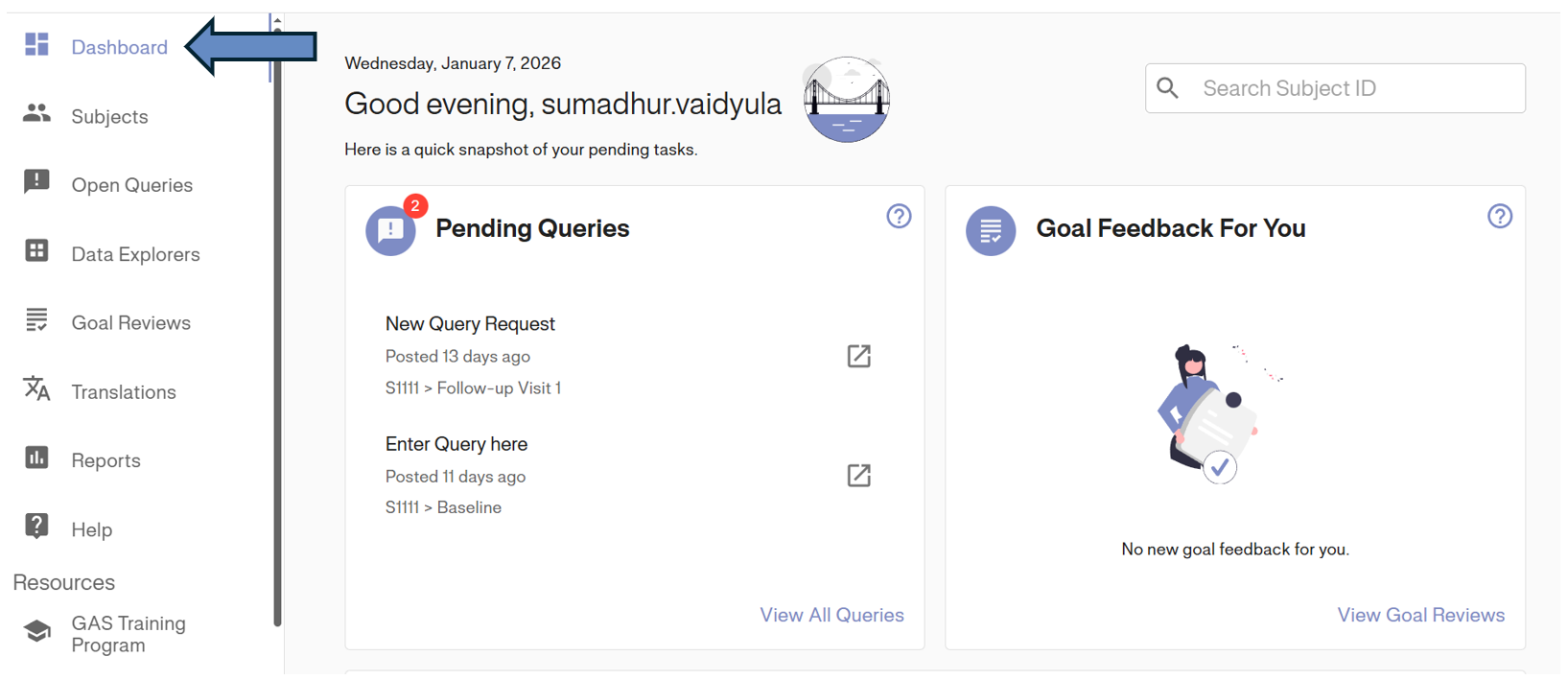
The new Dashboard consists of 3 Key sections: The Top Navigation Bar, The Left Navigation Menu, and the Easy Access Cards.
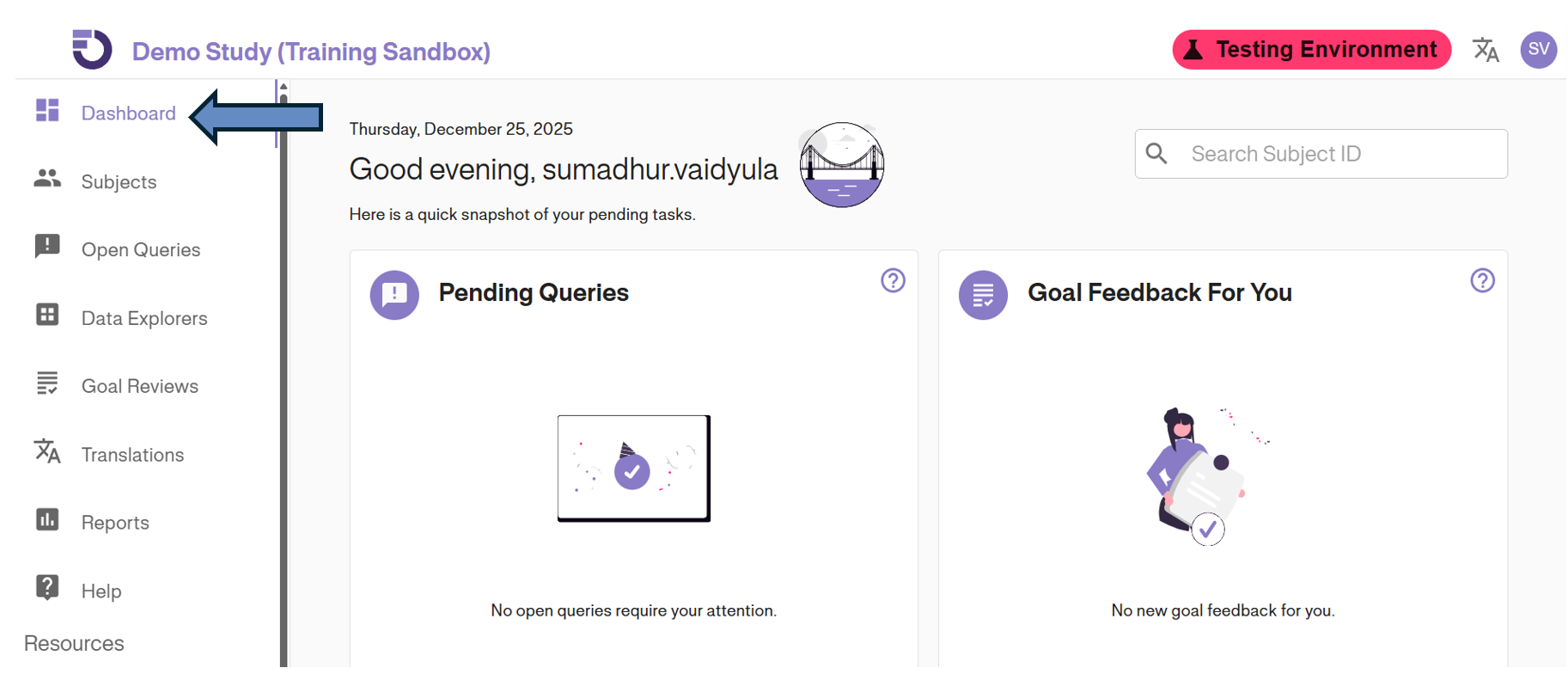
1. Top Navigation Bar
This bar provides persistent access to your study selection and account-level features.
- GoalNav Logo: Takes you to the Study List Dashboard.
- Study Name: Refreshes the current Study Dashboard.
- Language: Change the reading language of the site.
Note: The option to change the user interface language is only available if it has been enabled for your specific study. You will be informed during your site training if this feature is available.
- User Account: Access user information and settings.

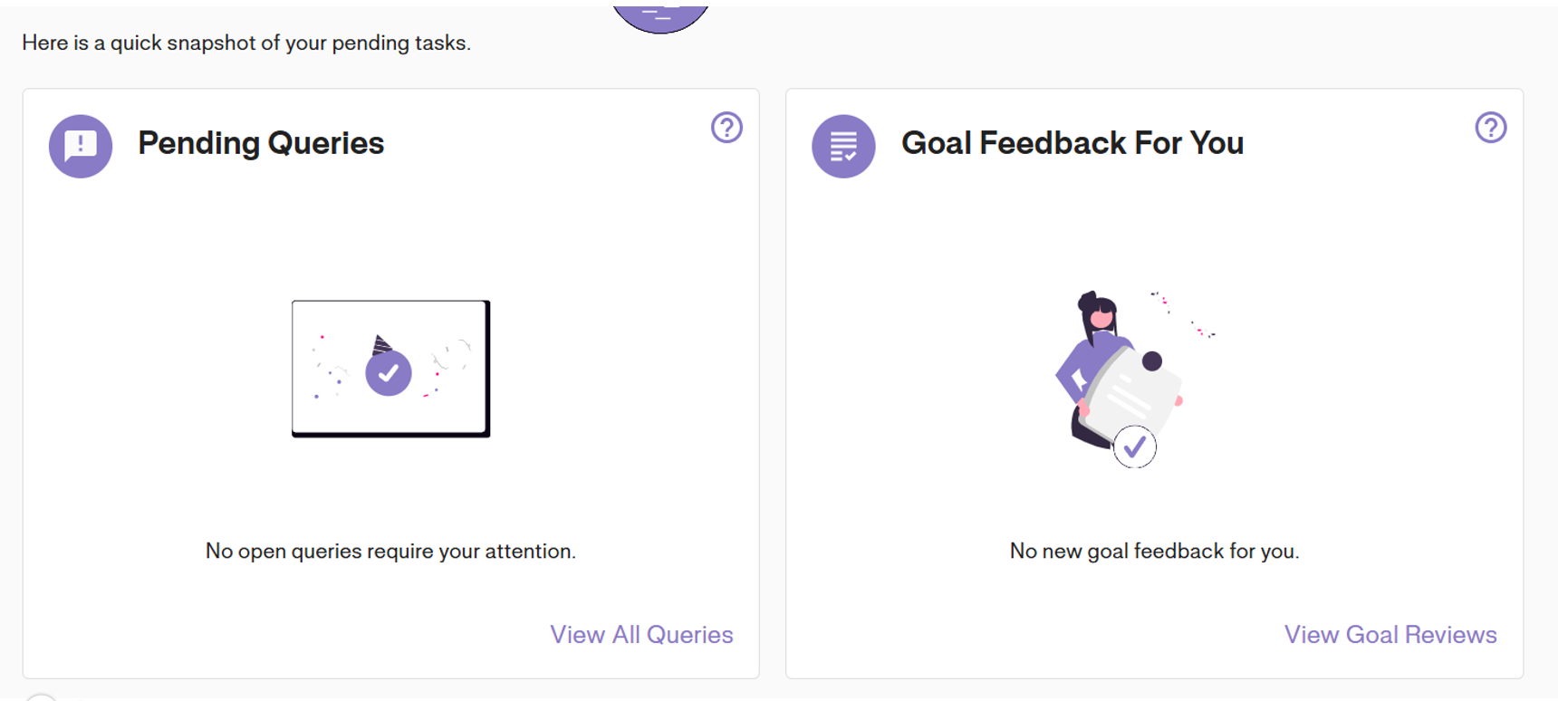
2. Easy Access Cards
These cards allow you to quickly notify and access key activities requiring action.
-
Pending Queries: Shows any queries requiring attention from the user logged in. Click VIEW QUERIES to access them directly.
-
Goal Reviews: Shows new feedback received on goals. Click VIEW GOAL REVIEWS to access the dashboard.
-
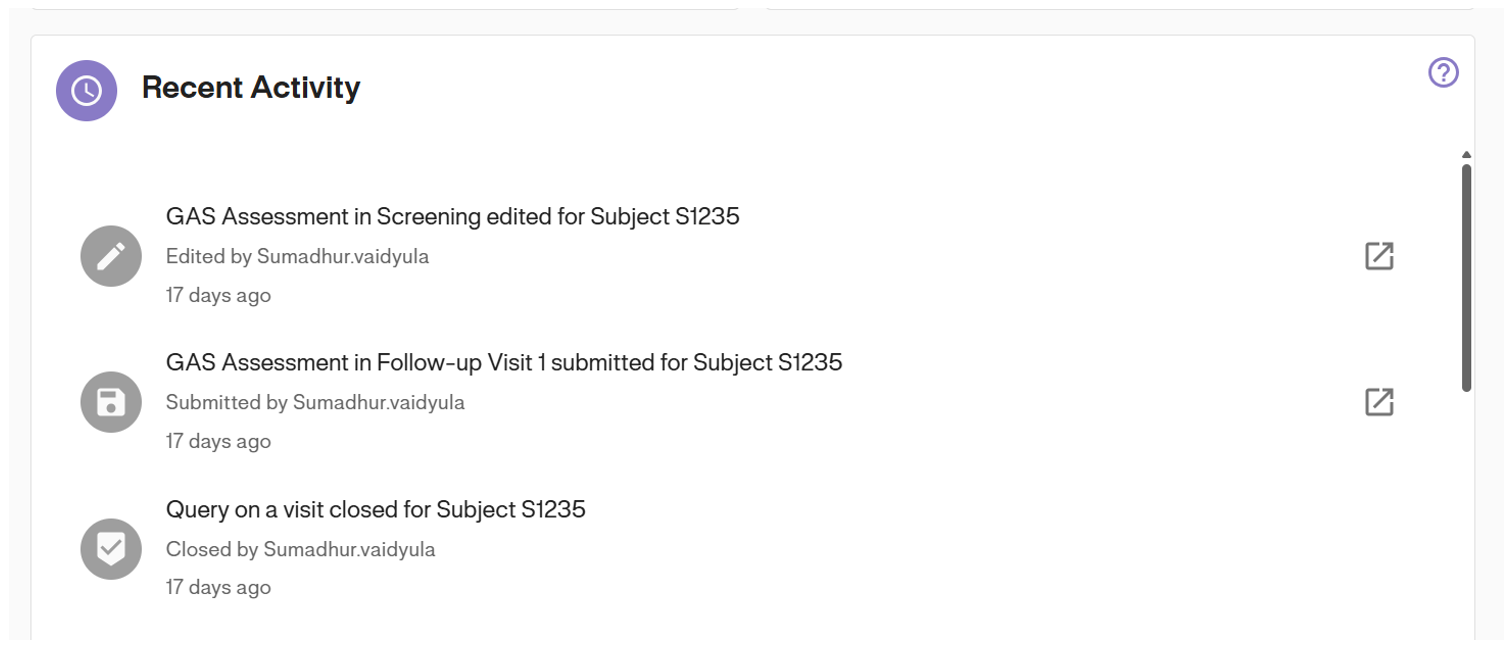
Recent Activity: Shows any recent activity related to the study.
3. Left Navigation Menu
Located on the left, this is the primary tool for moving between different modules of the system.
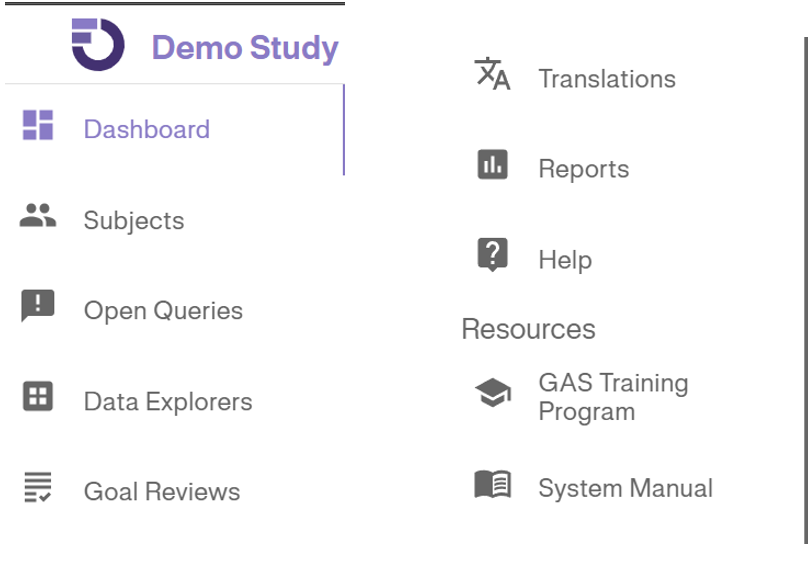
Menu Options Overview
Dashboard: Returns the user to this home screen.
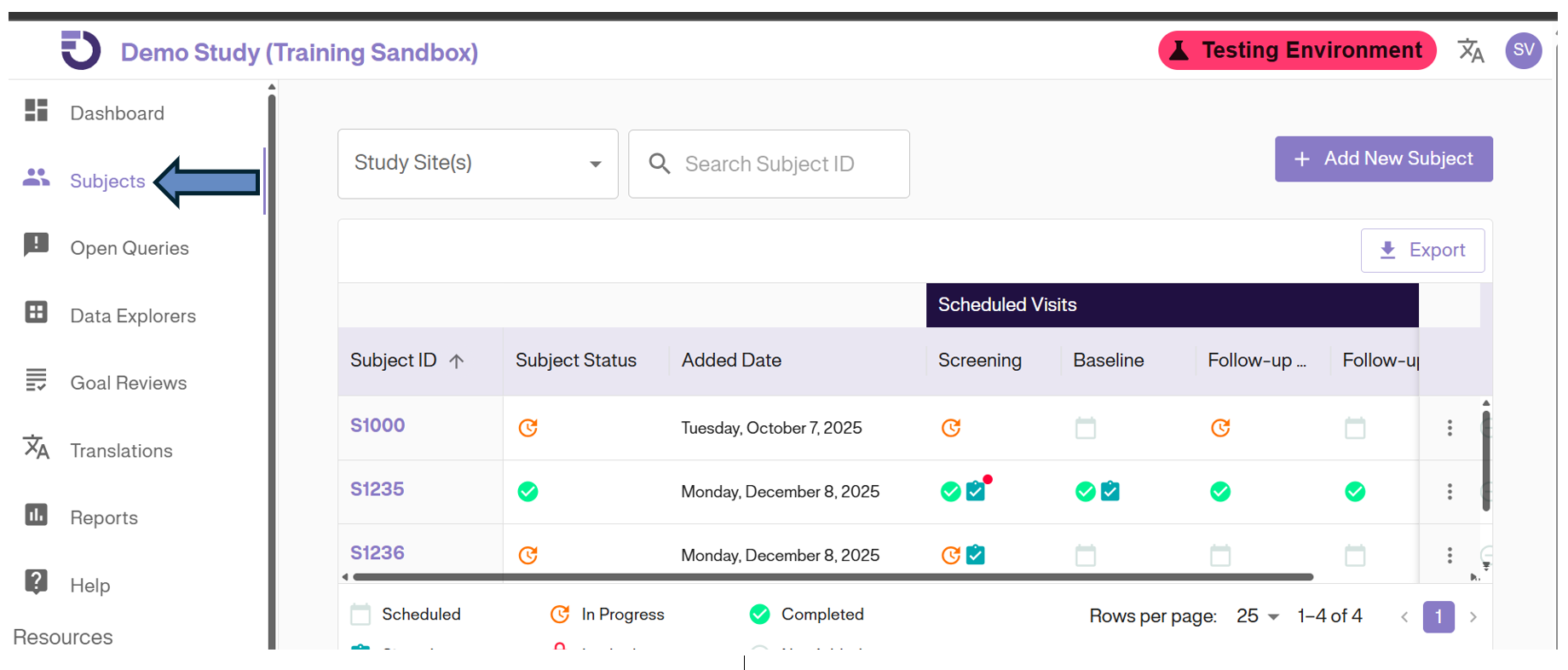
Subjects: Directs you to the Subject Matrix page for managing patient lists.
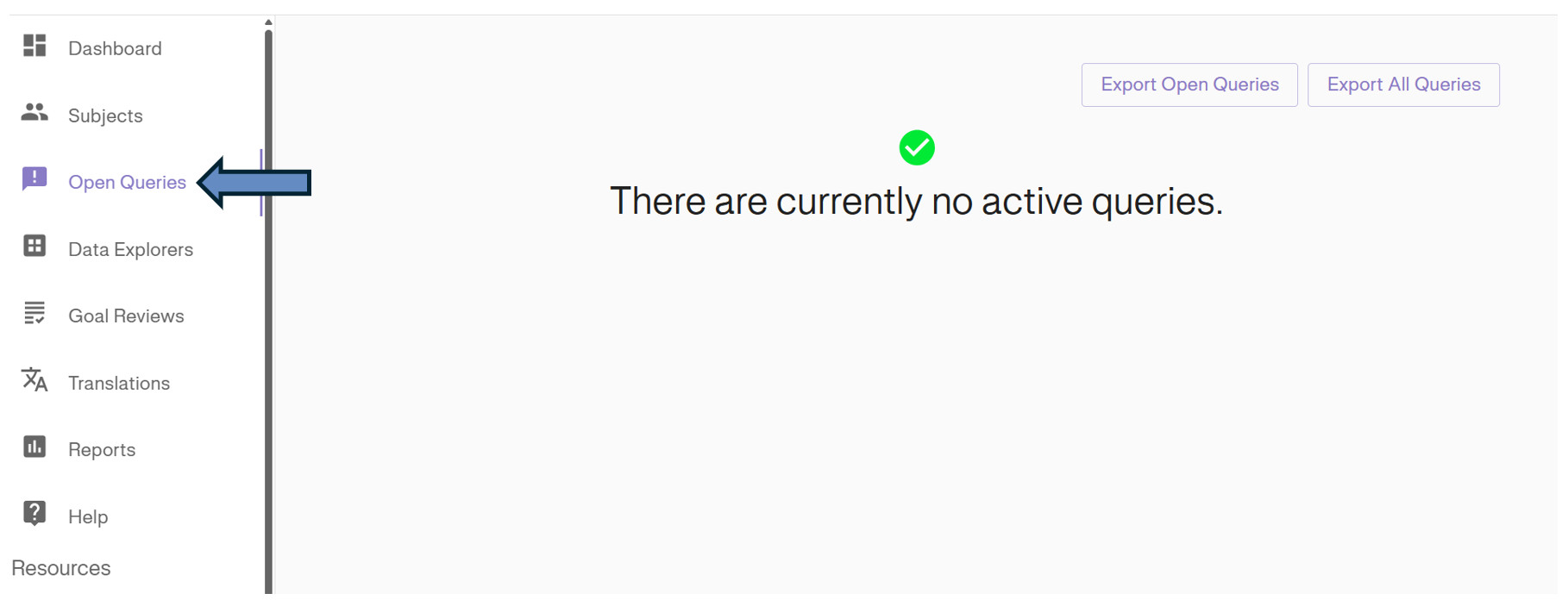
Open Queries: A dedicated worklist for data queries.
Data Explorers: Tools for analyzing study data.
Note: Access to Data Explorers is role-based. This menu option may not be visible if your user account does not have the required permissions for data analysis.
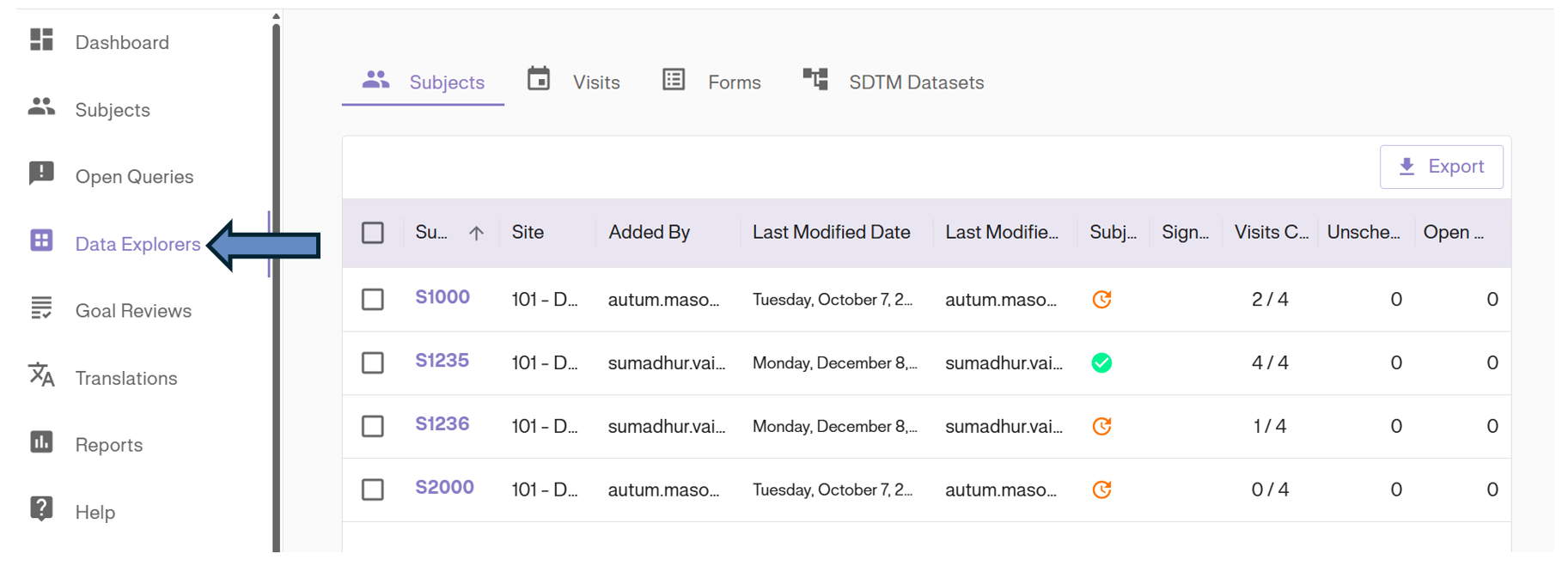
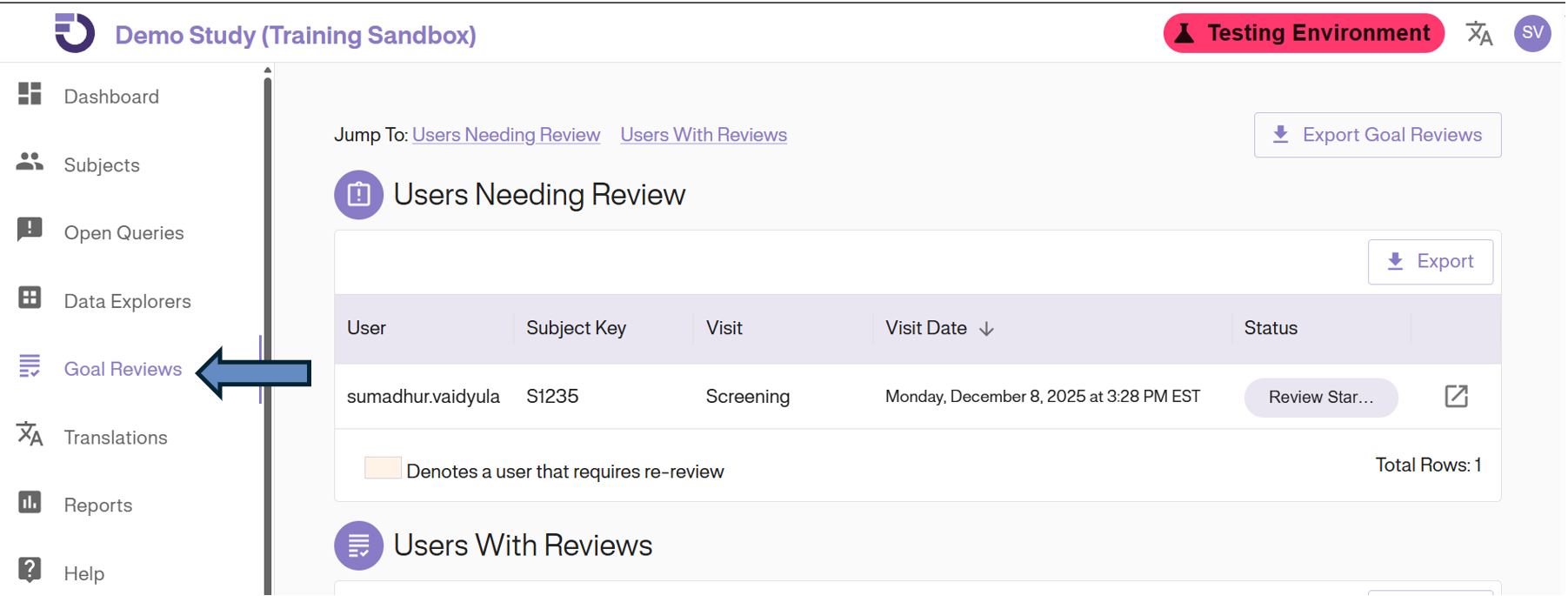
Goal Reviews: View Goal reviews added for assessment feedback.
Note: The records displayed in the Goal Reviews dashboard may be limited to your own entries or expanded to site-level data depending on your specific study permissions and user role.
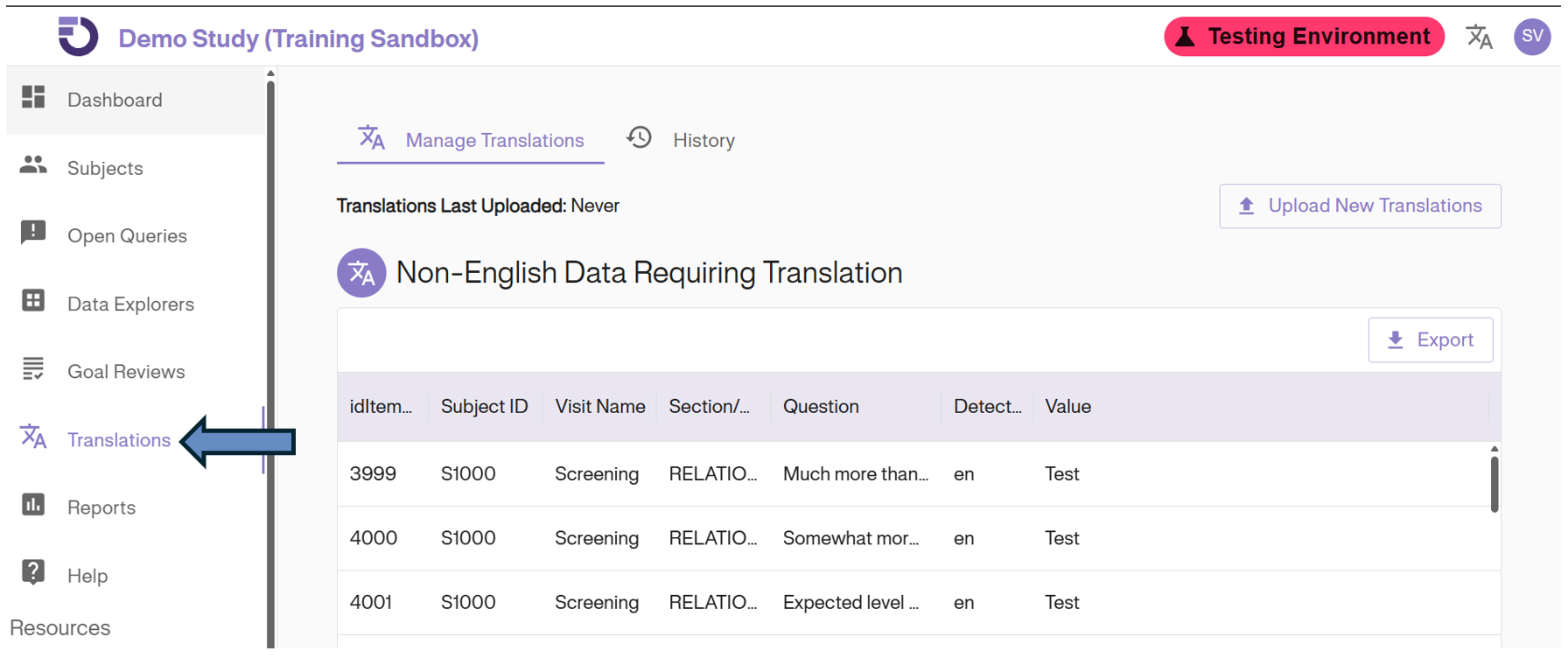
Translations : A dedicated worklist for Translations.
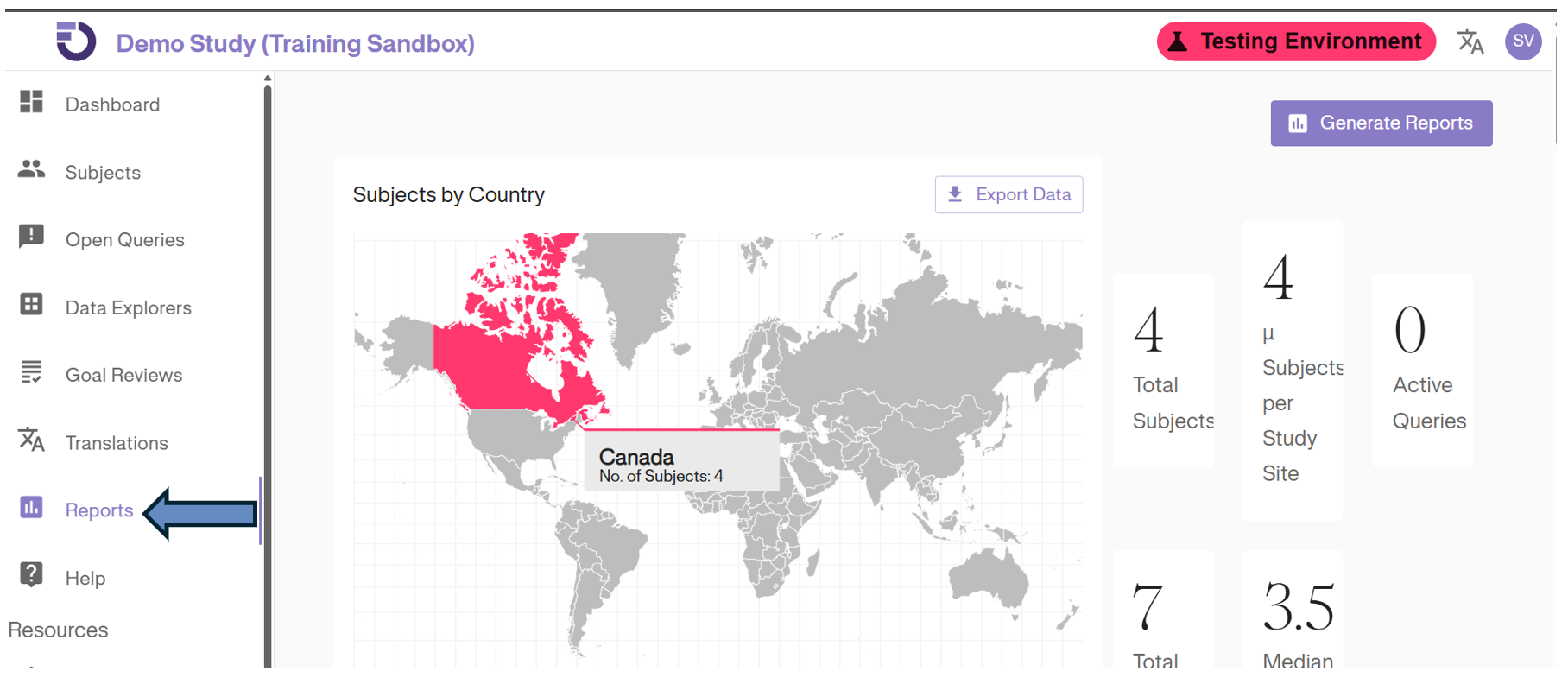
Reports : A dedicated worklist for Reports.
Help : Help section provides access to resources such as System Manual and other options to contact us for any support.
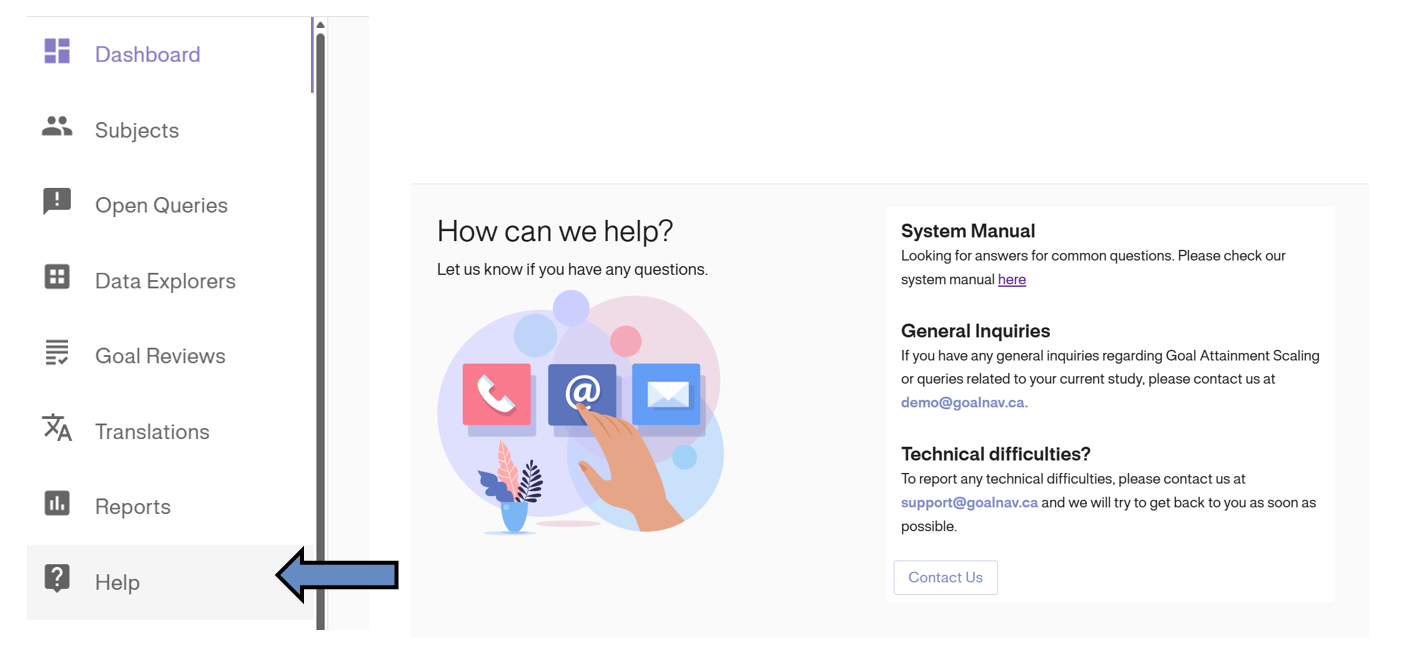
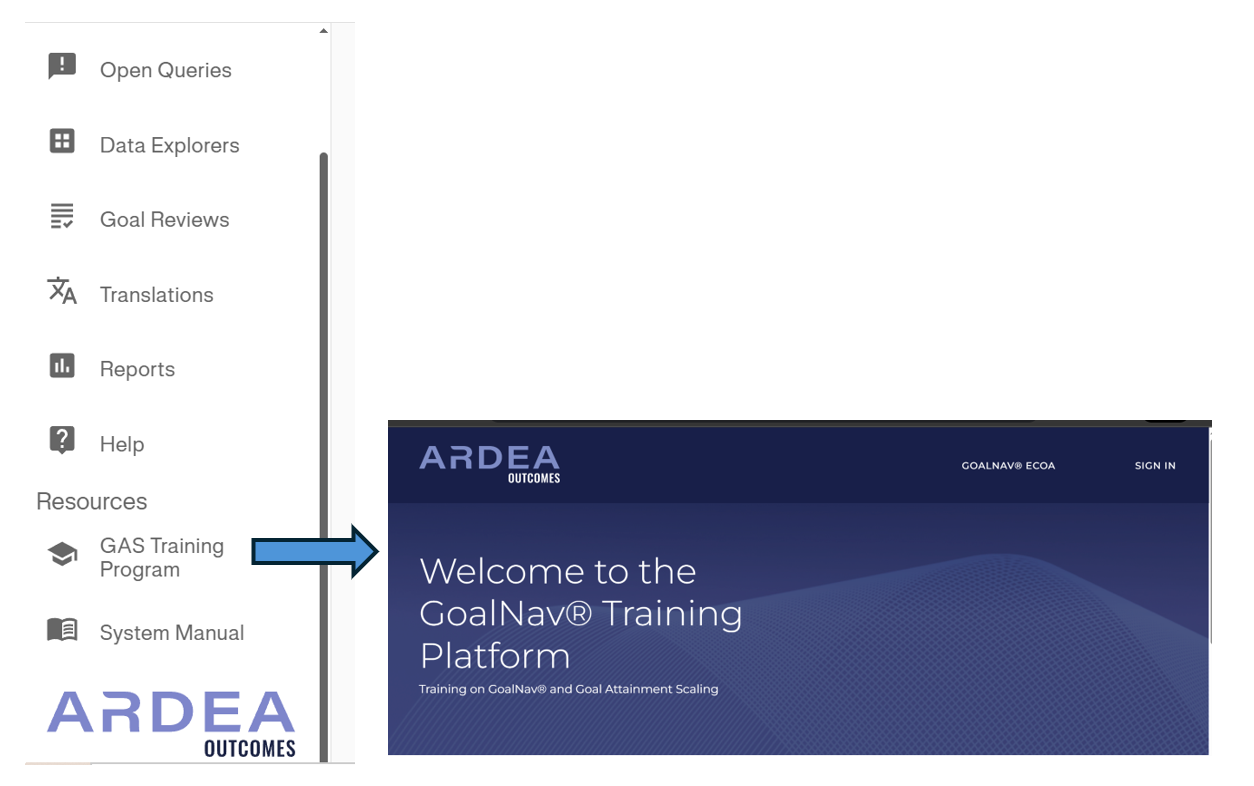
Resources: A lower section providing quick access to external support.
-
GAS Training Program: Directs to the log in page for the GAS training program. Study specific courses can only be accessed if you have previously created an account. Otherwise, reach out via your study specific email to gain access to the private link for each study.
-
System Manual: Directs to this online system manual.