GoalNav Manual
 Printing Forms
If you need a physical backup or PDF copy of a specific form, follow these steps:
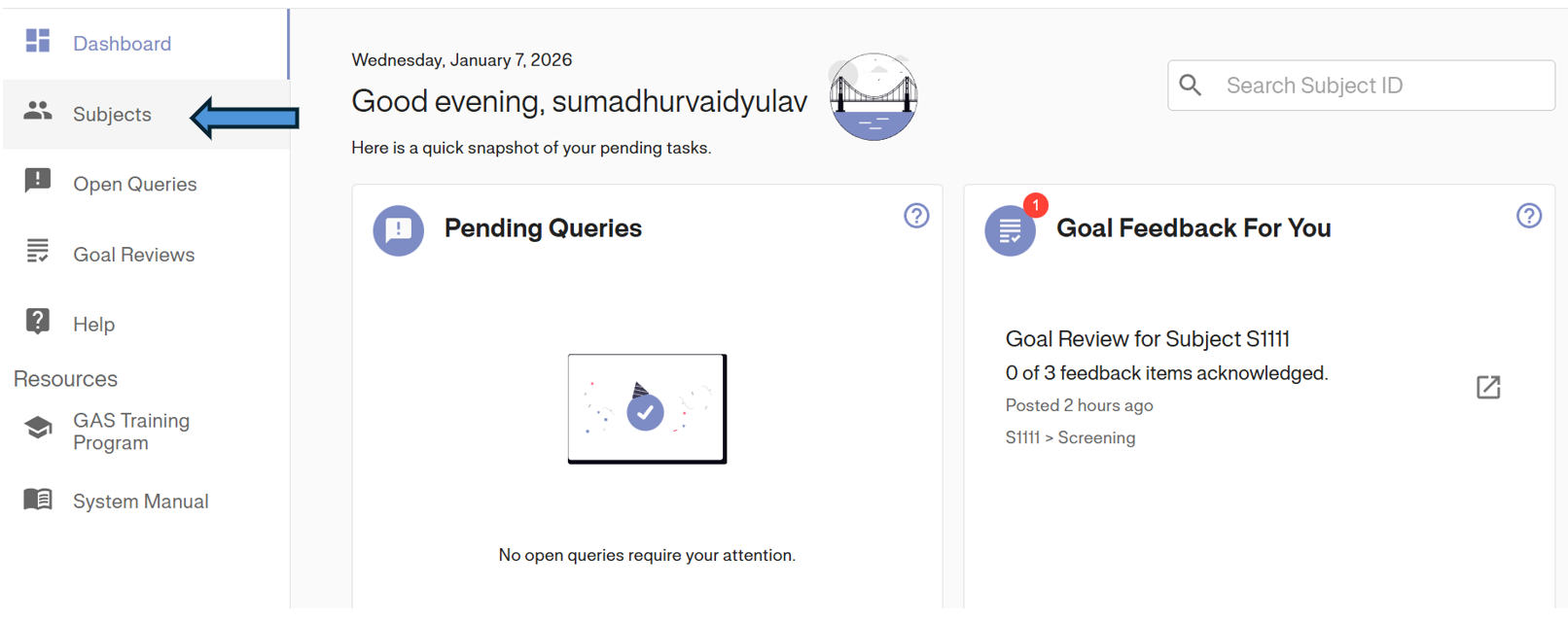
1. Navigate to Subjects: From the main dashboard, click on the Subjects tab in the left-hand navigation menu.
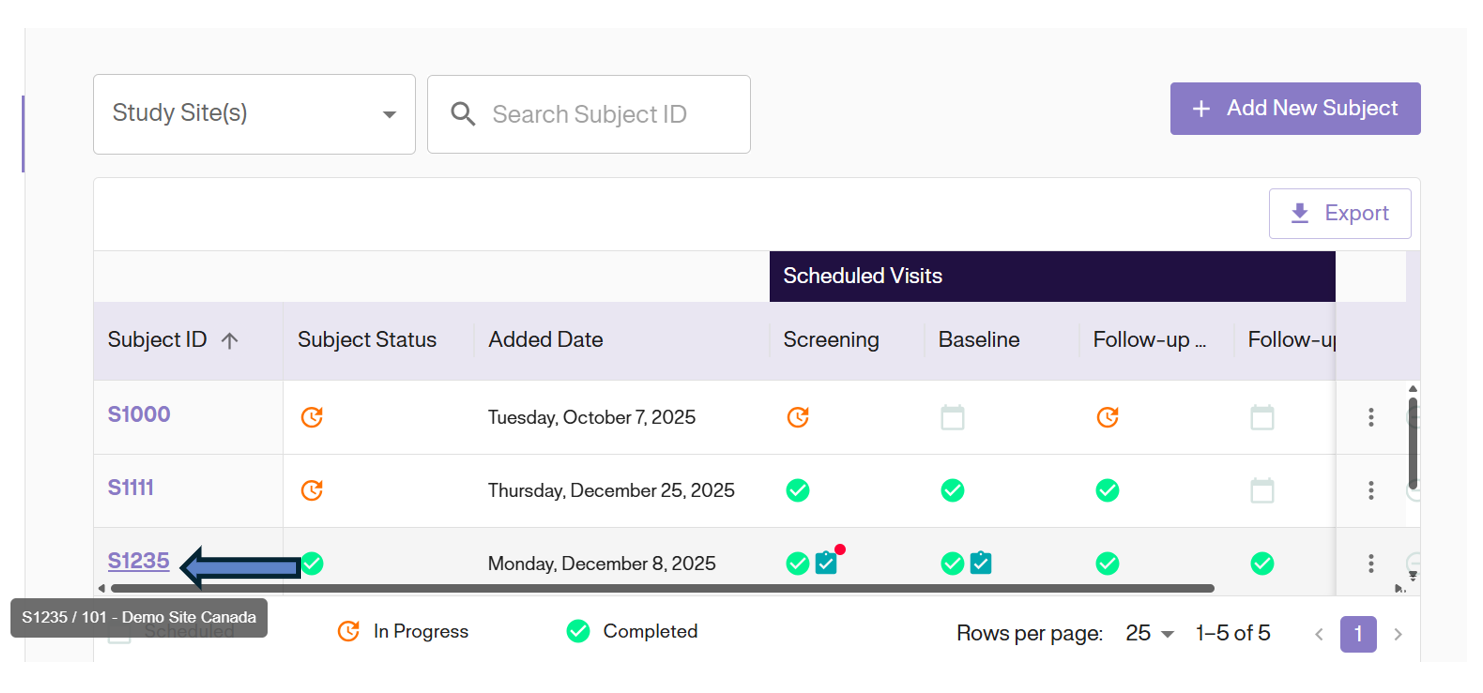
2. Select Subject: Click on the specific Subject ID from the list to open their dashboard.
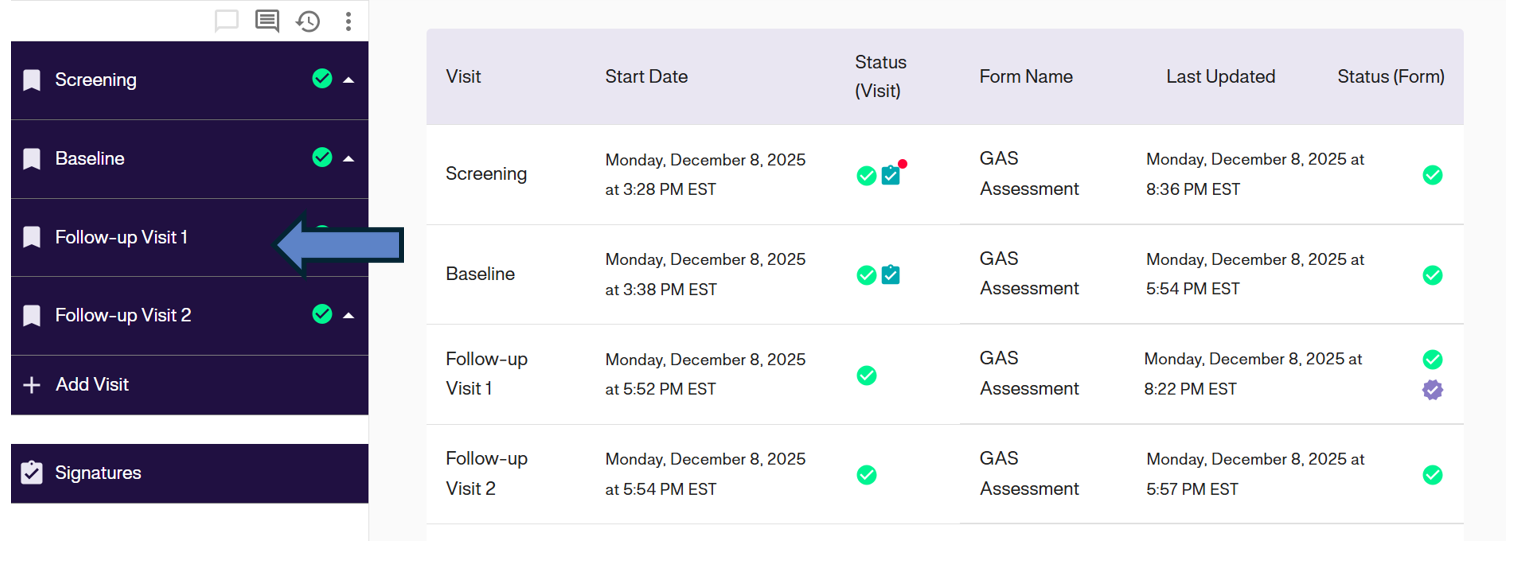
3. Select Visit: Navigate to the desired visit (e.g., Follow-up Visit 1) using the sidebar menu.
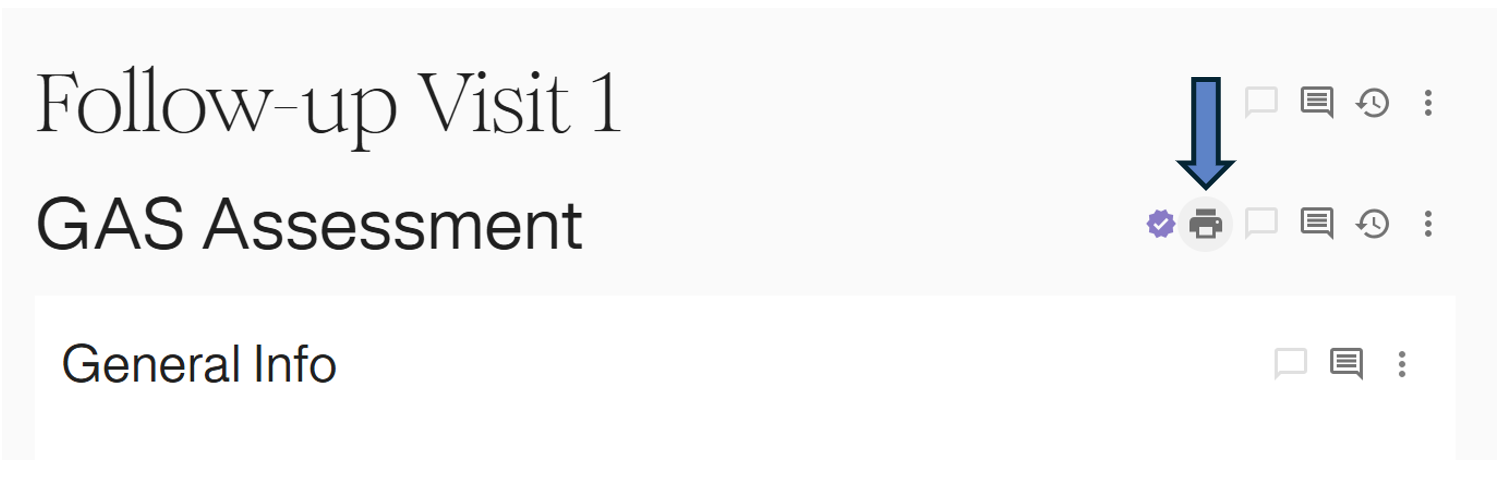
4. Print: Click the Print Icon (printer symbol) located in the action toolbar at the top right of the form section. This will open your browser’s print dialog where you can save as PDF or print to a physical device.