GoalNav Manual
 Goal Reviews
The Goal Reviews workflow allows Data Entry users to view feedback provided by reviewers on GAS Assessments, address specific action items, and formally acknowledge that the feedback has been processed.
Accessing Goal Reviews
There are two ways to access pending reviews from the main system:
Option A: From the Dashboard Sidebar
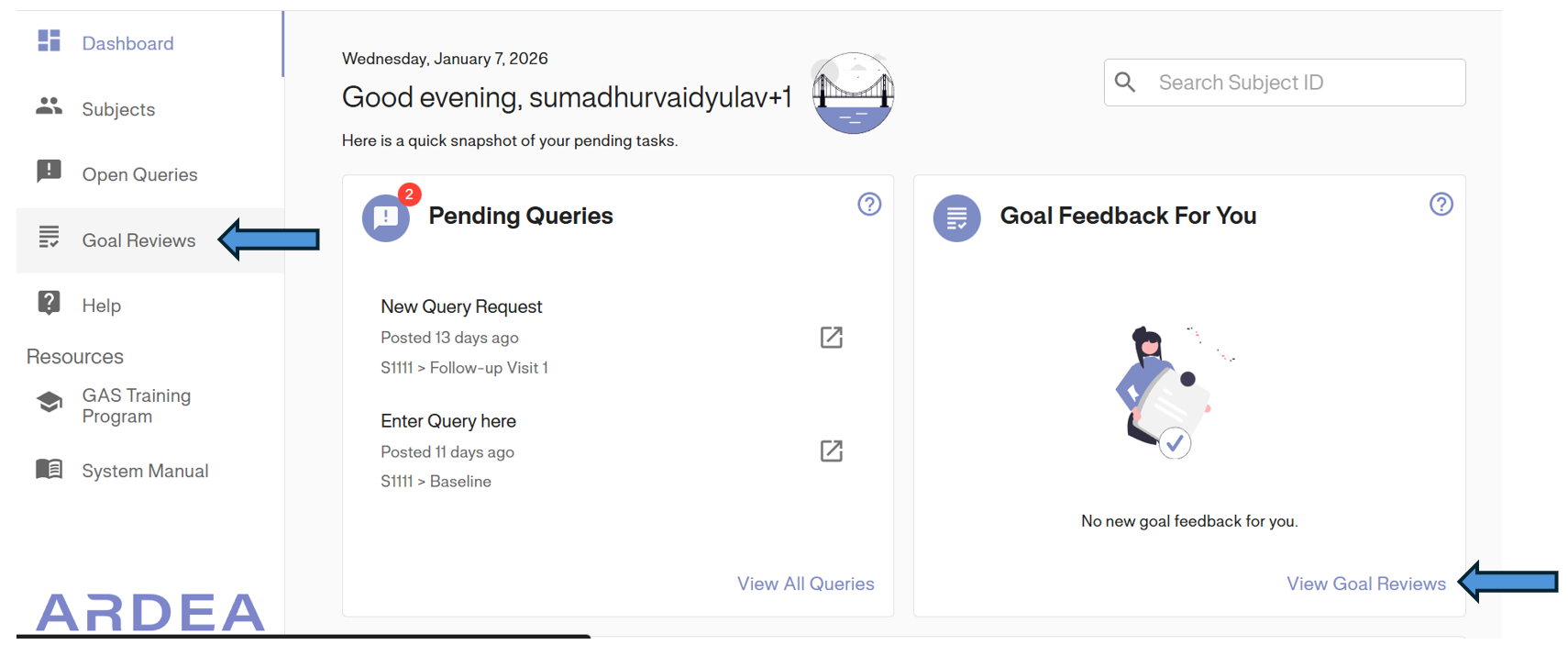
1. Click the Goal Reviews tab in the left-hand navigation menu.
2. This opens the Goal Reviews Dashboard, showing a list of all subjects with pending or completed reviews.
Option B: Quick Access Card
1. On the main Dashboard, locate the Goal Feedback For You card.
2. Click the View Goal Reviews link at the bottom of the card.
Managing the Review Grid
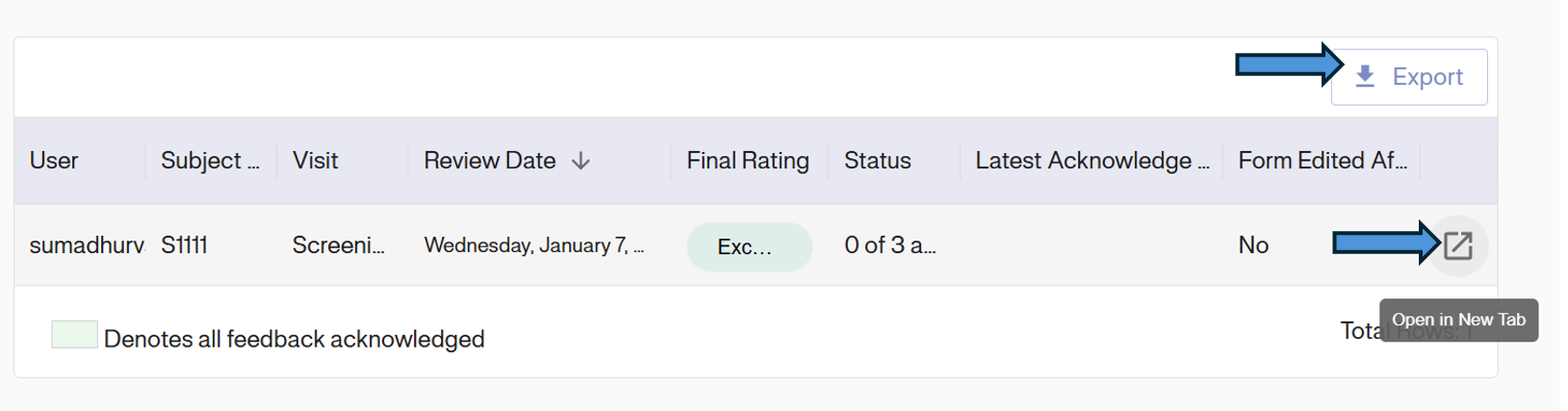
The Goal Reviews page displays a grid of all assessments containing feedback. From here, you can manage the high-level view of your tasks.
- Export: Click the Export button in the top right corner to download the review data.
- Open in New Tab: Click the icon (square with arrow) next to a specific row. This will directly open the visit page with the goal review in a new browser tab.
Acknowledging Feedback
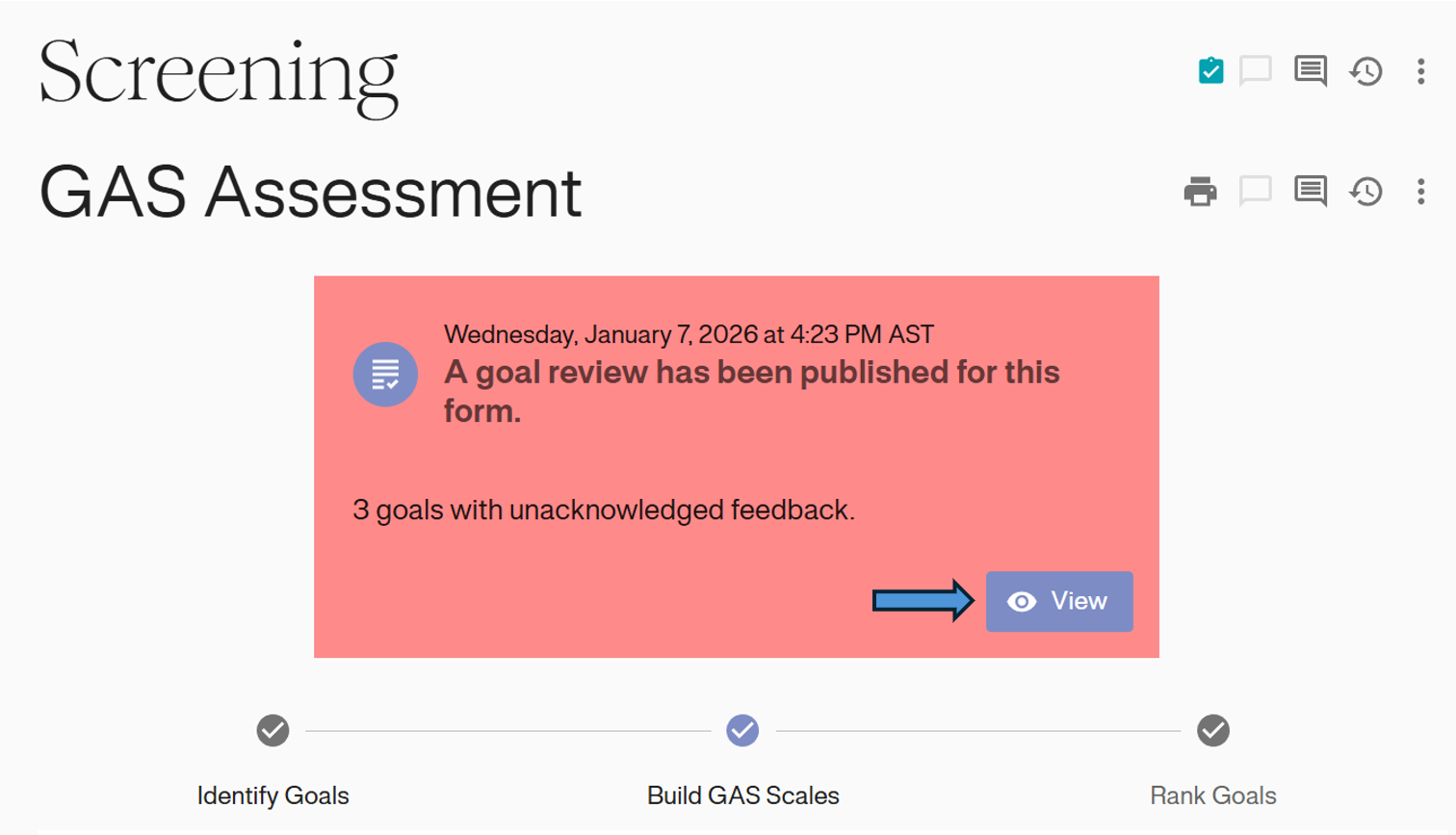
When the visit page opens, the system will automatically display the Goal Review interface.
Step 1: View Published Reviews
A red notification banner appears at the top of the form indicating the number of goals with unacknowledged feedback.
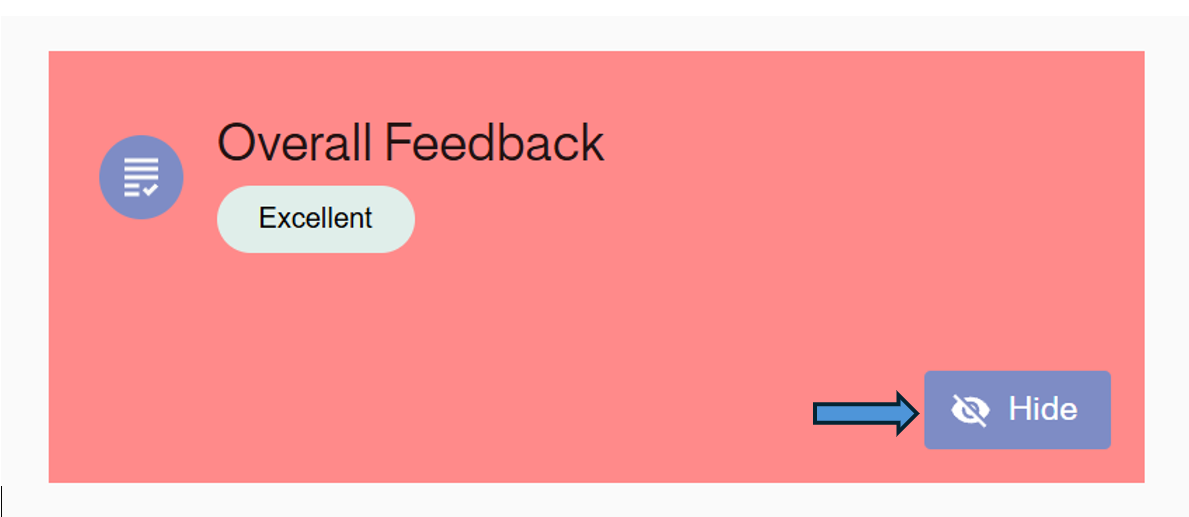
1. Click the View button on the banner to expand the “Overall Feedback” section.
2. Once viewed, the button changes to Hide.
Step 2: Address Action Items
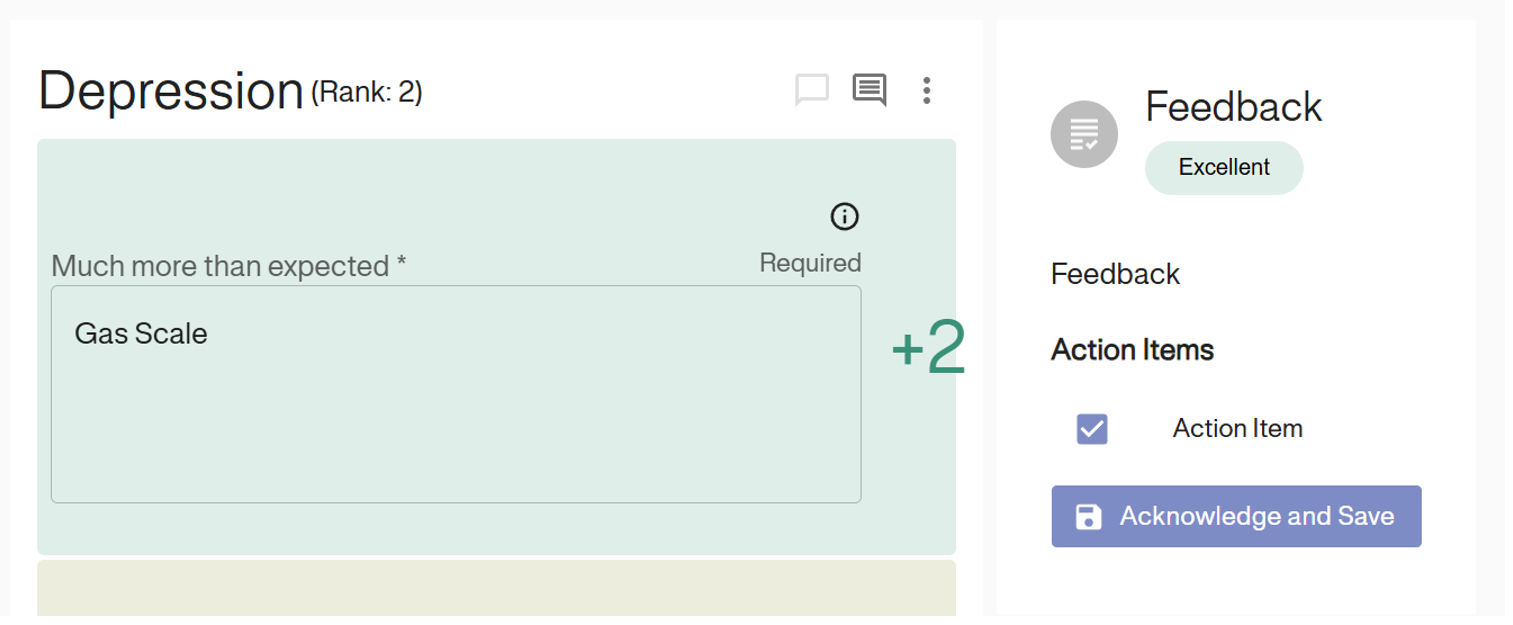
Scroll to the specific goals to see granular feedback.
1. Review Feedback: Read the comments and rating (e.g., “Excellent”) in the Feedback panel on the right.
2. Action Items: If changes are required, check the box next to Action Item.
3. Save: Click the Acknowledge and Save button.
Repeat this process for every goal listed in the assessment until all items are addressed.
Step 3: Confirm Acknowledgment
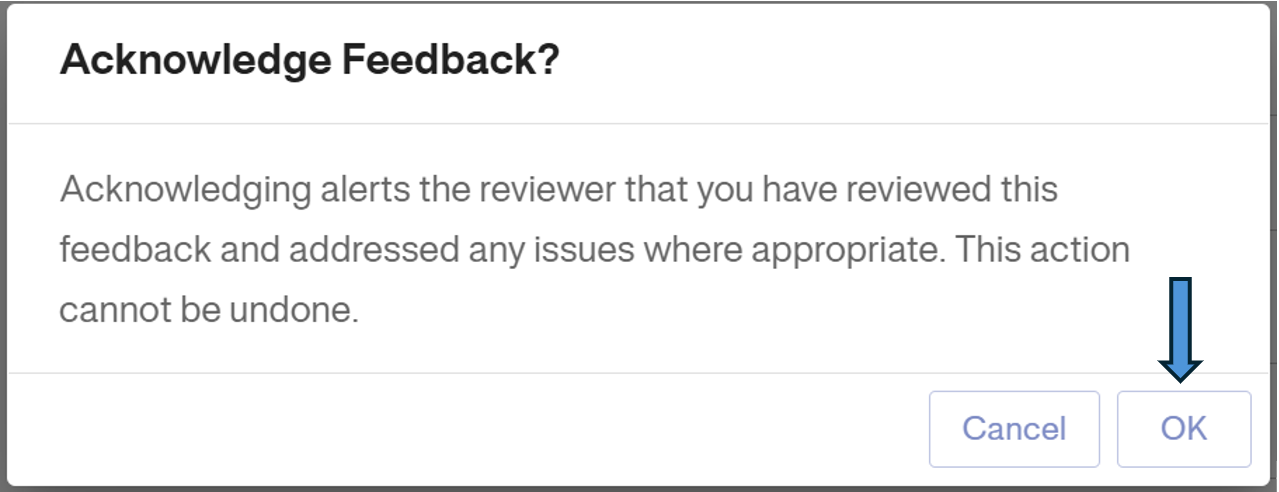
After clicking save, a confirmation modal will appear.
- Click OK to confirm.
- Note: This alerts the reviewer that you have addressed the issues. This action cannot be undone.
Verification of Completion
Once all feedback for a specific visit has been acknowledged:
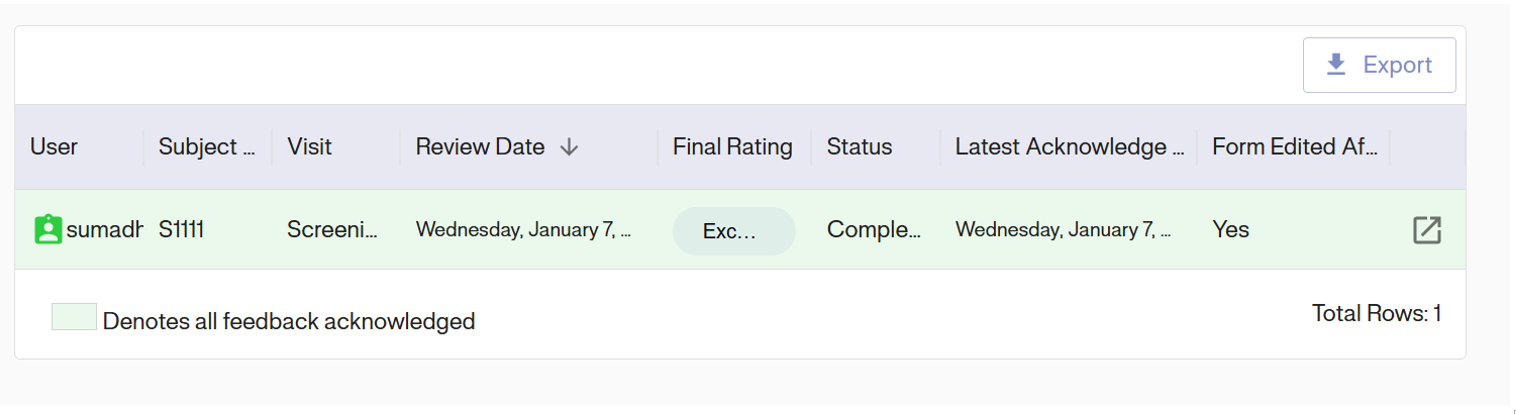
1. Return to the main Goal Reviews grid.
2. The row status will turn Green.
3. The legend confirms that the green highlight denotes “all feedback acknowledged.”