 GoalNav Manual
 Subject Details Dashboard
To view a specific subject’s history and access their forms, click on their hyperlinked Subject ID in the Subject Matrix.
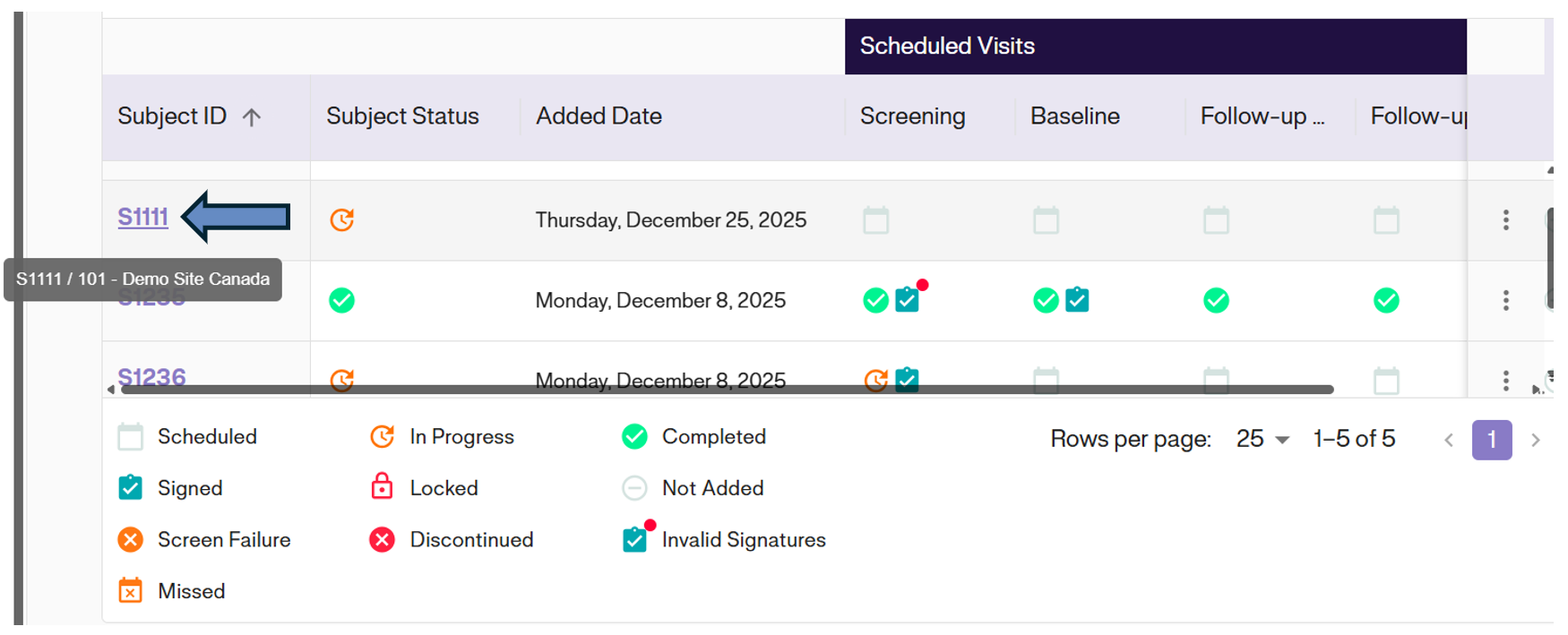
The Dashboard View
The Subject Details page lists every visit and form associated with the subject. The table on the right provides a comprehensive overview:
- Visit: The name of the scheduled event (e.g., Screening, Baseline).
- Start Date: The date the visit was initiated.
- Status (Visit): An icon indicating the overall progress of that visit.
- Form Name: The specific assessments or forms required (e.g., GAS Assessment).
- Status (Form): An icon indicating if the specific form is scheduled, completed, or locked.
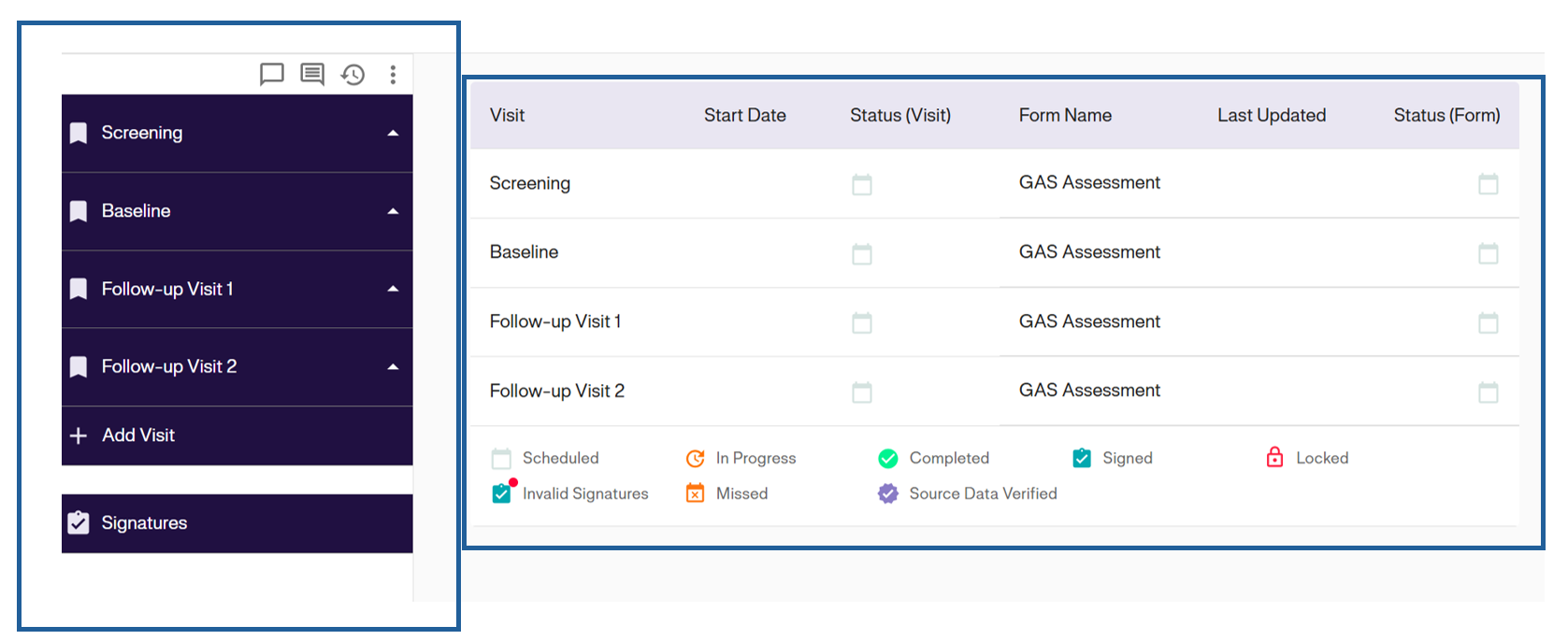
The Study Menu (Sidebar)
The sidebar on the left is your primary navigation tool for the subject’s profile.
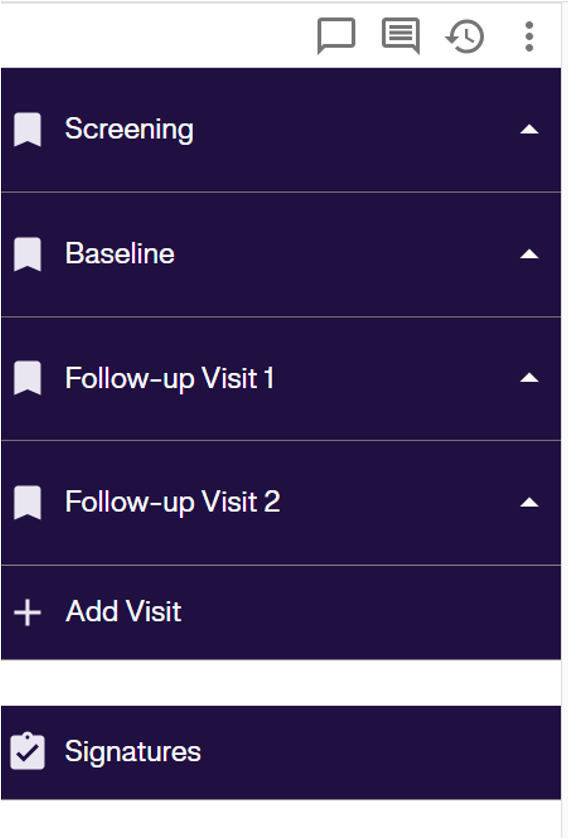
1. Visit Navigation Click on any visit name (e.g., Screening, Baseline) to filter the dashboard view. Icons next to the visit names signify their current status (e.g., white bookmark for scheduled, green checkmark for completed).
2. Sidebar Actions
- Toolbar: Use the icons at the top right of the sidebar to view Queries, Comments, or the Audit Logs.
-
Three dot icon: Click this button to manually add an unscheduled or ad-hoc visit, sign subject or lock subject to the subject’s timeline.
- Signatures: Click the Signatures button at the bottom to access the signature management page.
Icon Legend
Refer to the legend located at the bottom of the screen to interpret the status icons used throughout the dashboard and sidebar.
