GoalNav Manual
 User Settings
Accessing Your Profile
Your user profile allows you to manage personal information and system preferences. To access it:
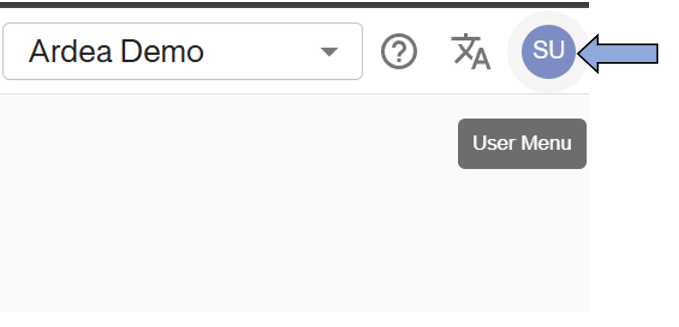
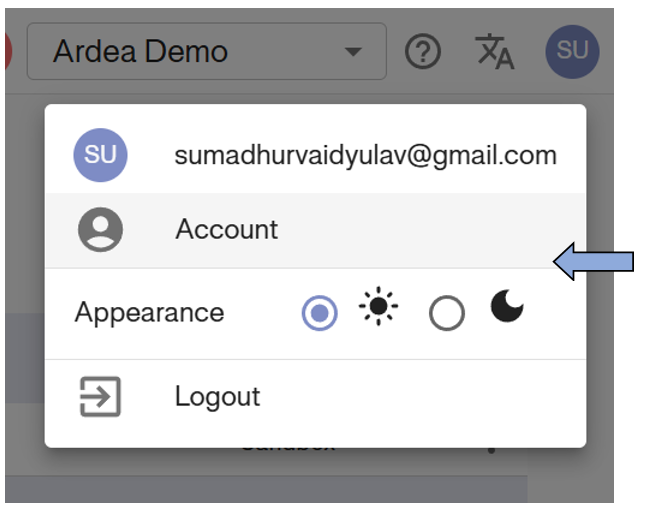
1. Click the User Icon (displayed with your initials) in the top right header.
Appearance (Light & Dark Mode)
You can customize the interface appearance directly from the user menu.
-
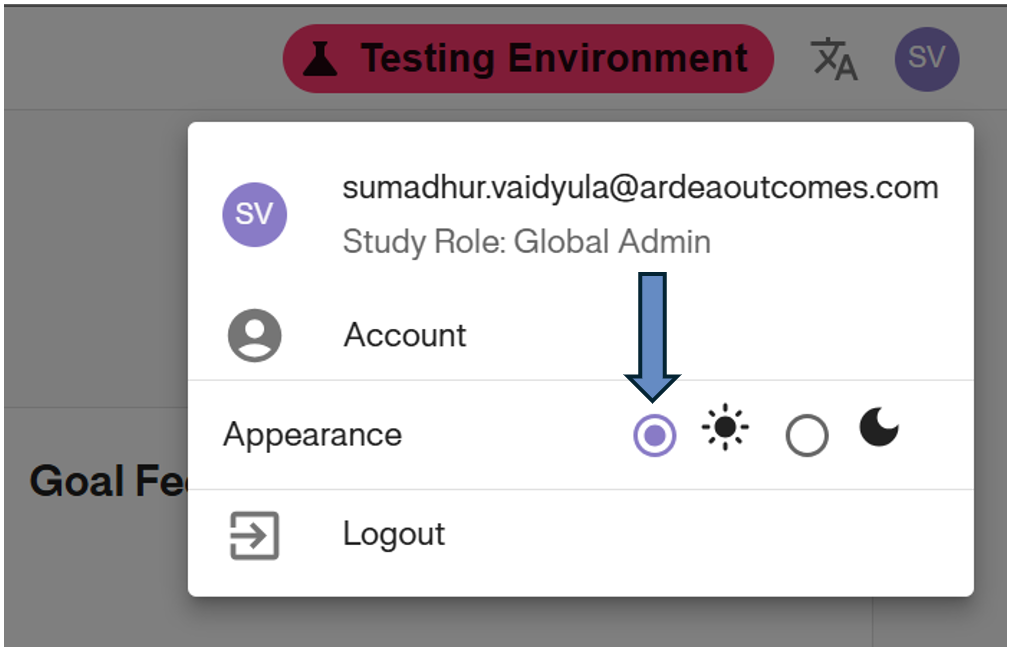
Light Mode: Click the Sun Icon to enable the standard light theme.
-
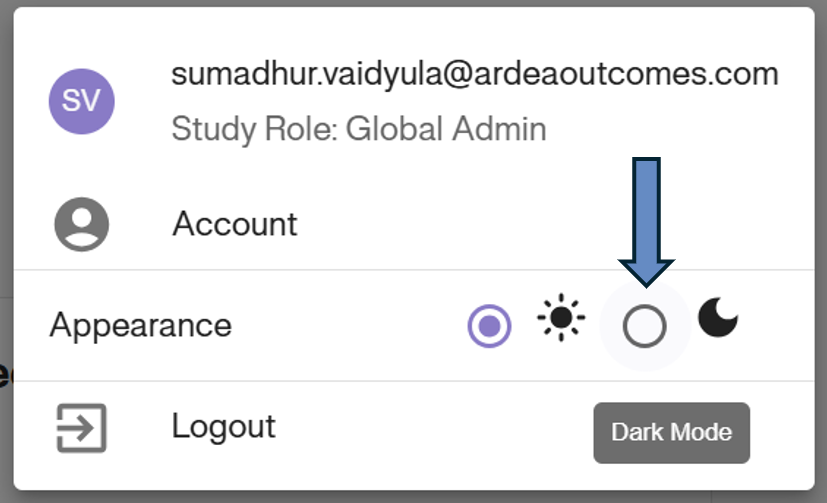
Dark Mode: Click the Moon Icon to switch to the dark theme.
-
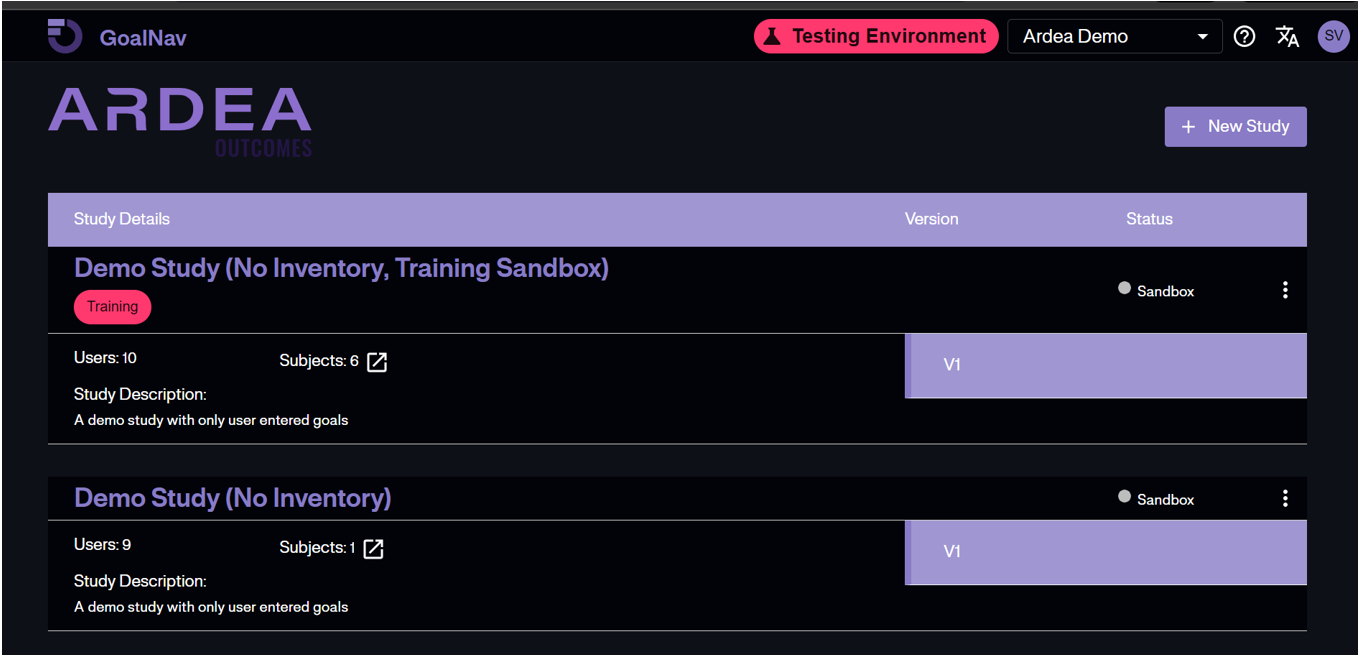
Dark UI Example: The interface will immediately switch to a dark theme, which can be easier on the eyes in low-light environments.
Security (Change Password)
To update your login credentials:
1. Access Account: Select Account from the dropdown menu to open your profile settings.
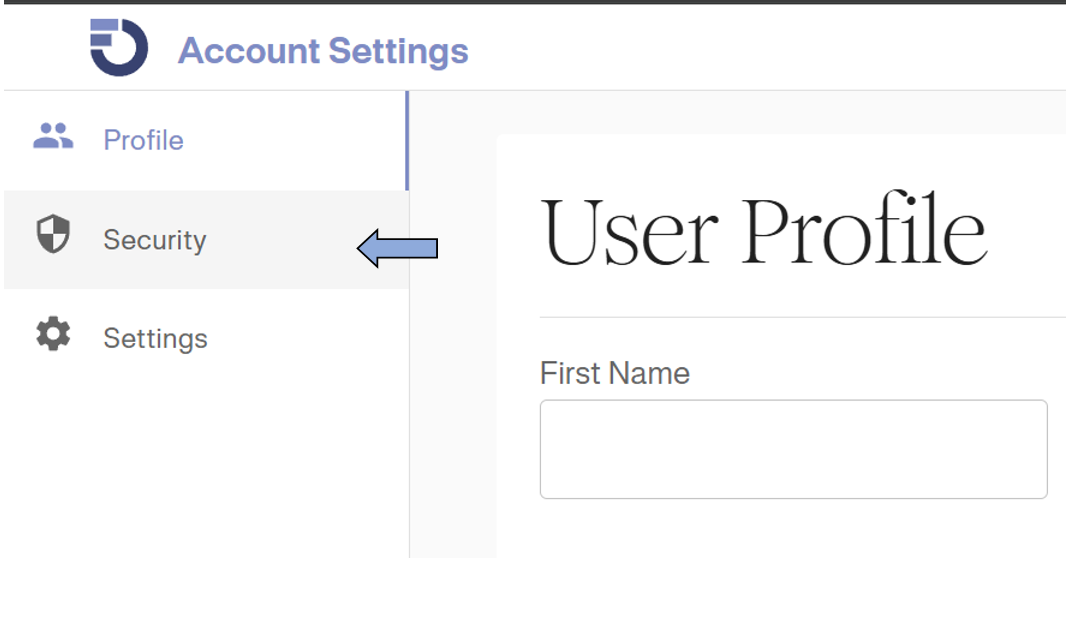
2. Select Security: Click the Security tab in the left sidebar.
3. Update Password:
- Enter your Current Password.
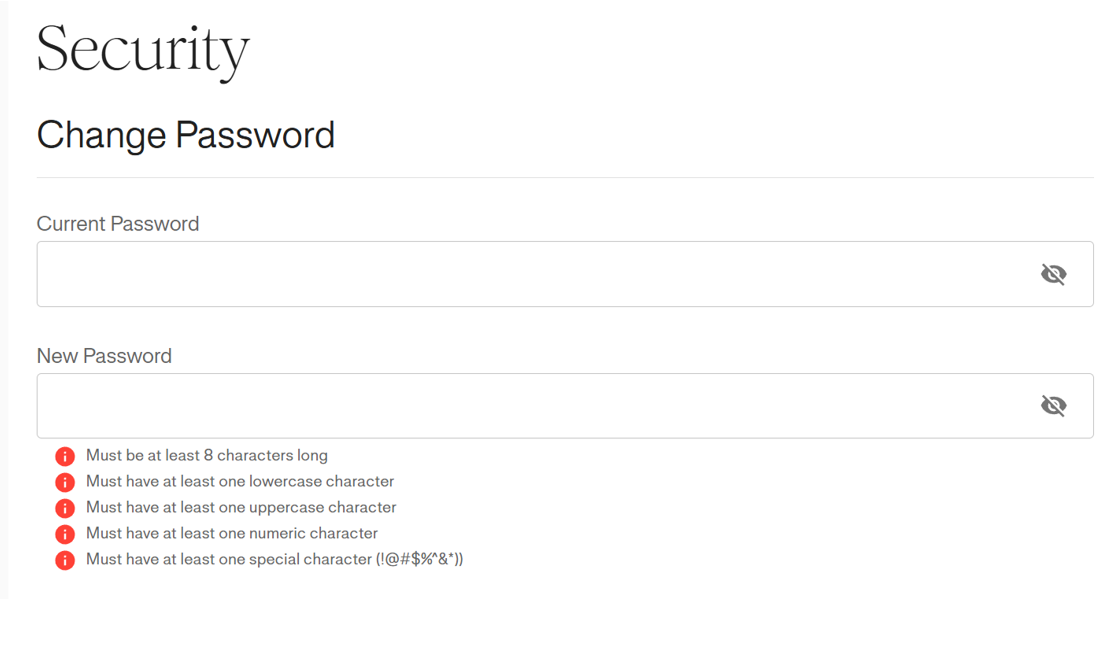
- Enter your New Password, ensuring it meets the security requirements listed (e.g., 8 characters, lowercase, uppercase, numeric, special character).
- Click Save.