GoalNav Manual
 Monitoring Source Data Verification (SDV)
This section explains how Monitors can identify which records have been verified by site staff against source documents.
Checking Status
You can verify the SDV status of specific forms directly within a subject’s visit.
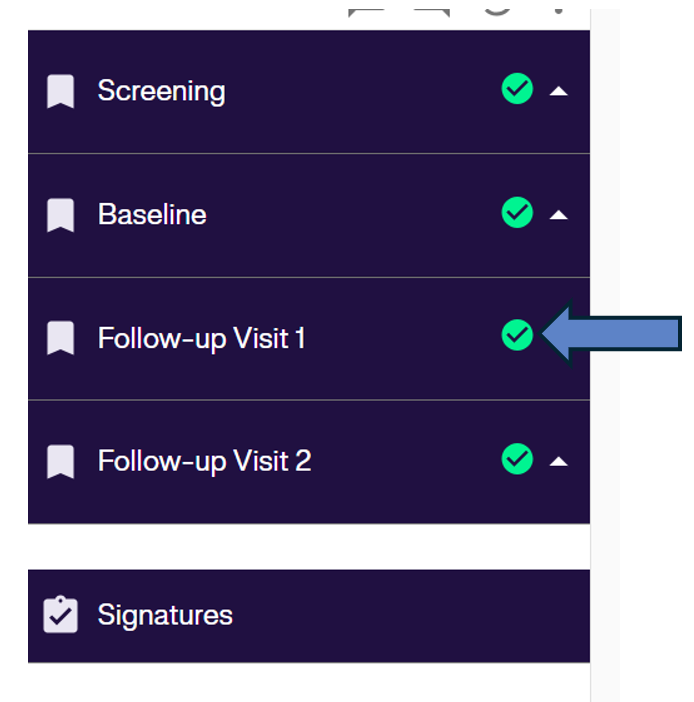
1. Navigate to Visit: Open the specific visit for the subject (e.g., Follow-up Visit 1).
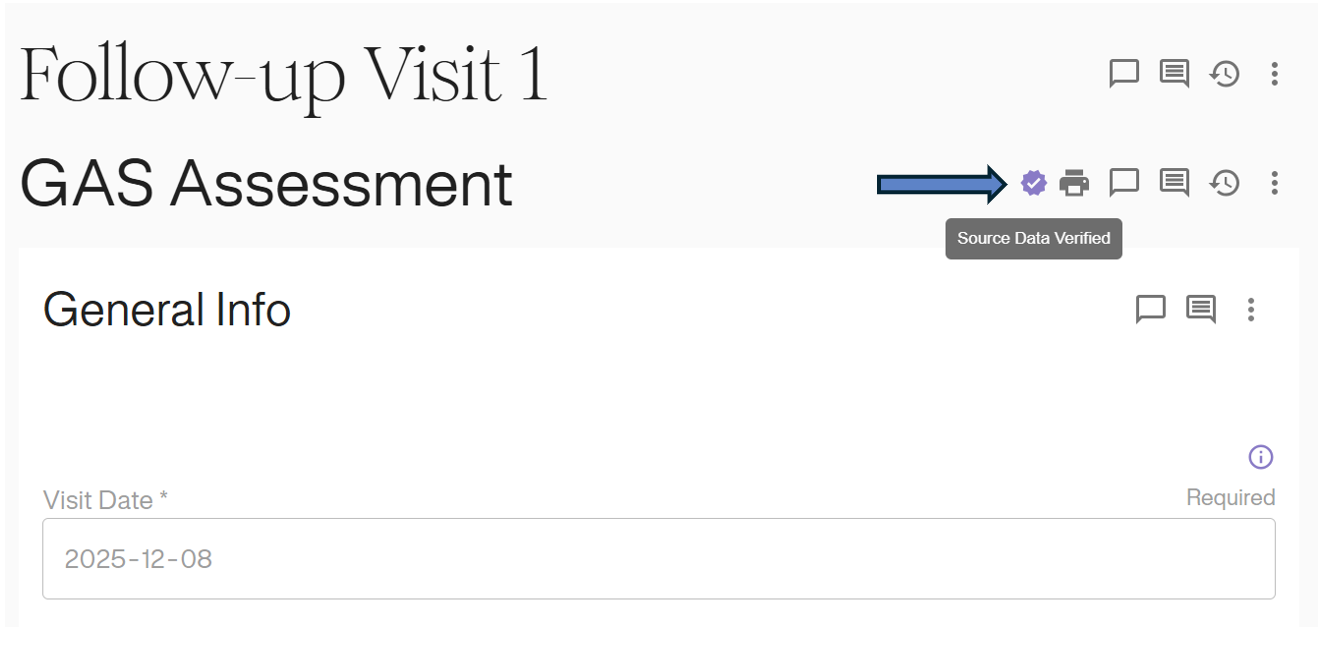
2. Verify Icon: Look for the Purple Checkmark (Source Data Verified) icon next to the form header options. If the icon is missing, the data has not yet been verified.
Using Data Explorers
To find all verified forms across the study or to identify forms missing verification:
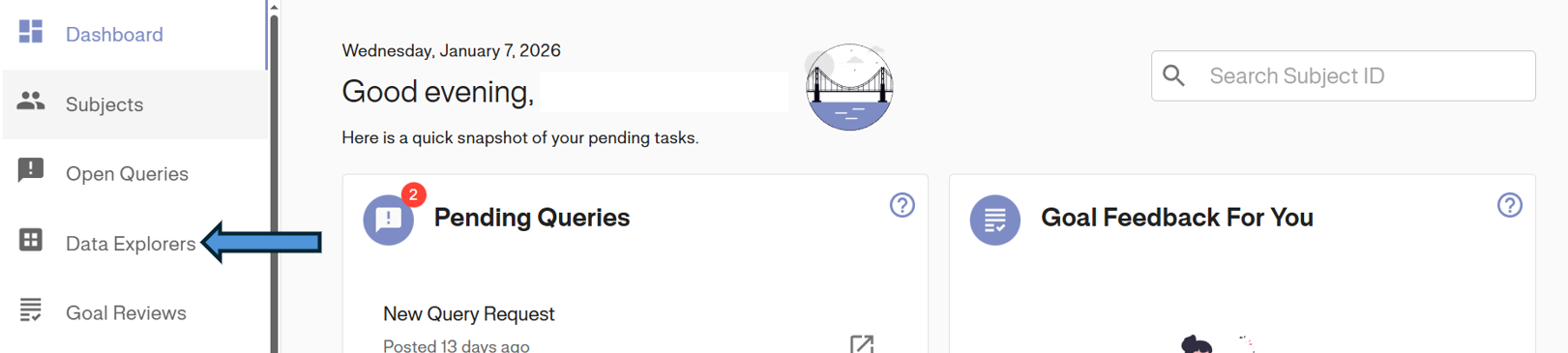
1. Access Data Explorers: Click Data Explorers in the left navigation menu.
2. Select Forms: Click the Forms tab to view the form-level data log.
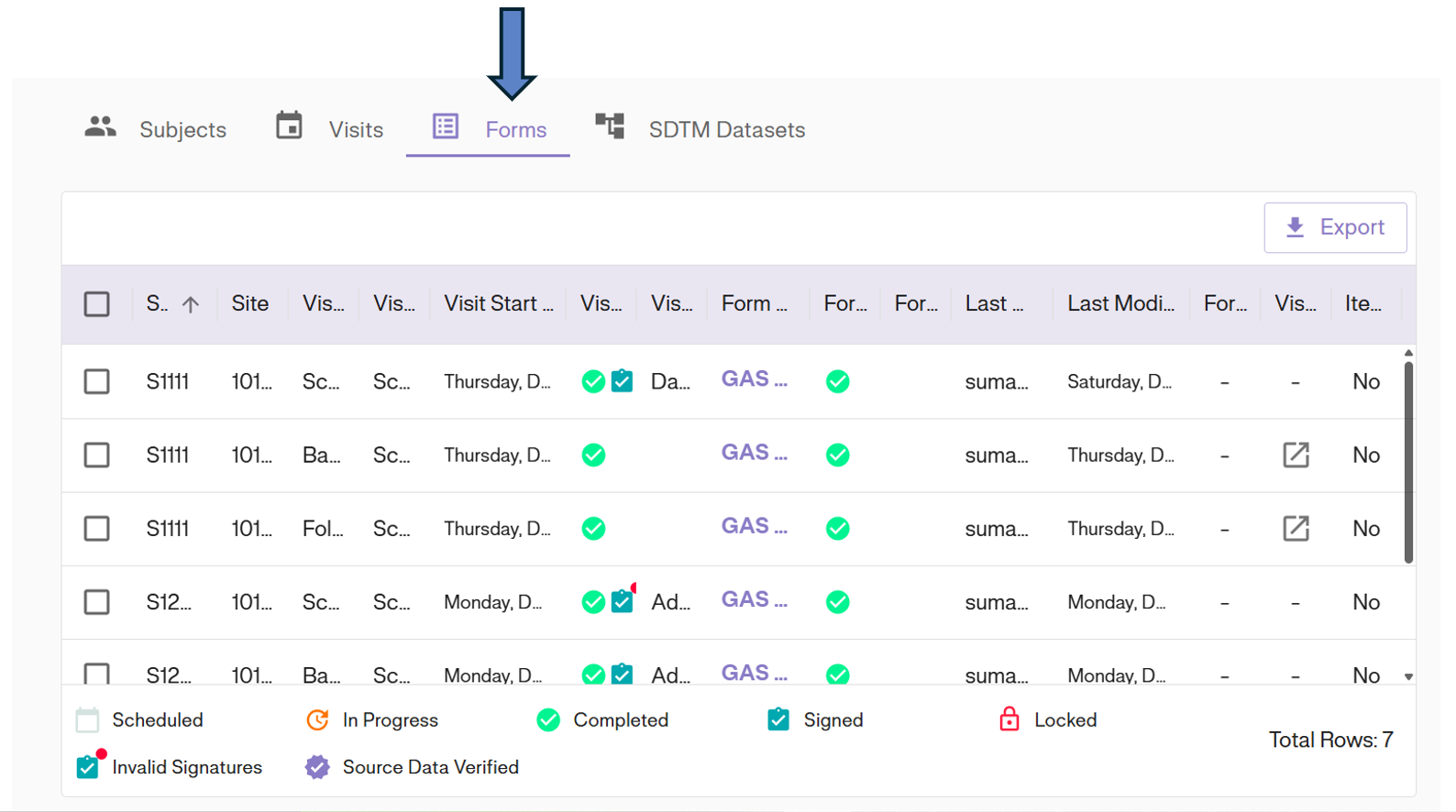
3. Open Filter: Click the Options Icon (⋮) on the Form Status column and select Filter.
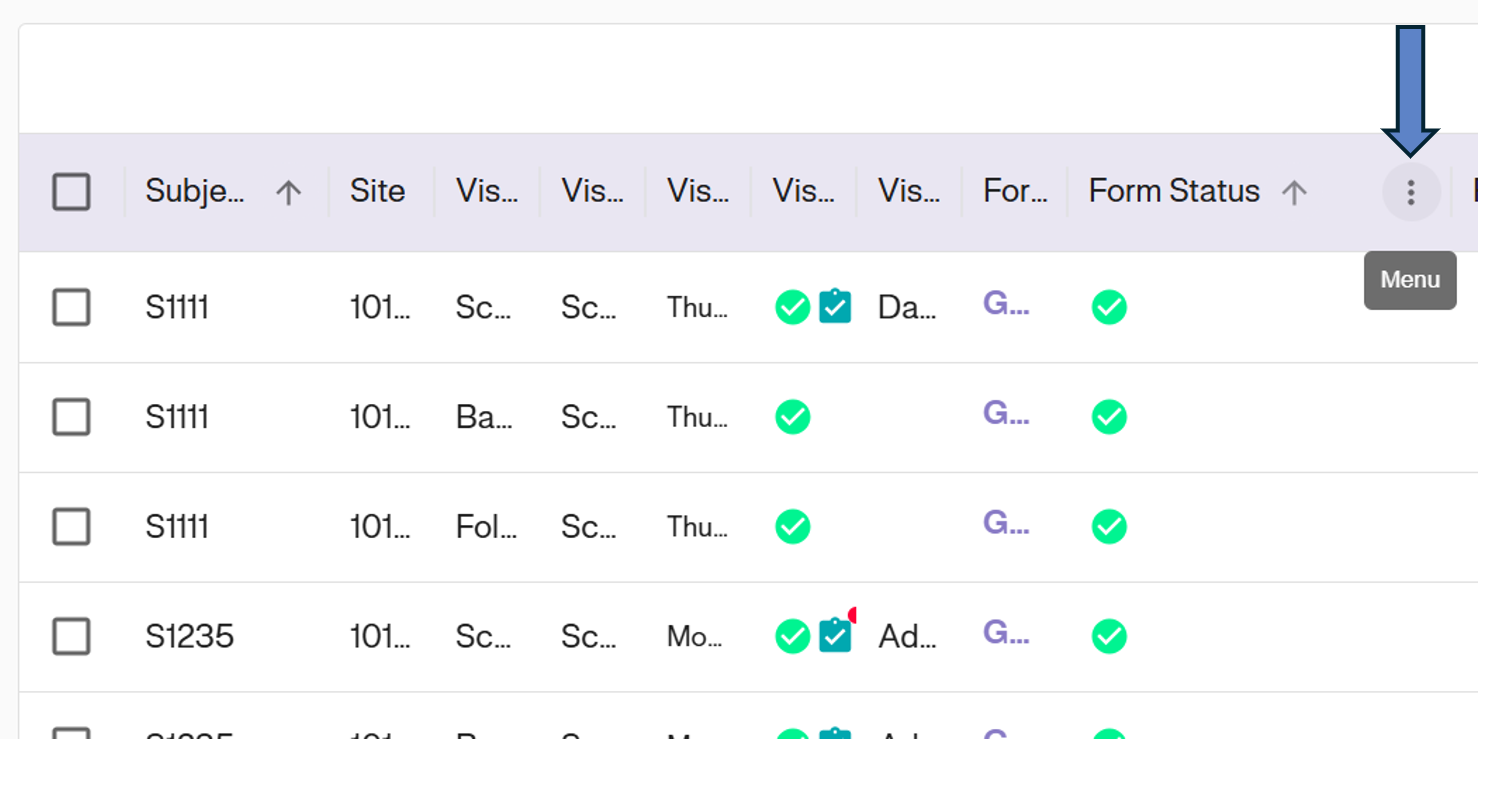
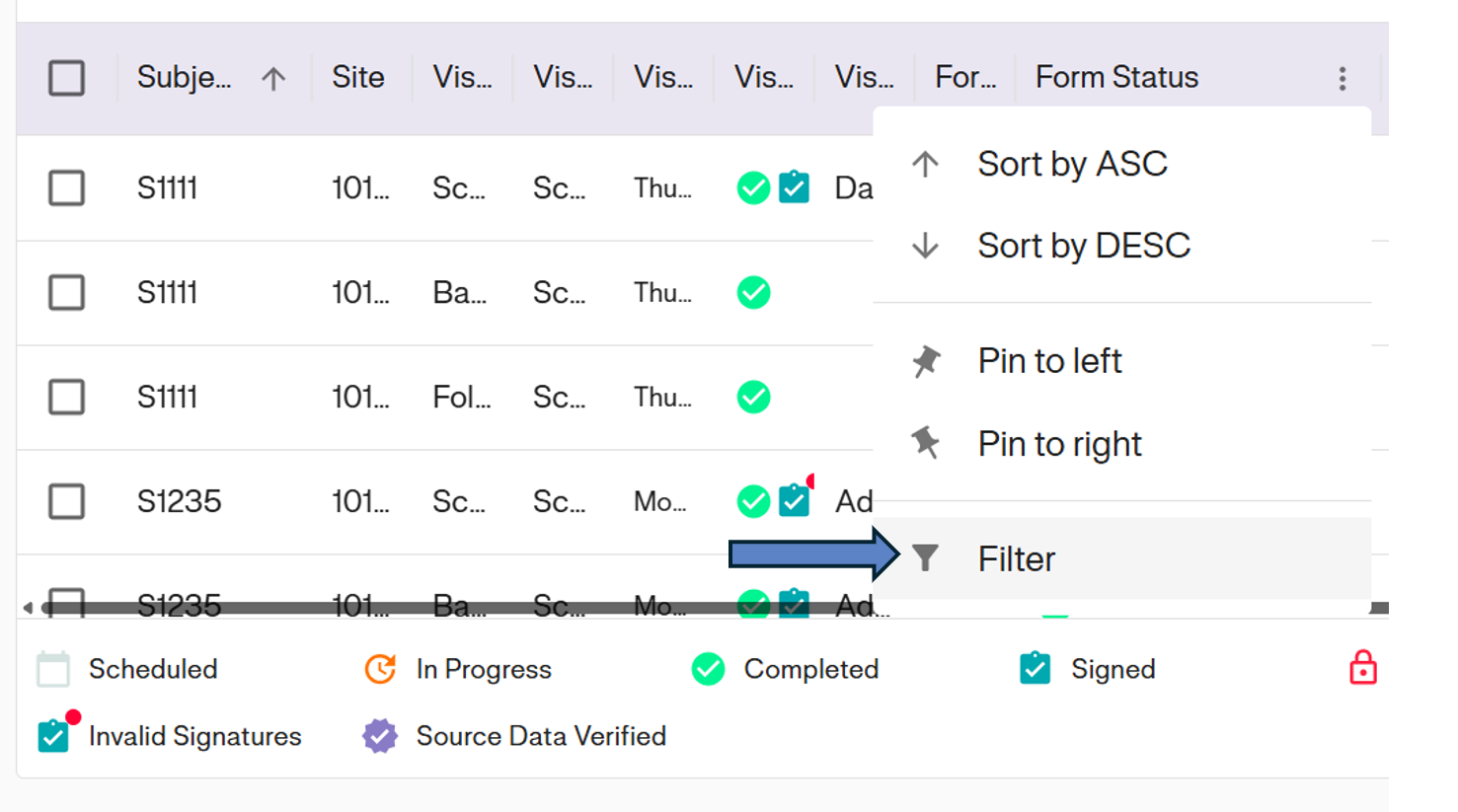
4. Apply SDV Filter:
- Set the operator to contains.
- Select Source Data Verified from the dropdown list.
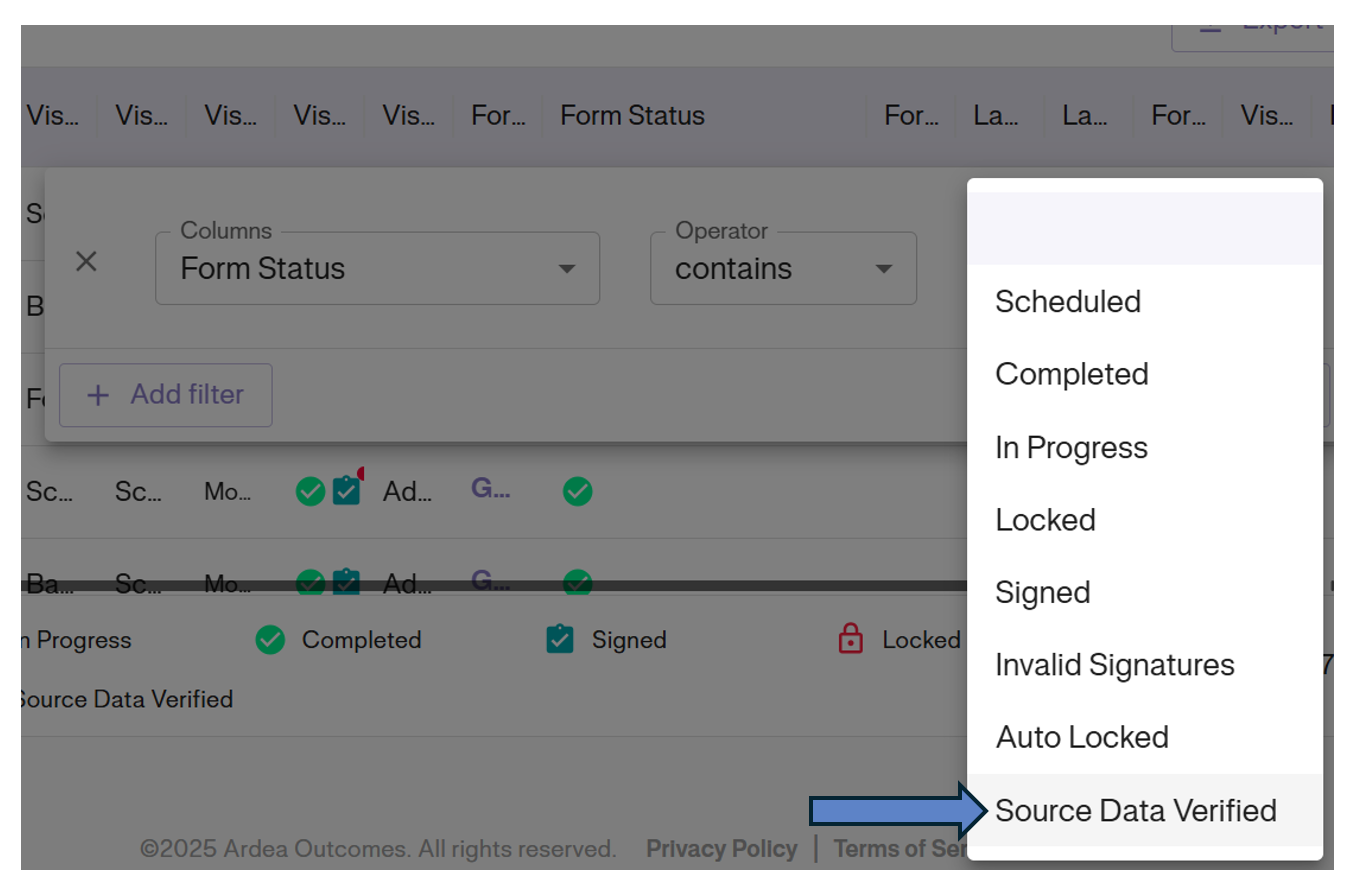
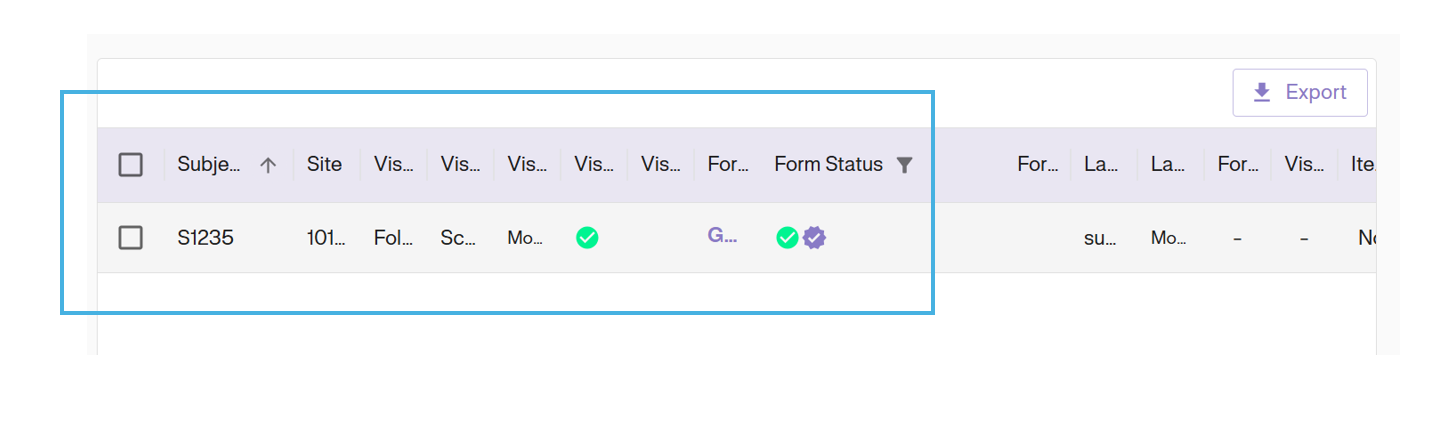
5. View Results: The table will now display only the records that have been marked as Source Data Verified.