GoalNav Manual
 Monitoring Signatures
Monitors are responsible for identifying any signatures that have been invalidated due to data changes and the following demonstrates the process for the same.
Note: Monitors must ensure that PIs have signed all required visits
Checking Status
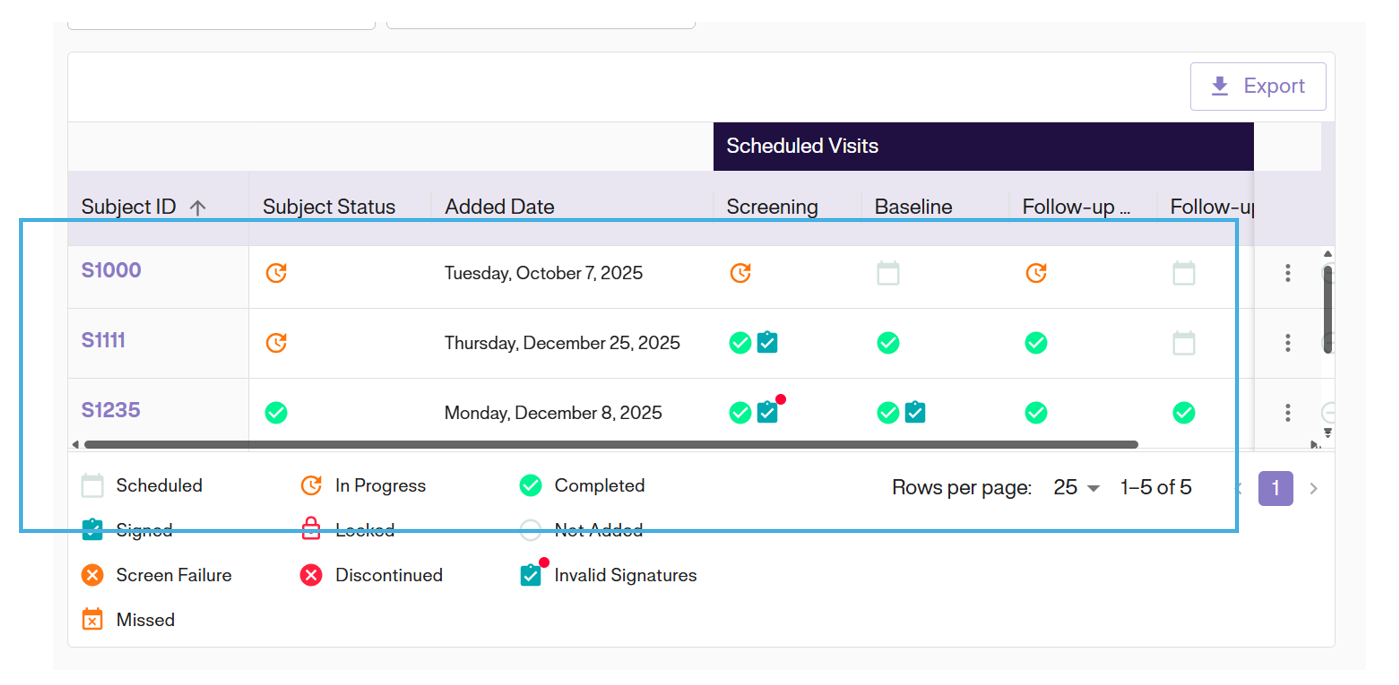
You can identify signature status using the visual indicators in the Subject Matrix and Subject Details Dashboard.
Subject Matrix
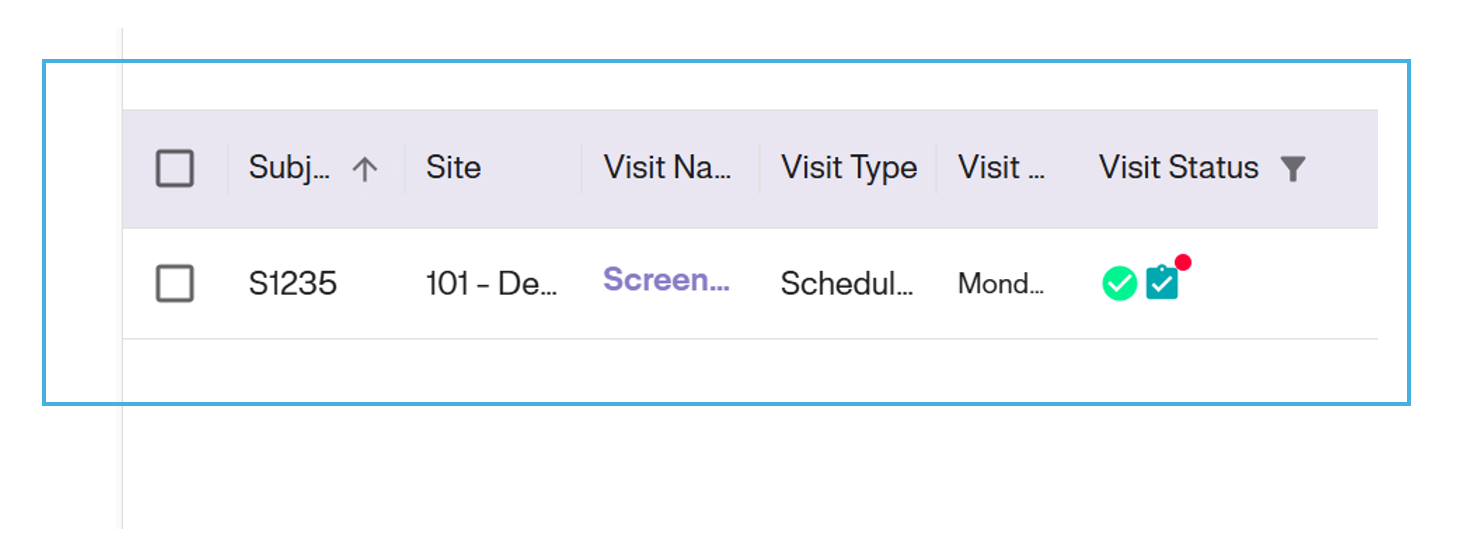
This view provides a high-level overview of all subjects. Look for the following icons in the visit columns:
- Signed: Teal Checkmark and Clipboard.
- Invalid: Clipboard with a Red Dot (Data changed after signing).
- Missing: No icon present.
Subject Details Dashboard
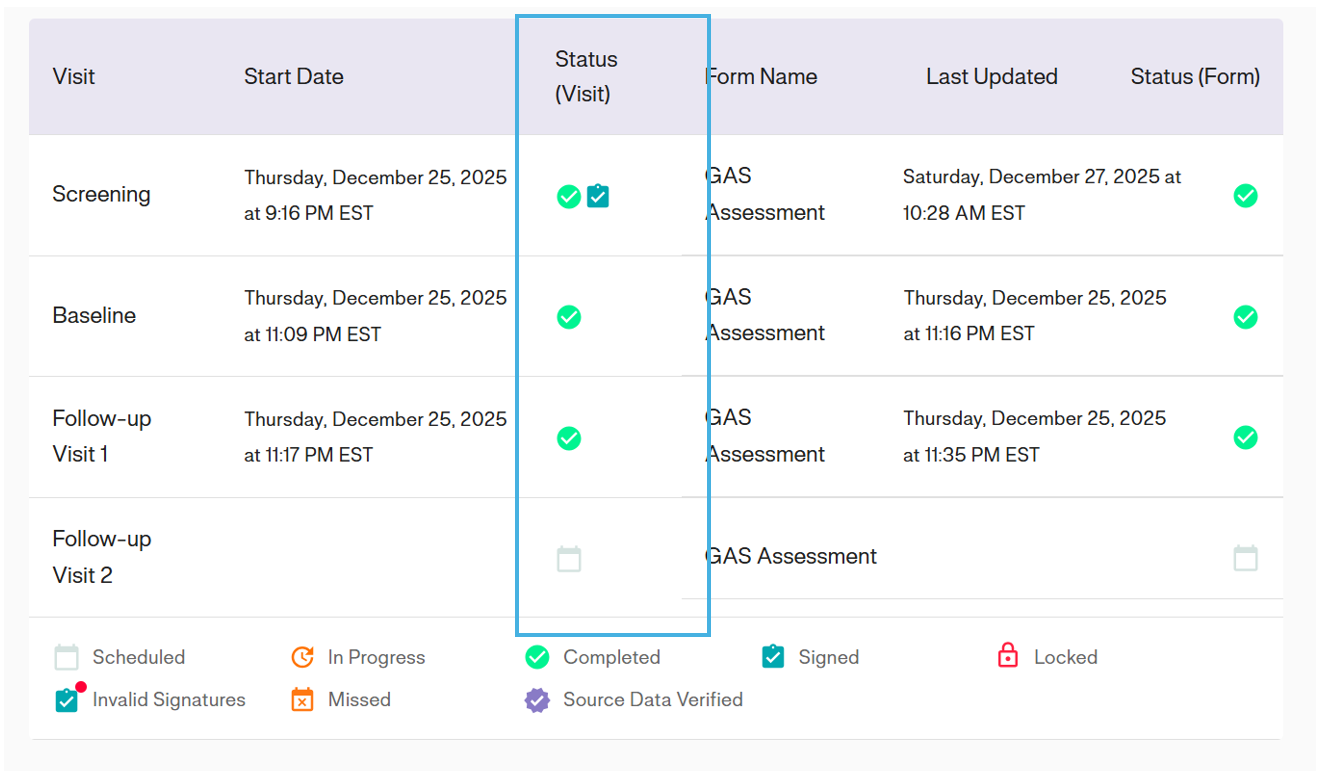
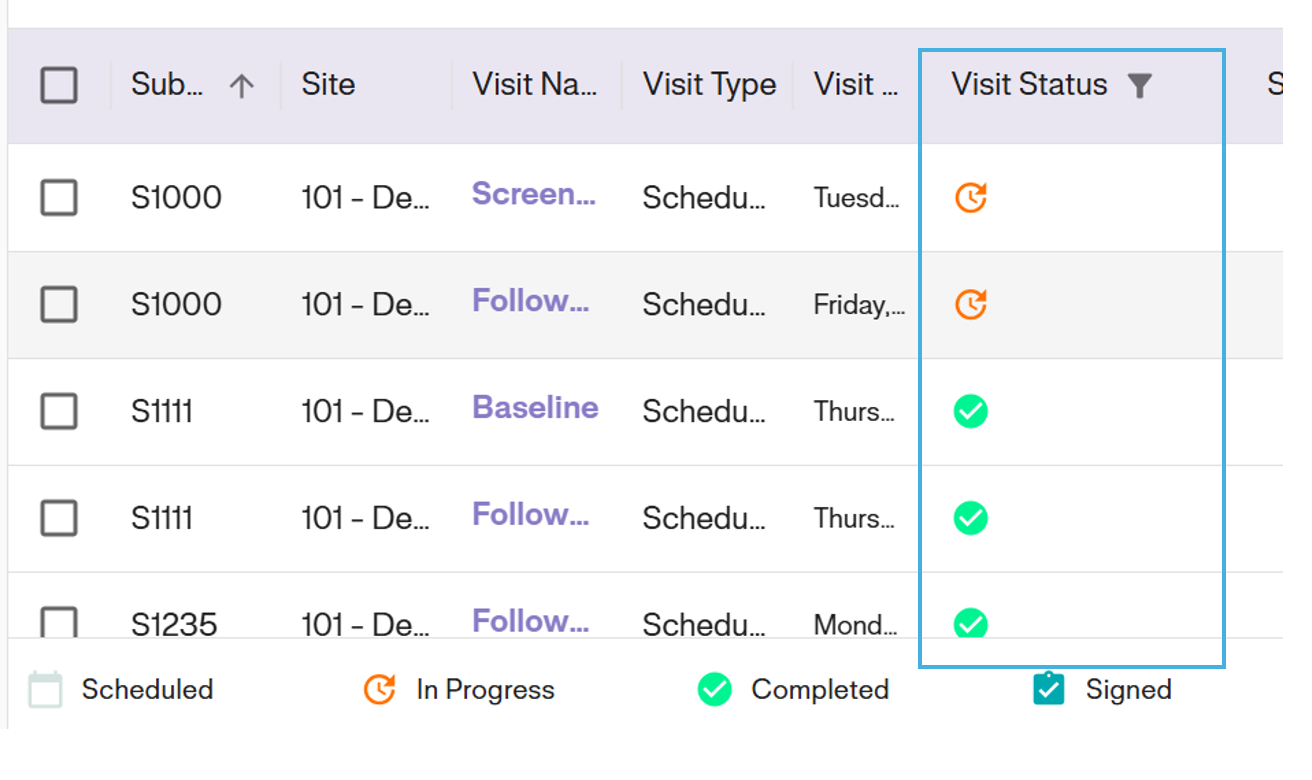
For a specific subject, the Status column displays the precise status of every visit.
Using Data Explorers
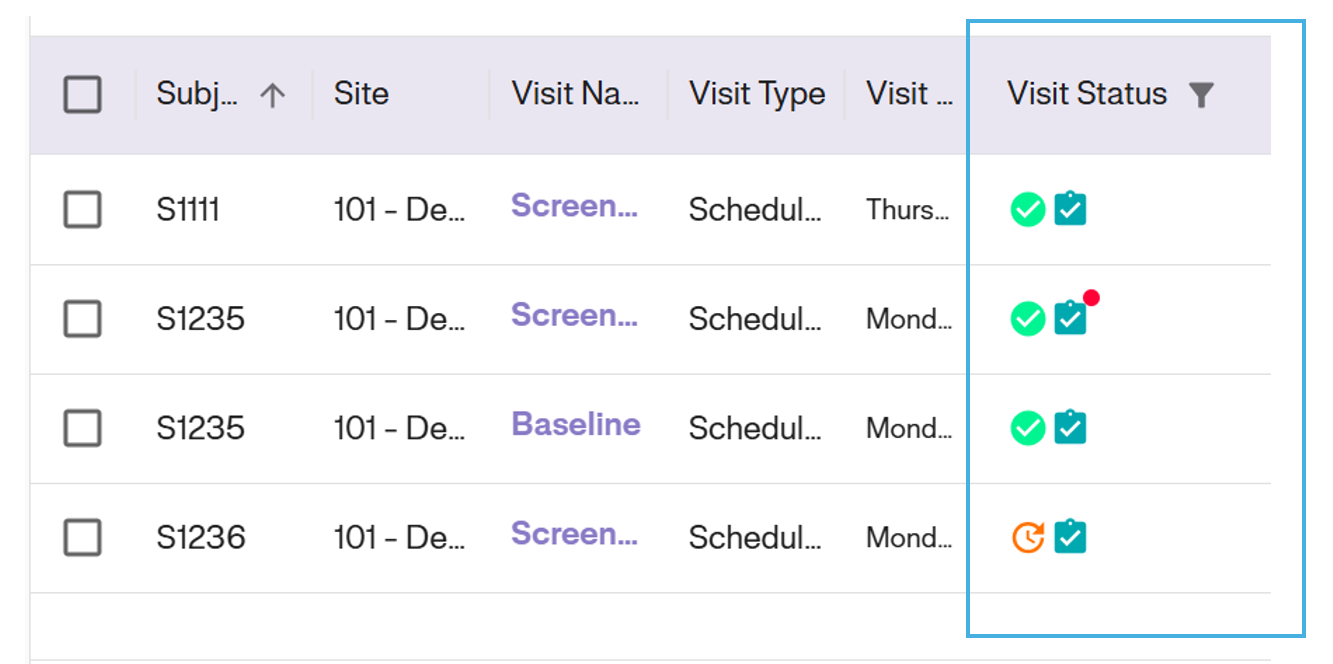
For bulk monitoring, use the Data Explorers tool to filter visits across the entire study.
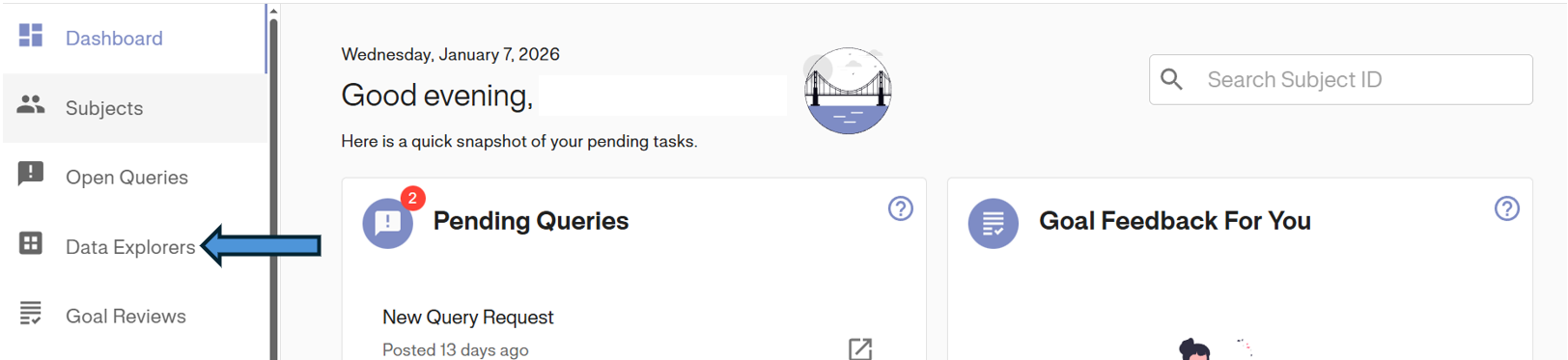
1. Access Data Explorers: Click Data Explorers in the left navigation menu.
2. Select Visits: Click the Visits tab to view the visit log.
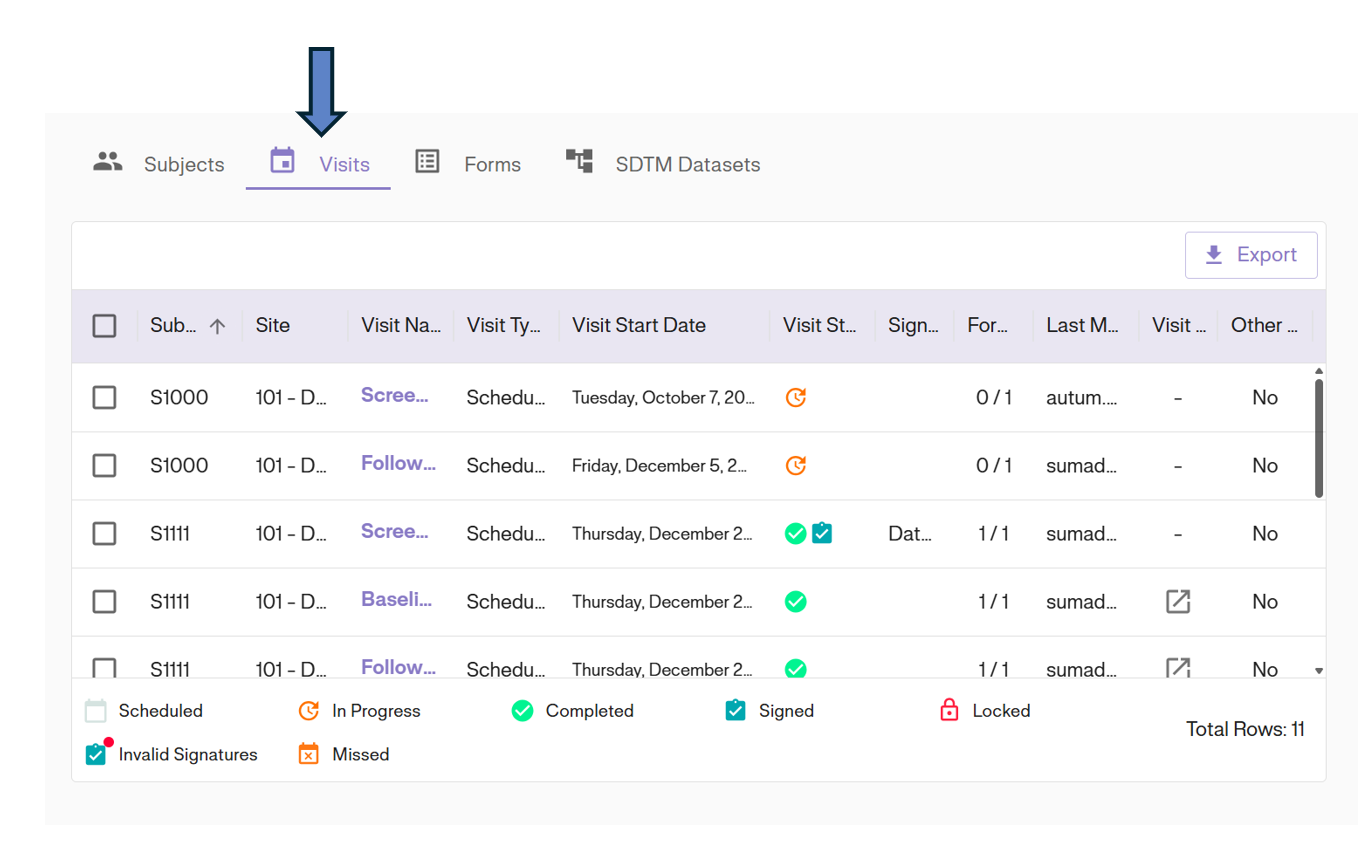
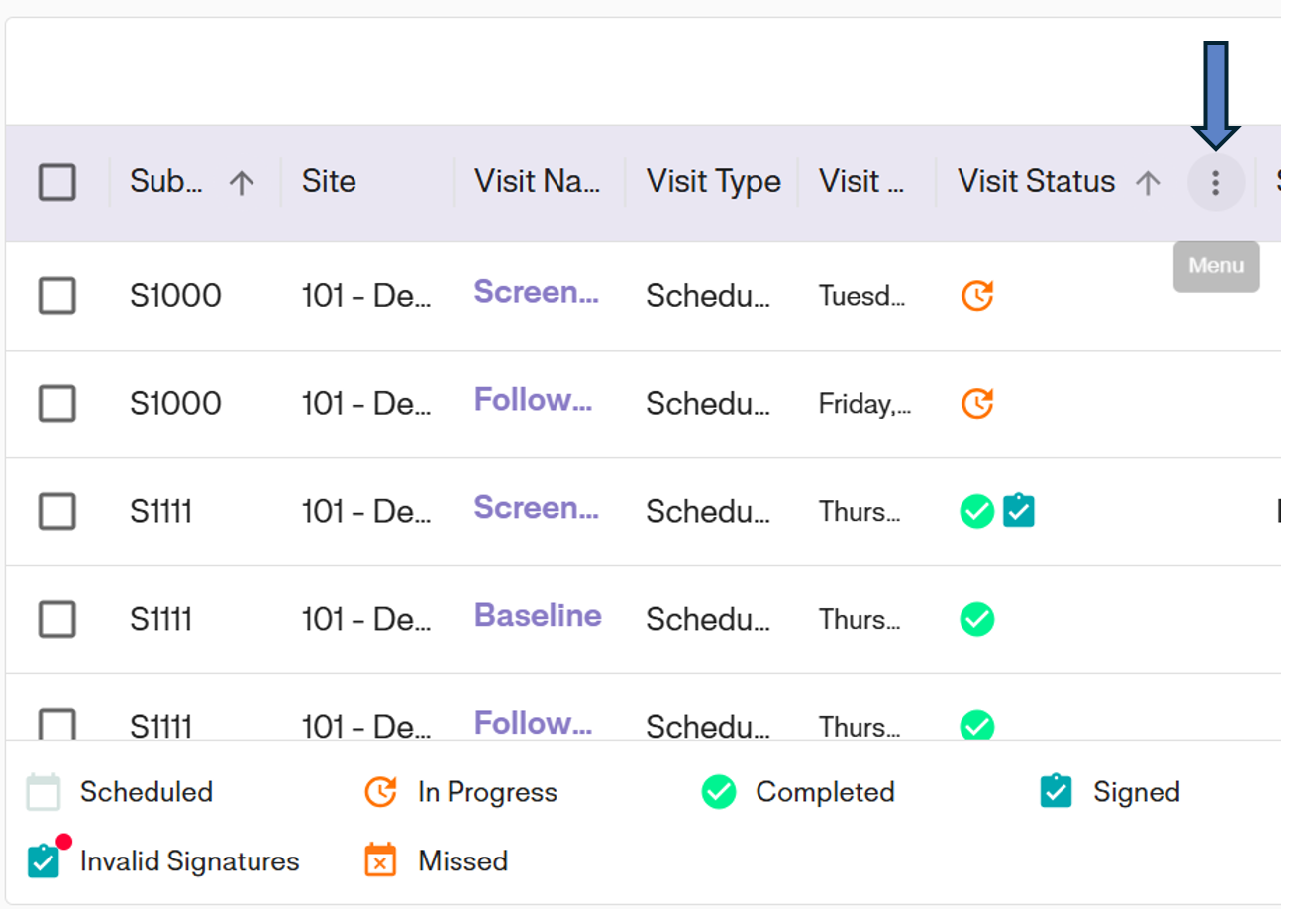
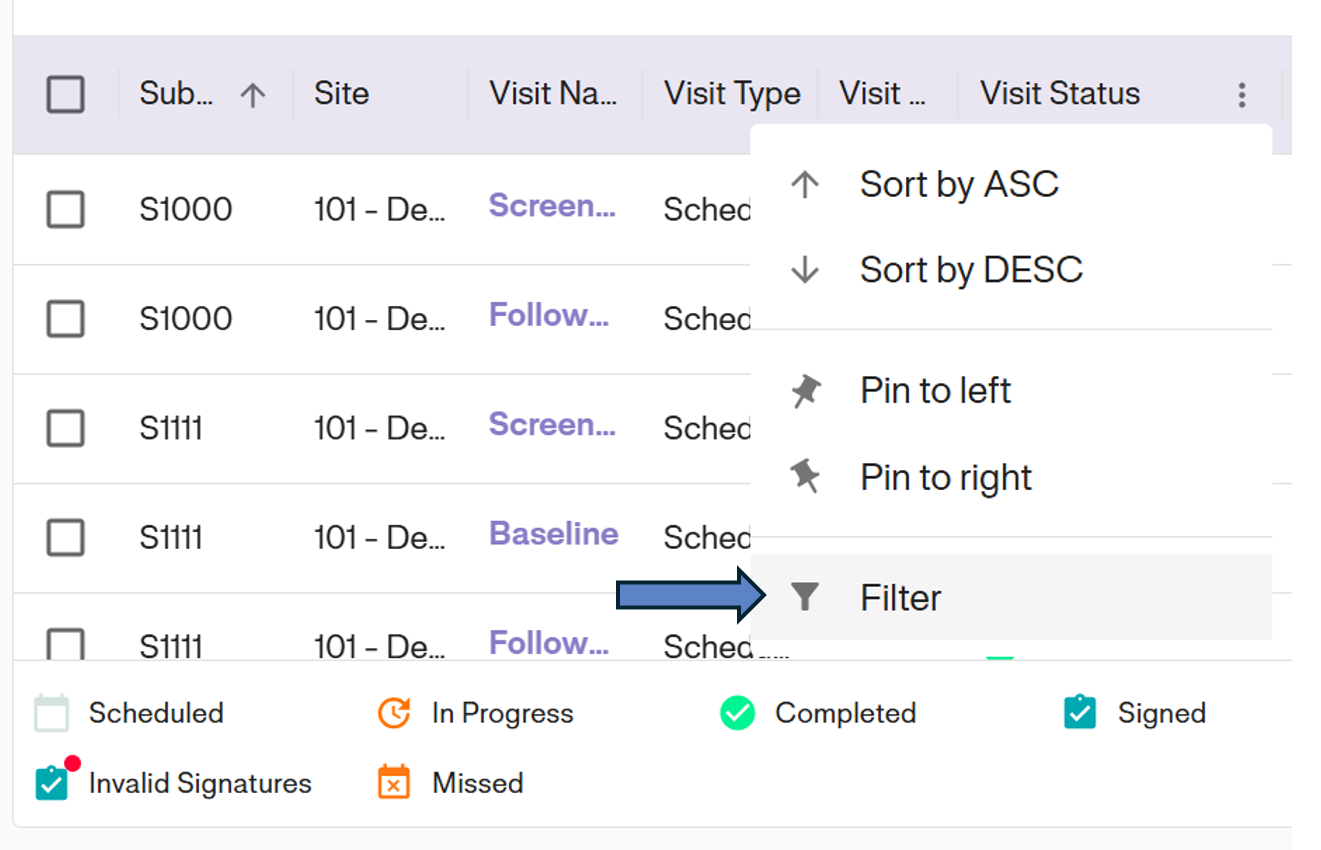
3. Open Filter: Click the Options Icon (⋮) on the Visit Status column and select Filter.
Filtering for Invalid Signatures
To find visits that need re-signing:
- Set the filter to: Visit Status
containsInvalid Signatures.
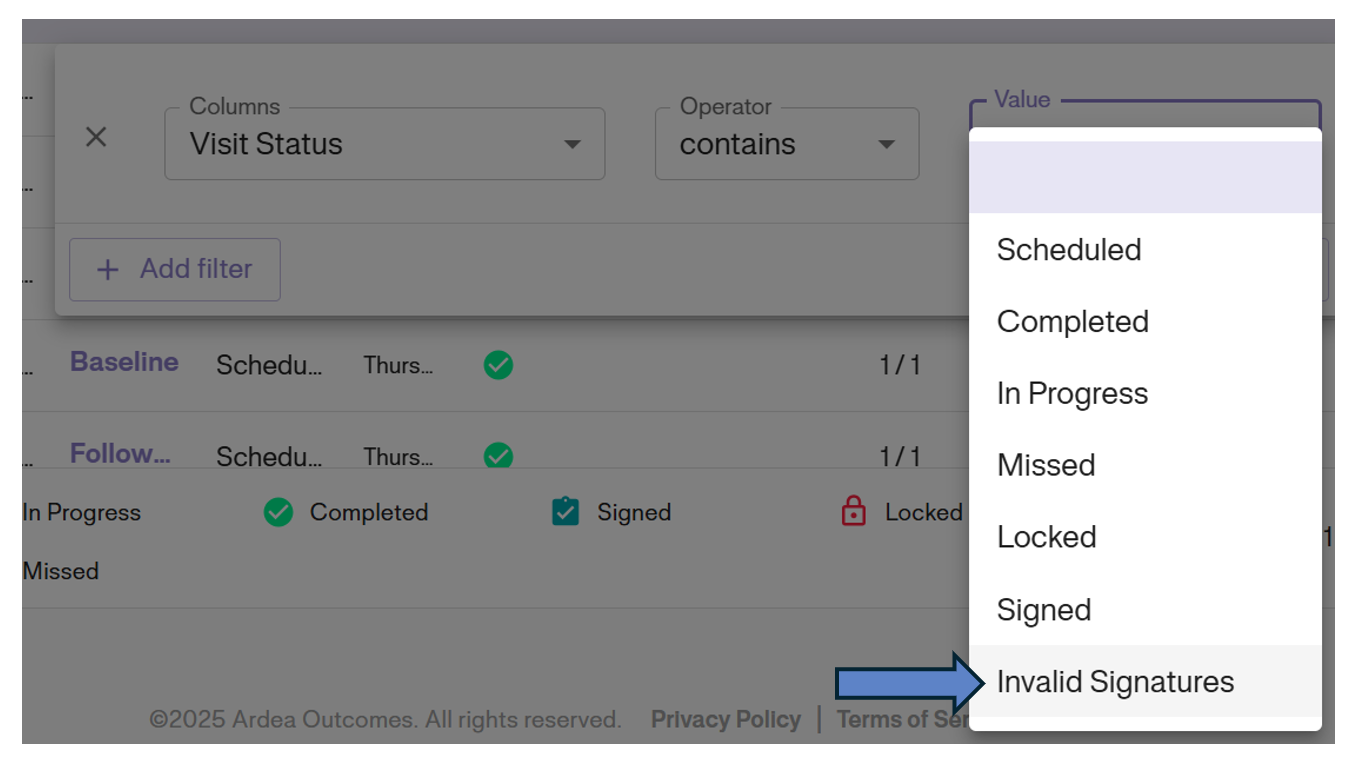
- Result: This displays only the records where the PI needs to review changes and re-sign.
Filtering for Missing Signatures
To find visits that have not yet been signed:
- Set the filter to: Visit Status
does not containSigned.
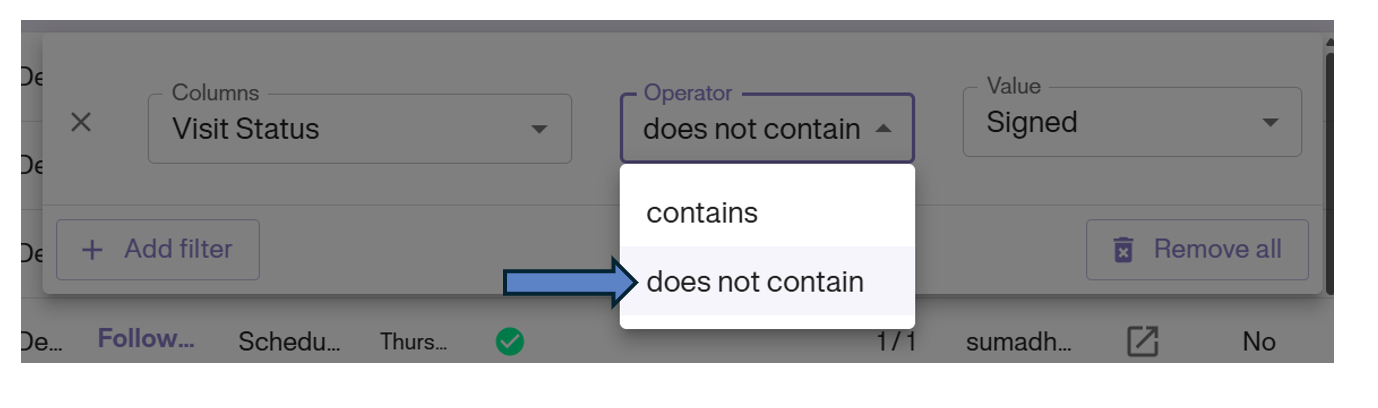
- Result: This displays all completed visits that are pending a signature.
Filtering for Signed Records
To verify completed work:
- Set the filter to: Visit Status
containsSigned.
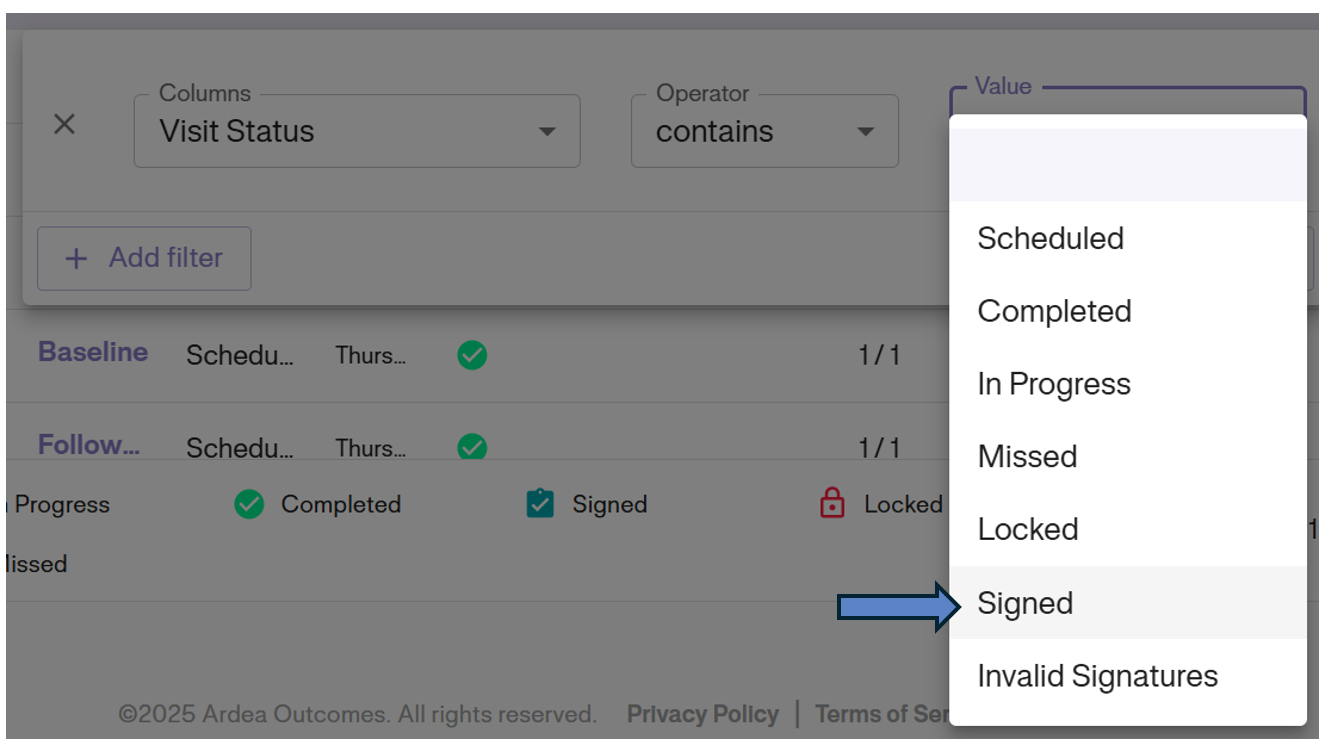
- Result: This displays all validly signed visits.